Cudy
info
- Ad Shield muliggør, at AdGuard DNS kan filtrere annoncer, trackere og andet uønsket indhold på netværksniveau. Kørende på routerniveau, beskytter den alle tilsluttede enheder og forbedrer fortroligheden på tværs af surfing, streaming og app-brug.
- Denne funktion er tilgængelig på Cudy-routere med firmwareversion 2.5.0+.
- TR3000 bruges som et eksempel i denne vejledning.
Brug af Cudy-appen
-
Tilslut mobilen til routerens Wi-Fi-netværk.
-
Download Curdy-appen på mobilen.
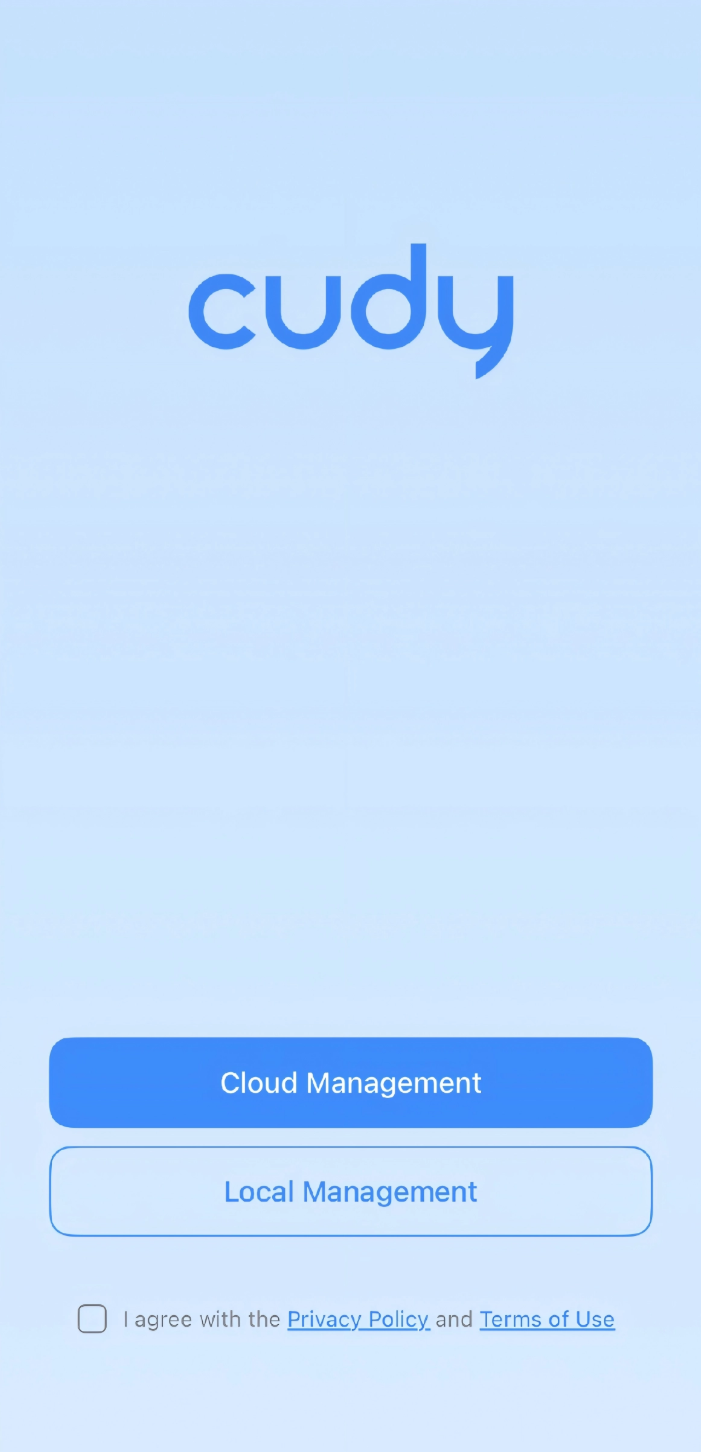
- Åbn Cudy-appen på mobilen. Markér Jeg accepterer Fortrolighedspolitik og Salgsbetingelser, og vælg Lokal håndtering.
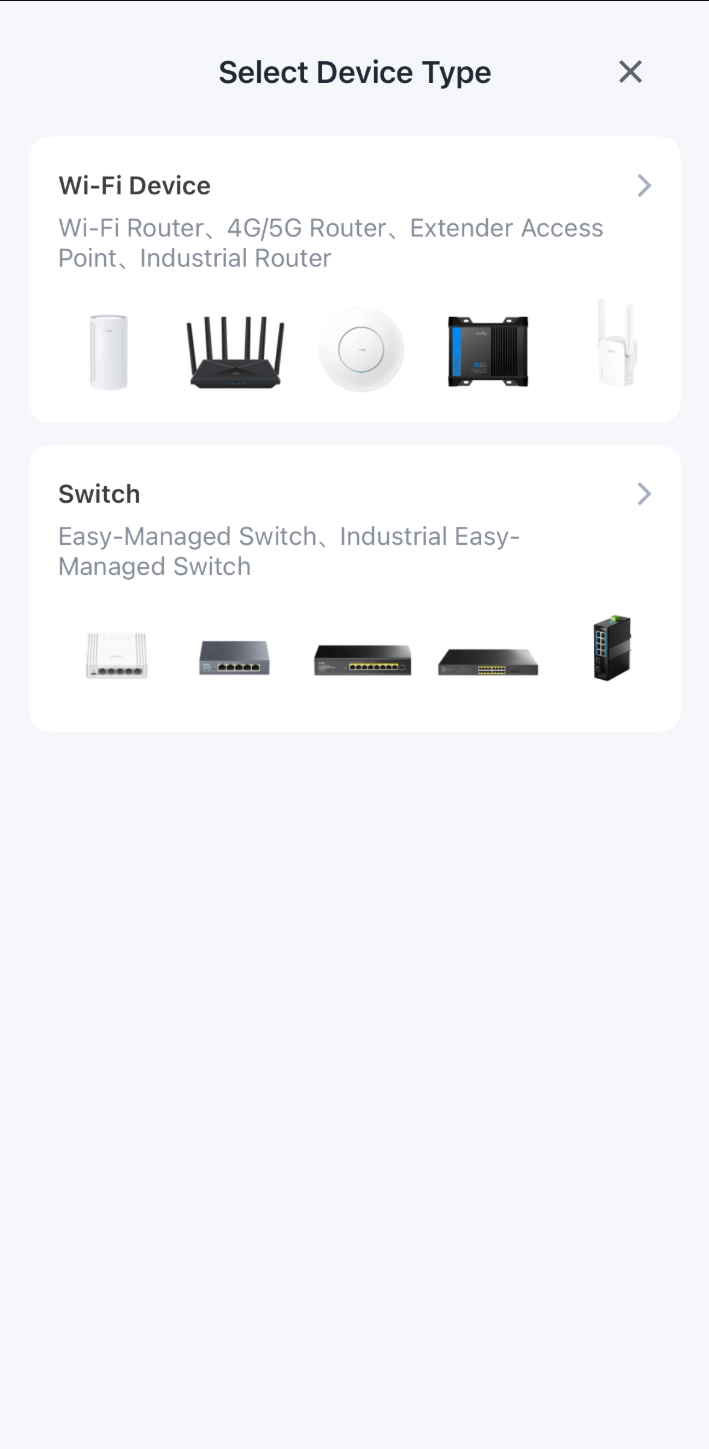
- Vælg Wi-Fi-enhed.
tip
Er der tidligere håndteret andre enhedstyper i Cudy-appen, skal der muligvis trykkes på menuikonet (☰) til venstre for Kontrolpanel for at skifte til Wi-Fi-enhed.
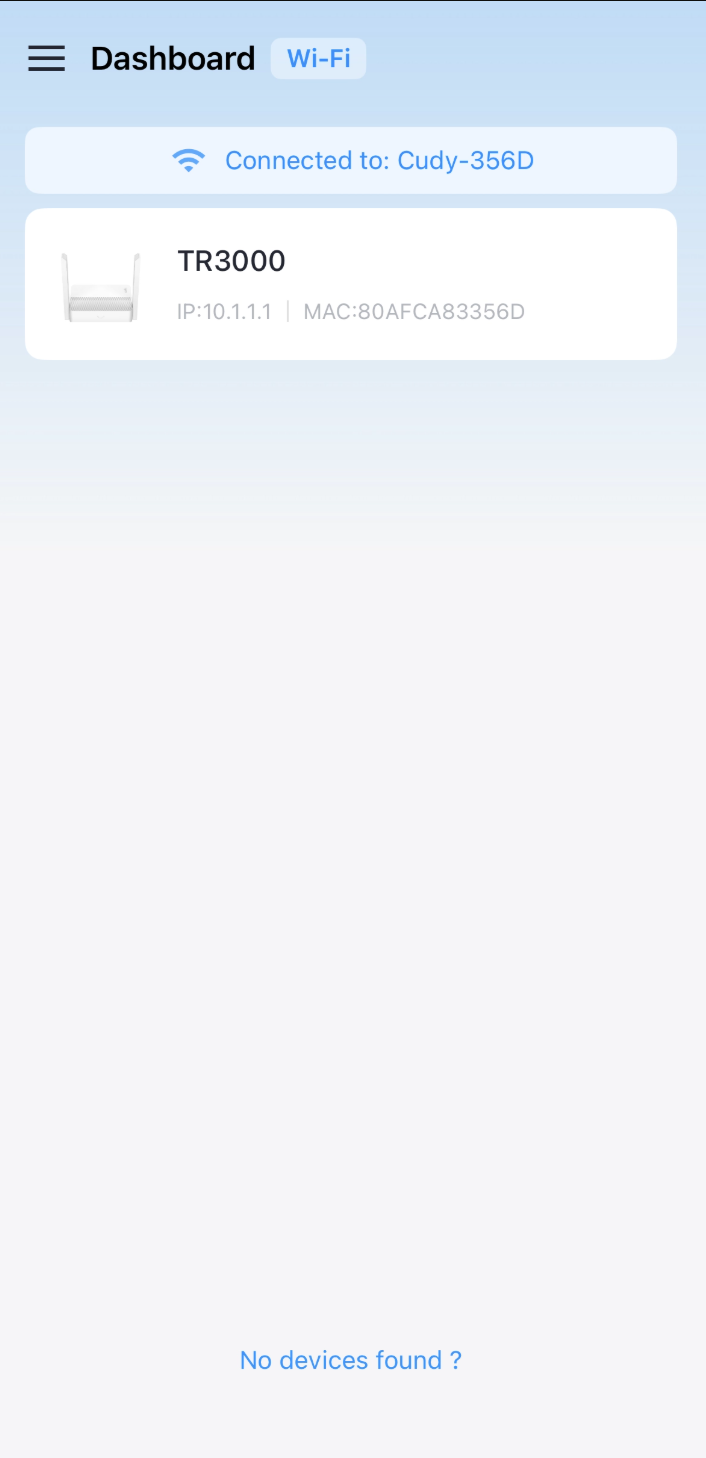
- Tryk på routeren.
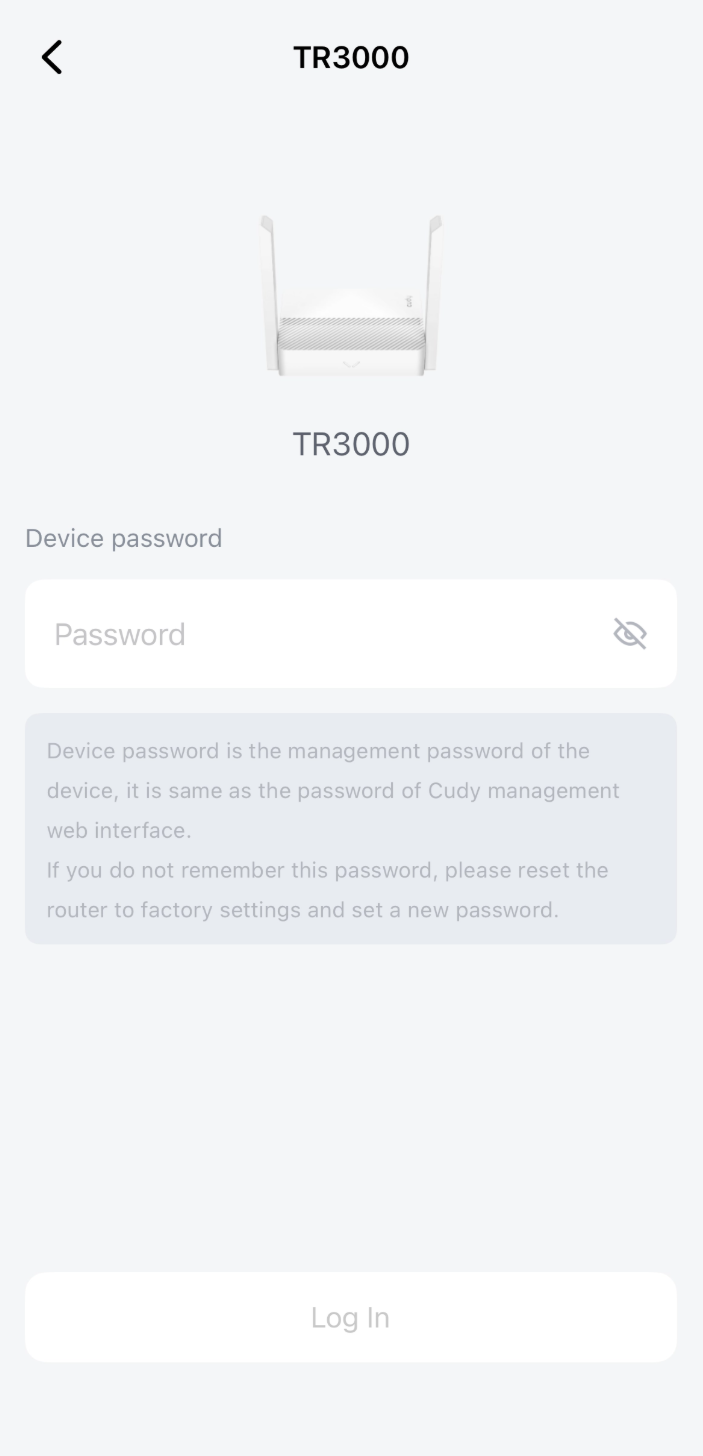
- Angiv routerens administratoradgangskode. Opret én, hvis der logges ind for første gang.
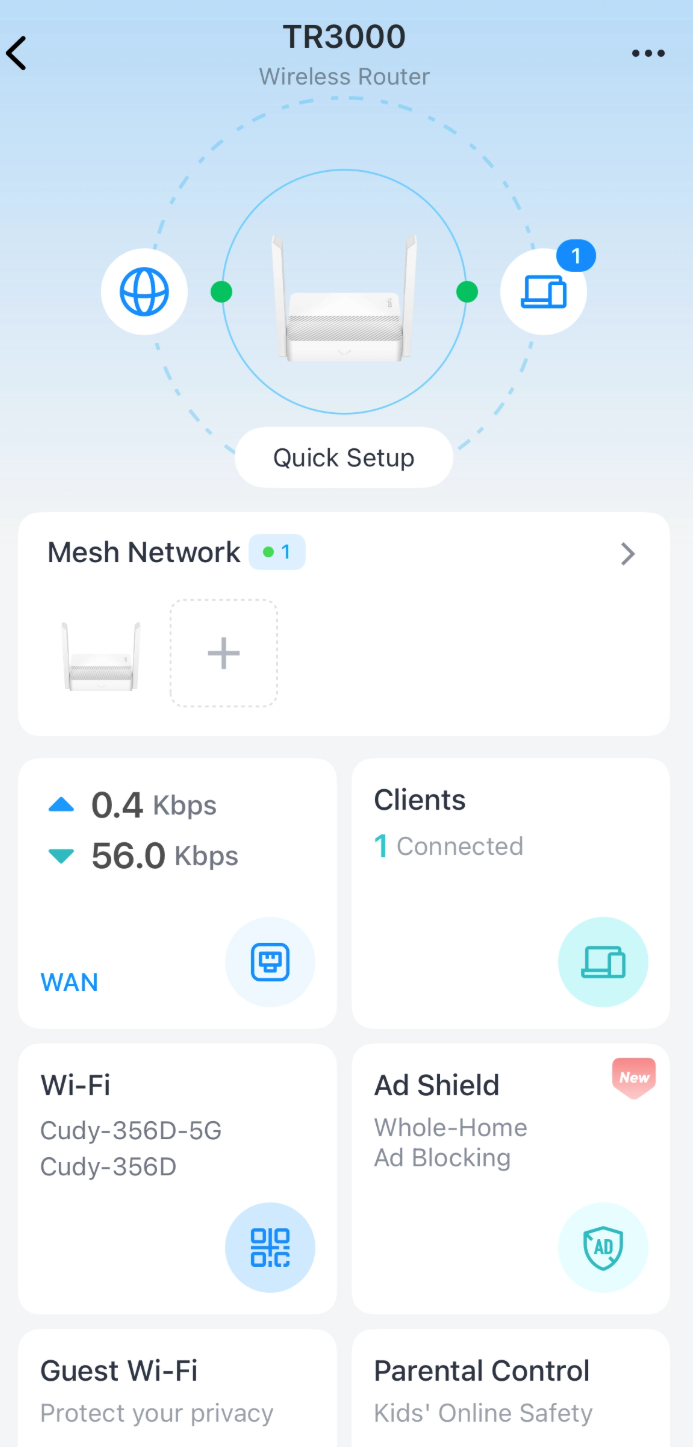
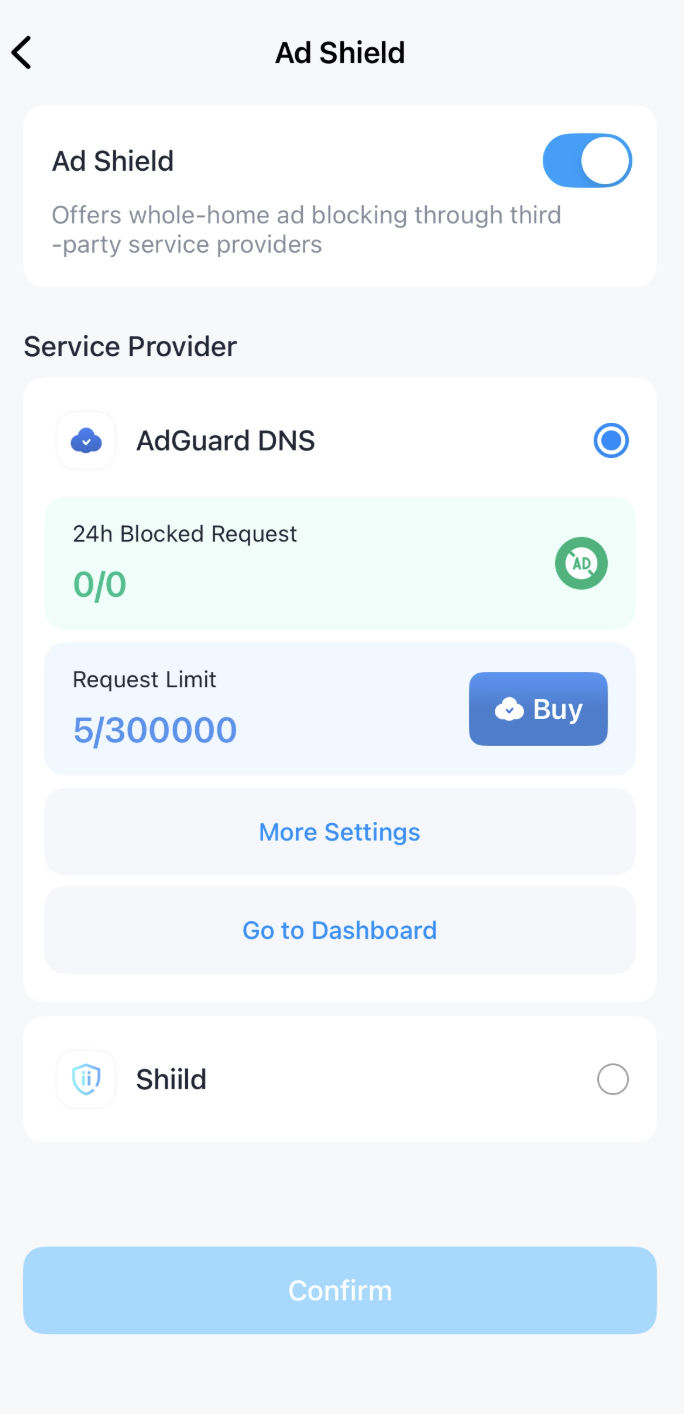
- Tryk på Ad Shield.
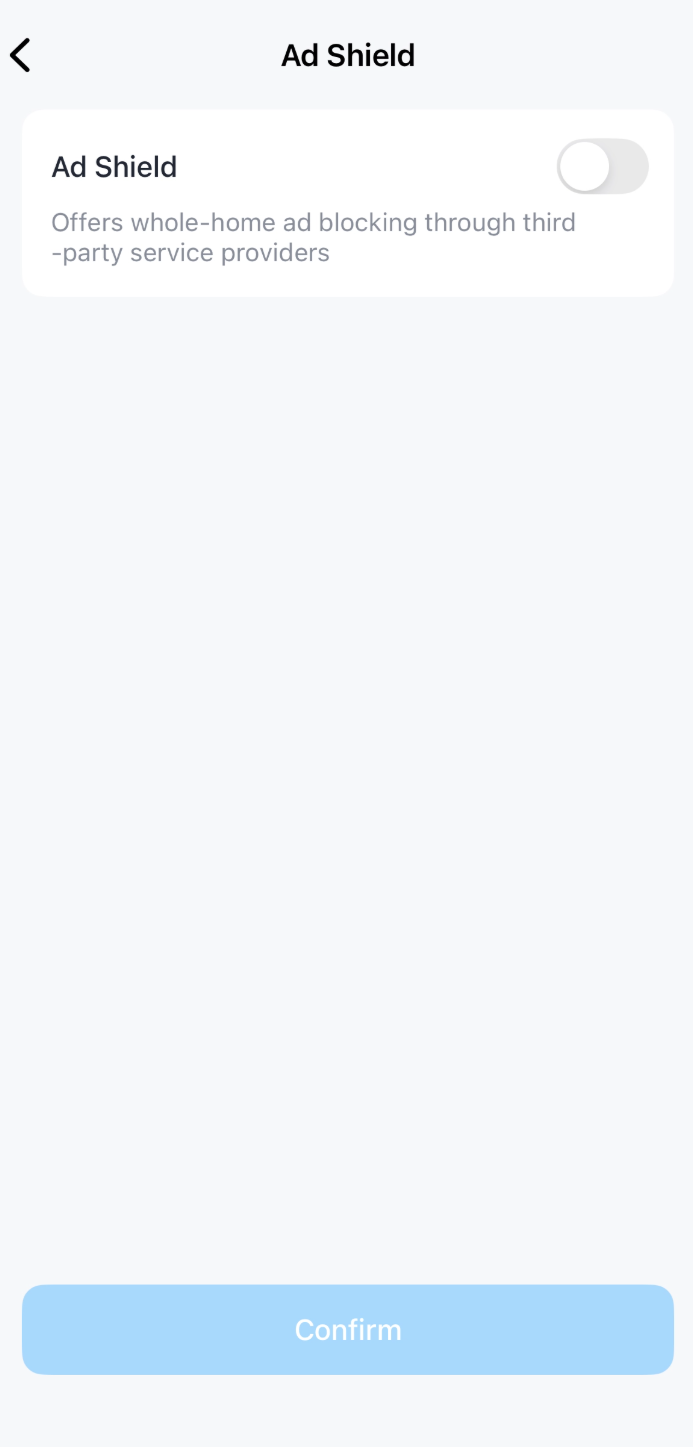
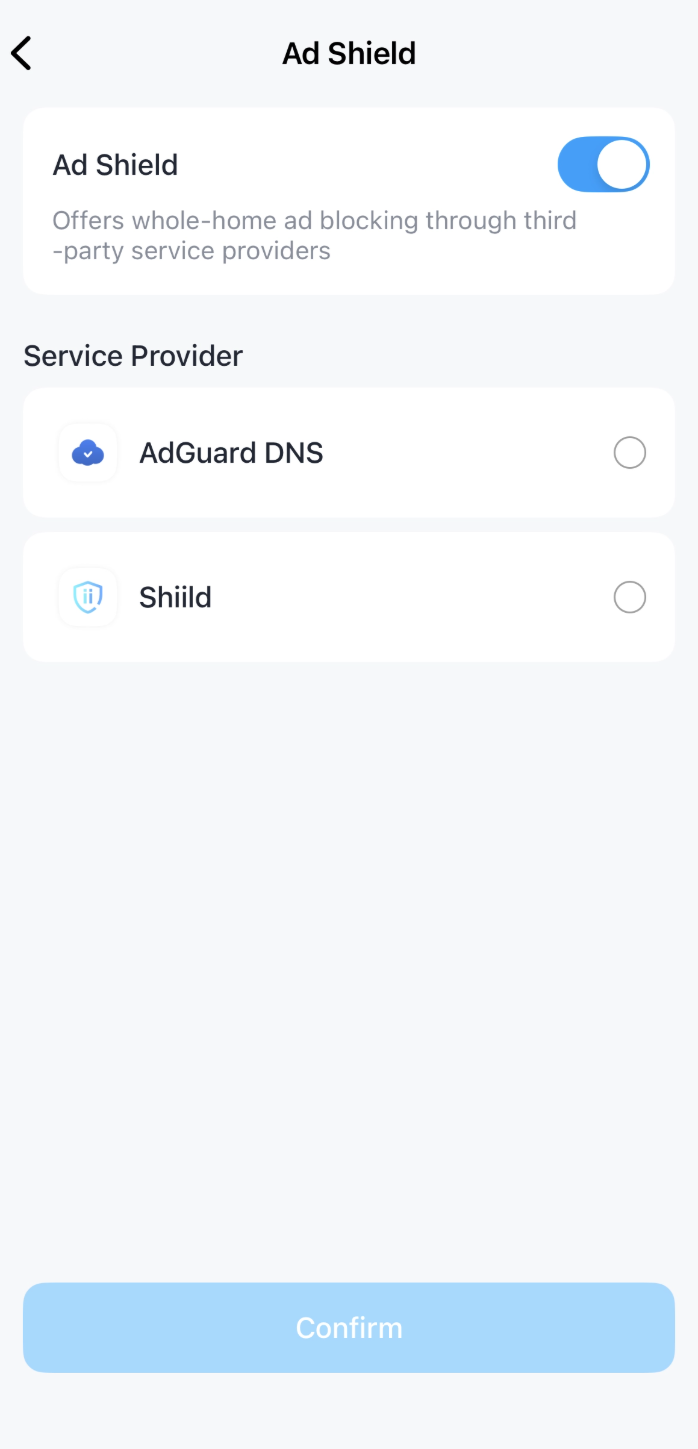
- Slå til for at aktivere Ad Shield.
- Vælg en "AdGuard DNS".
bemærk
AdGuard DNS kræver Cudy-app V1.5.5+
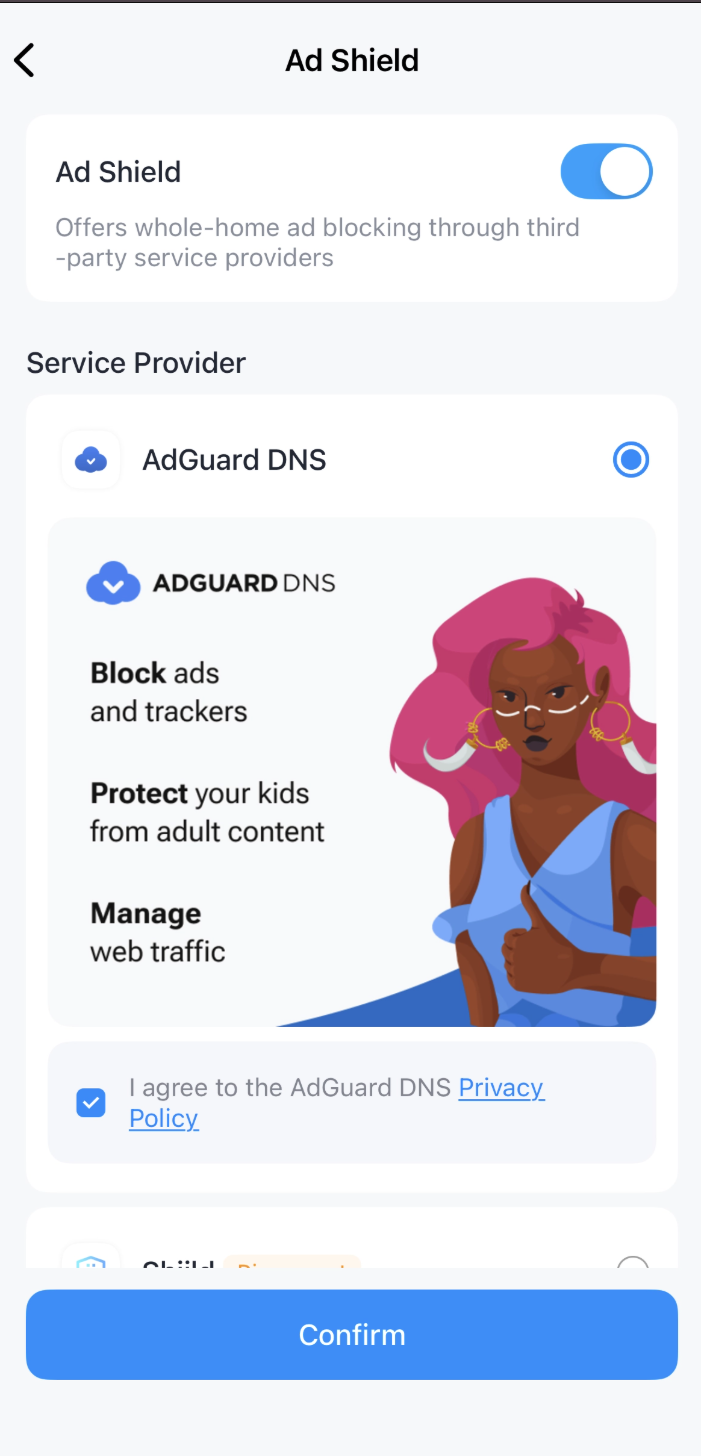
- Markér Jeg accepterer AdGuard DNS Fortrolighedspolitik, og klik på Bekræft.
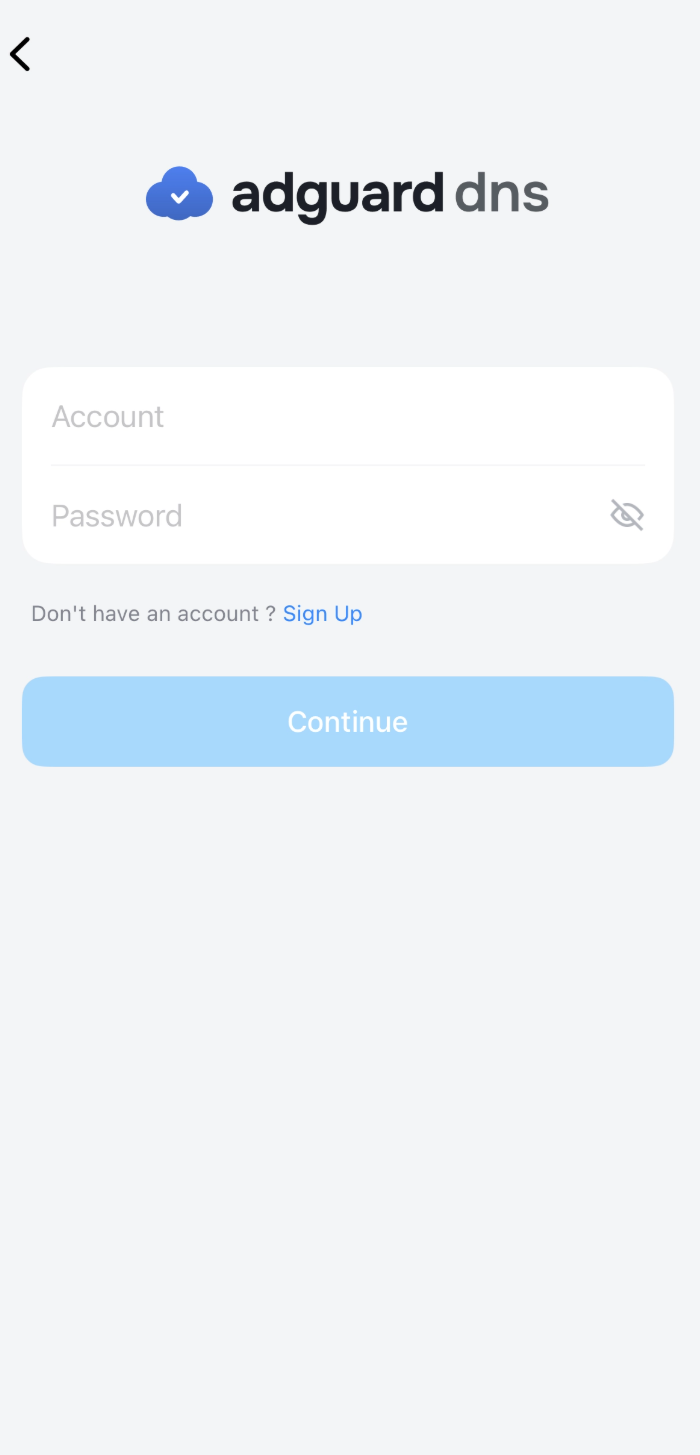
- Angiv brugernavn og adgangskode til AdGuard DNS-kontoen, og klik på Fortsæt.
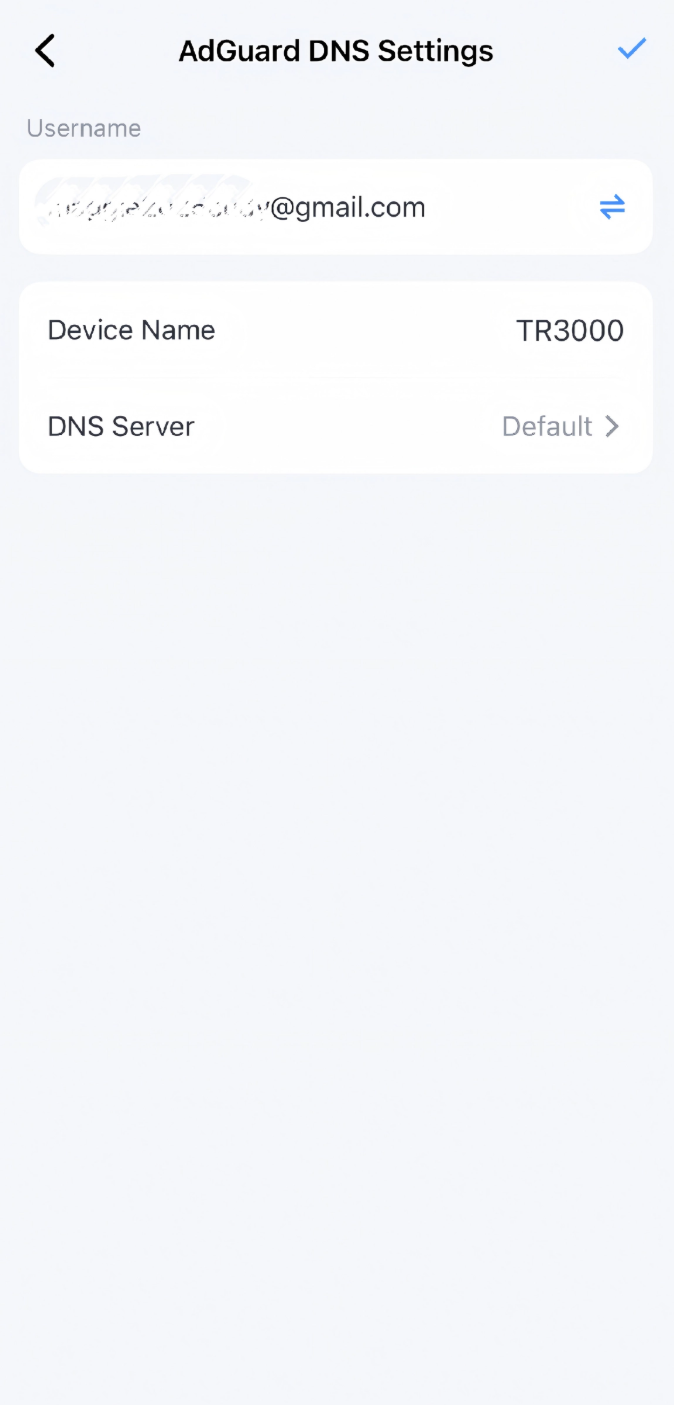
- Angiv et Enhedsnavn, bibehold DNS-serveren som Standard og tryk på ✔-ikonet øverst til højre.
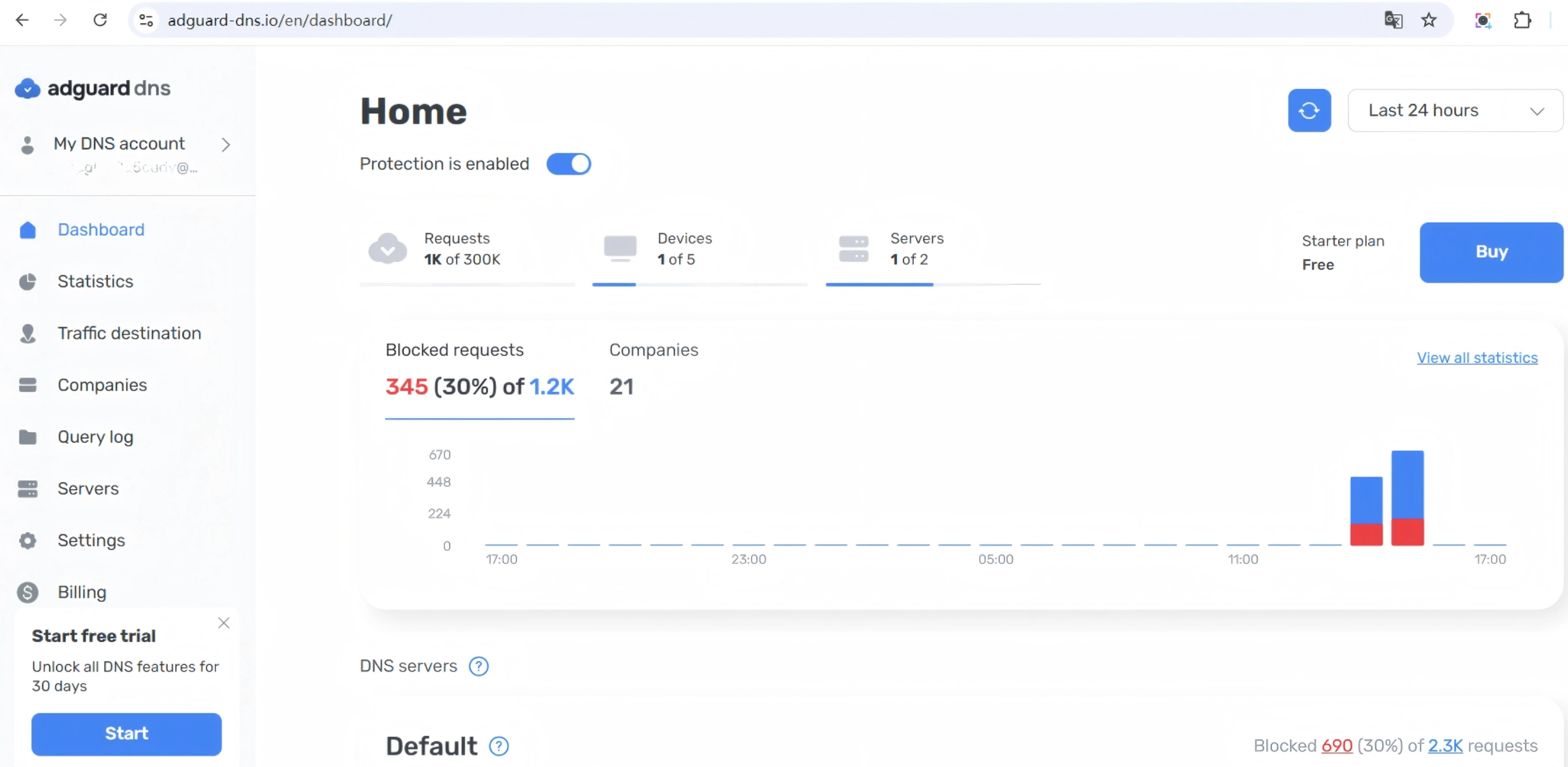
- AdGuard DNS assisterer nu med at blokere annoncer eller andet uønsket indhold. For yderligere indstillinger, klik på Gå til Kontrolpanel.
Brug af webgrænseflade
-
Log ind på routerens webgrænseflade via cudy.net eller 192.168.10.1.
-
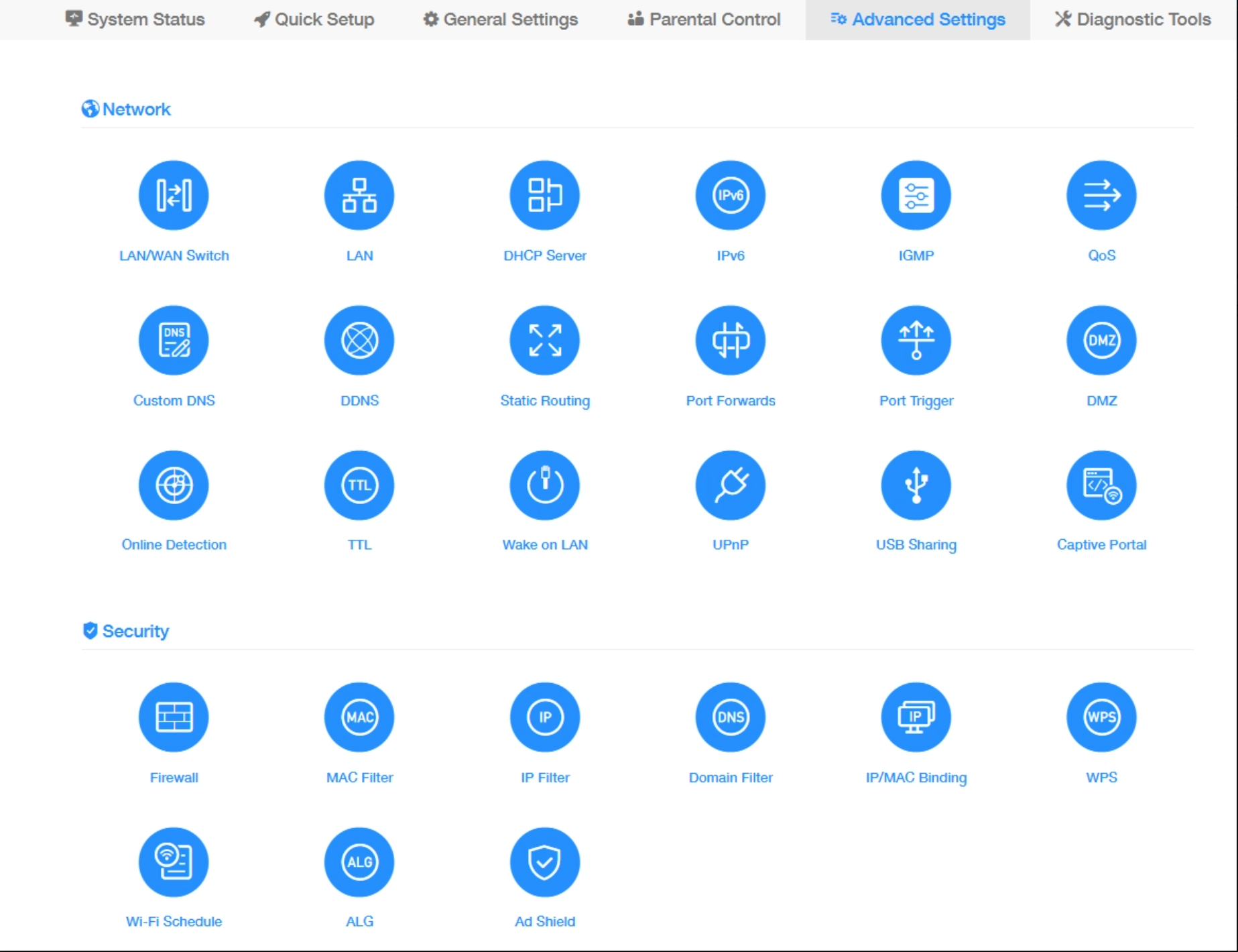
Gå til Avancerede indstillinger → Sikkerhed → Ad Shield.
-
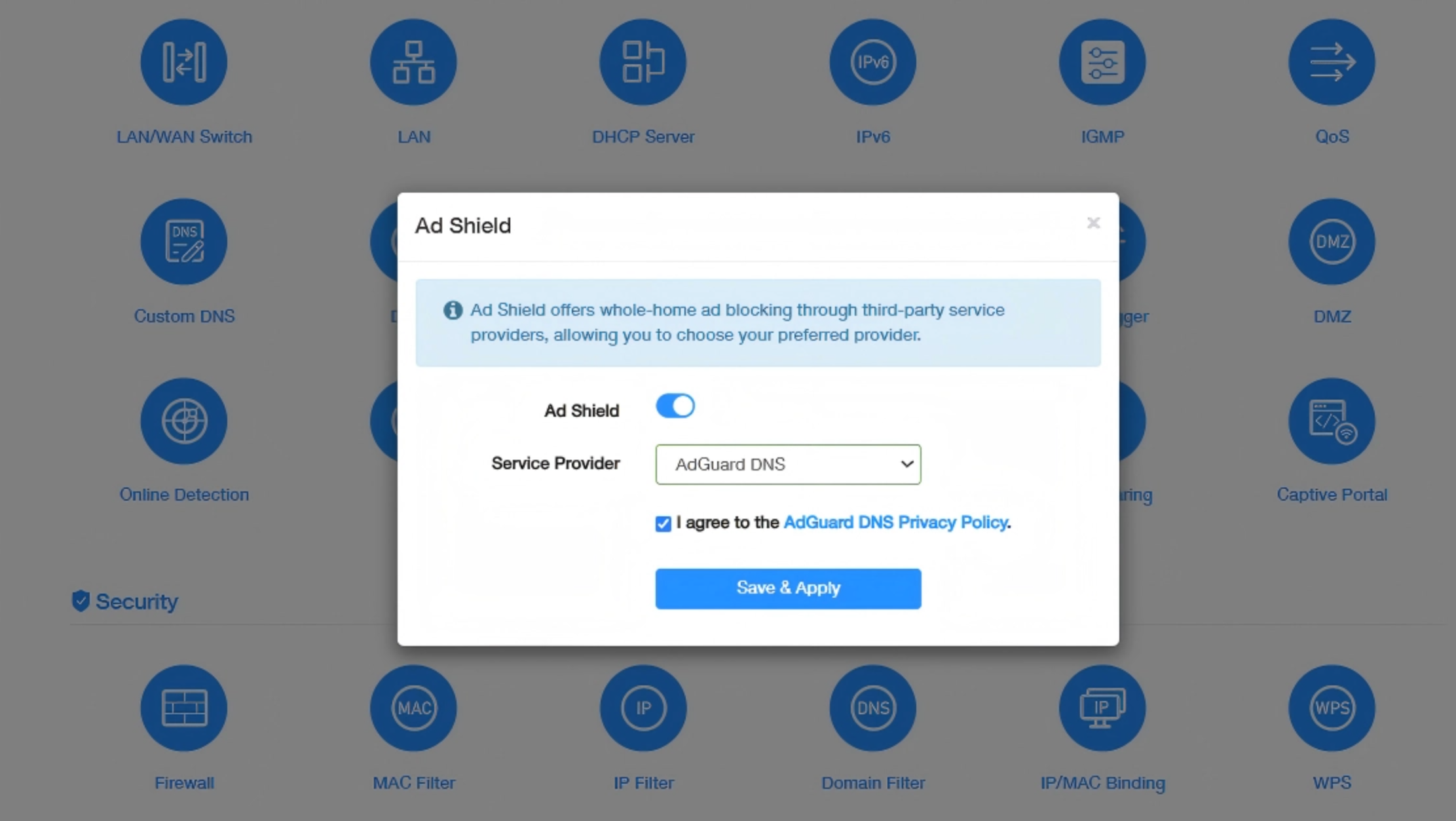
Aktivér Ad Shield og vælg AdGuard DNS som tjenesteudbyder.
-
Markér Jeg accepterer AdGuard DNS Fortrolighedspolitik, og klik på Gem og Anvend.
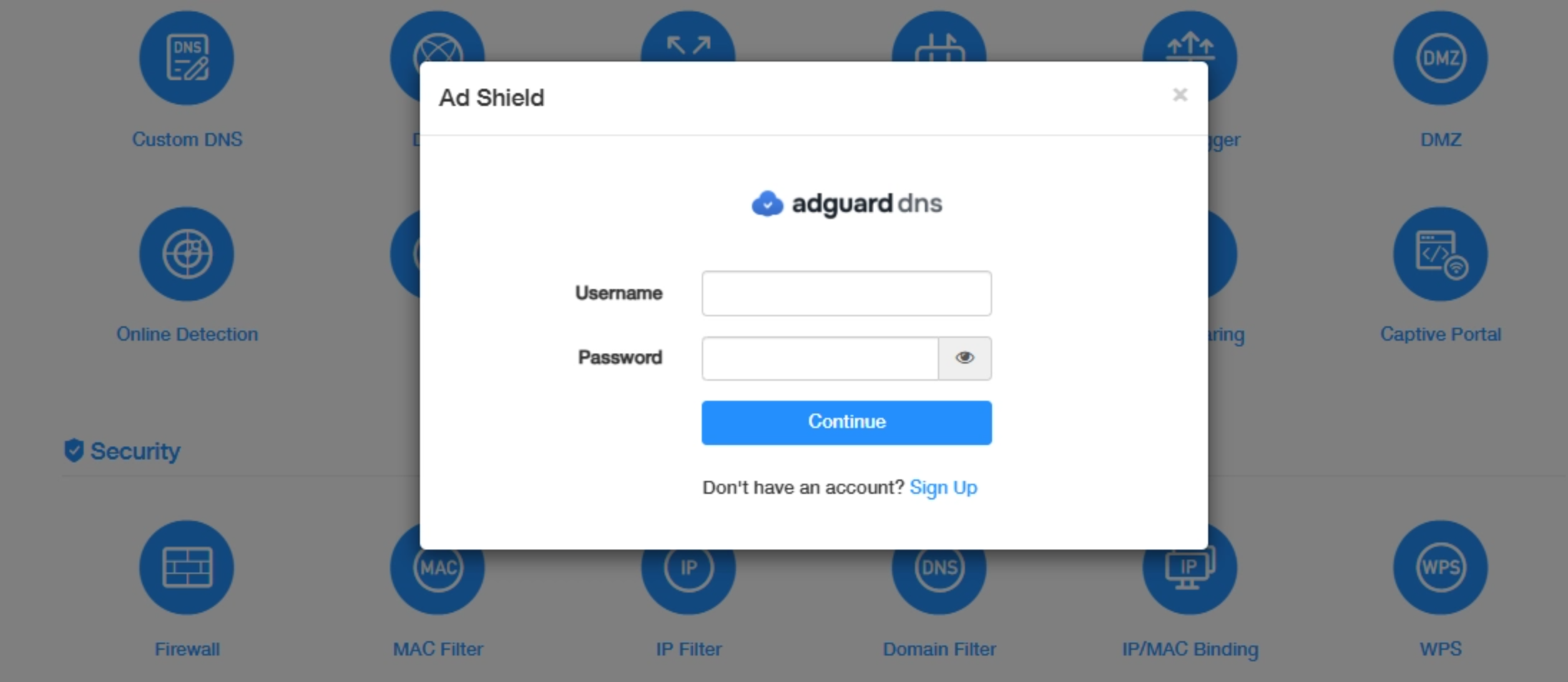
- Log ind på AdGuard DNS-kontoen med brugernavn og adgangskode, og klik på Fortsæt.
- Angiv Enhedsnavn, vælg Standard under DNS-server, og klik på Gem og Anvend.
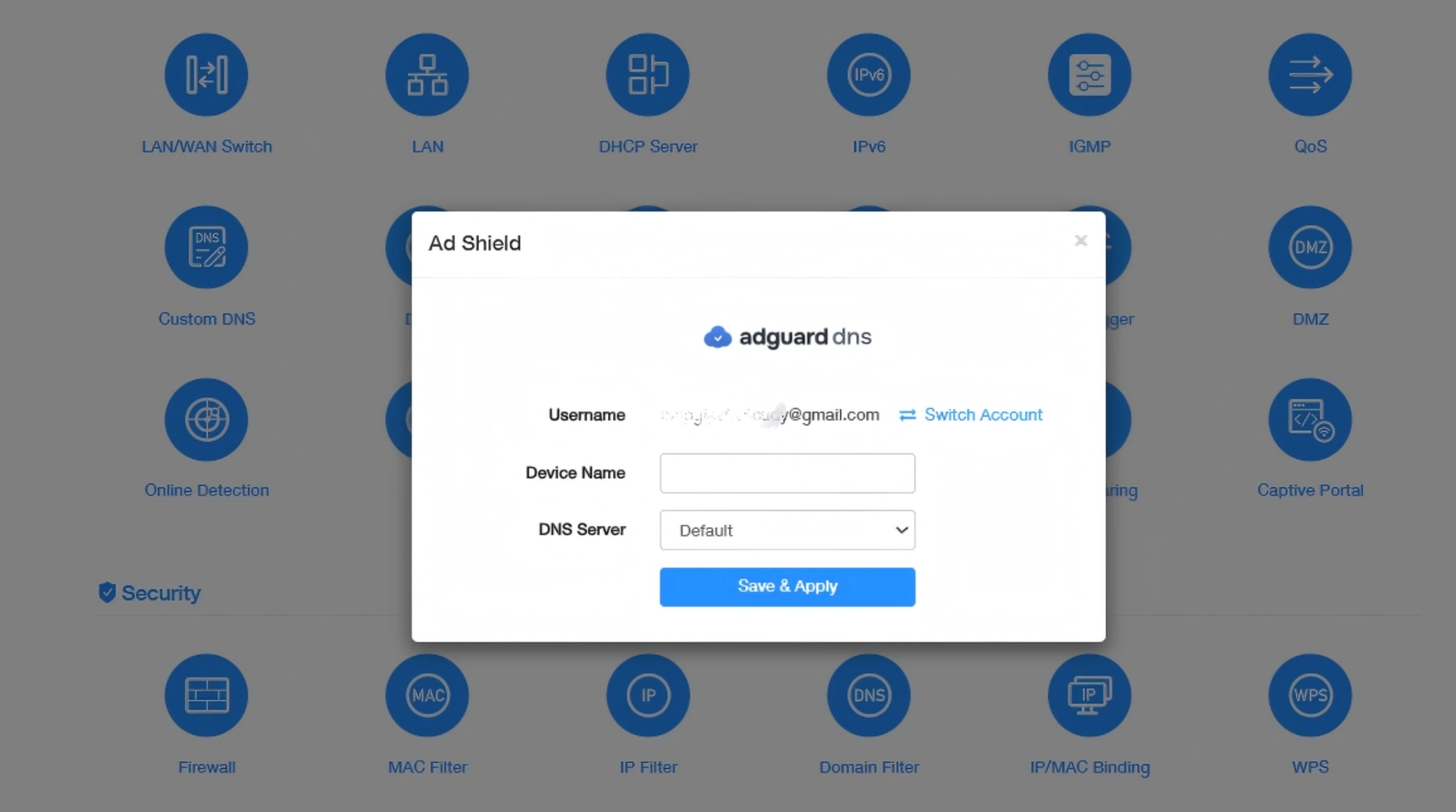
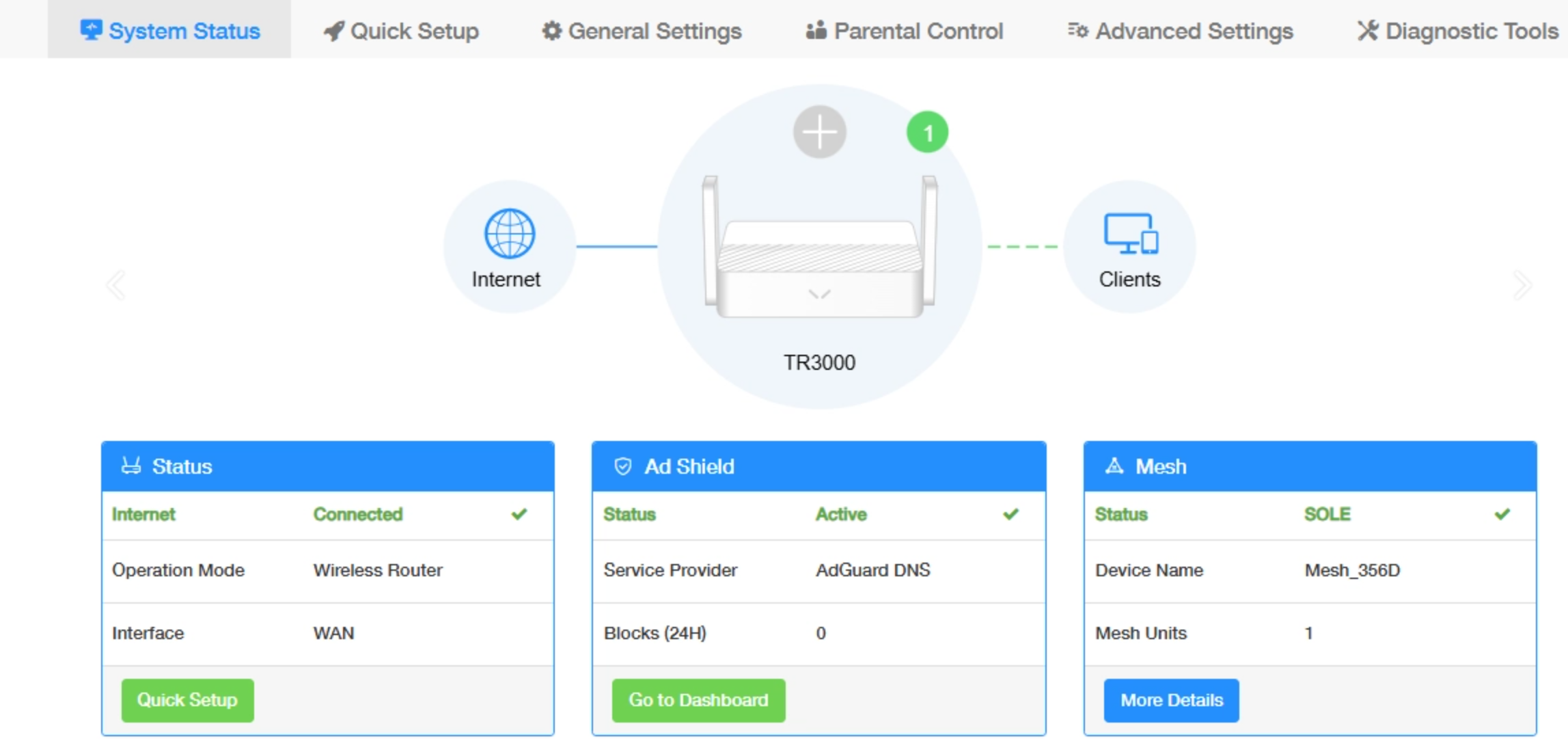
- Markér statussen Aktiv under Systemstatus → Ad Shield og klik på Gå til kontrolpanel for at opsætte AdGuard DNS.