Erweiterte Einstellungen
The Advanced settings section is intended for more experienced users and includes options that may be useful in specific networking, privacy, or troubleshooting scenarios. These settings allow you to fine-tune how your DNS server behaves, how devices connect to it, and how filtering is applied.
Access & connectivity
Setup ID
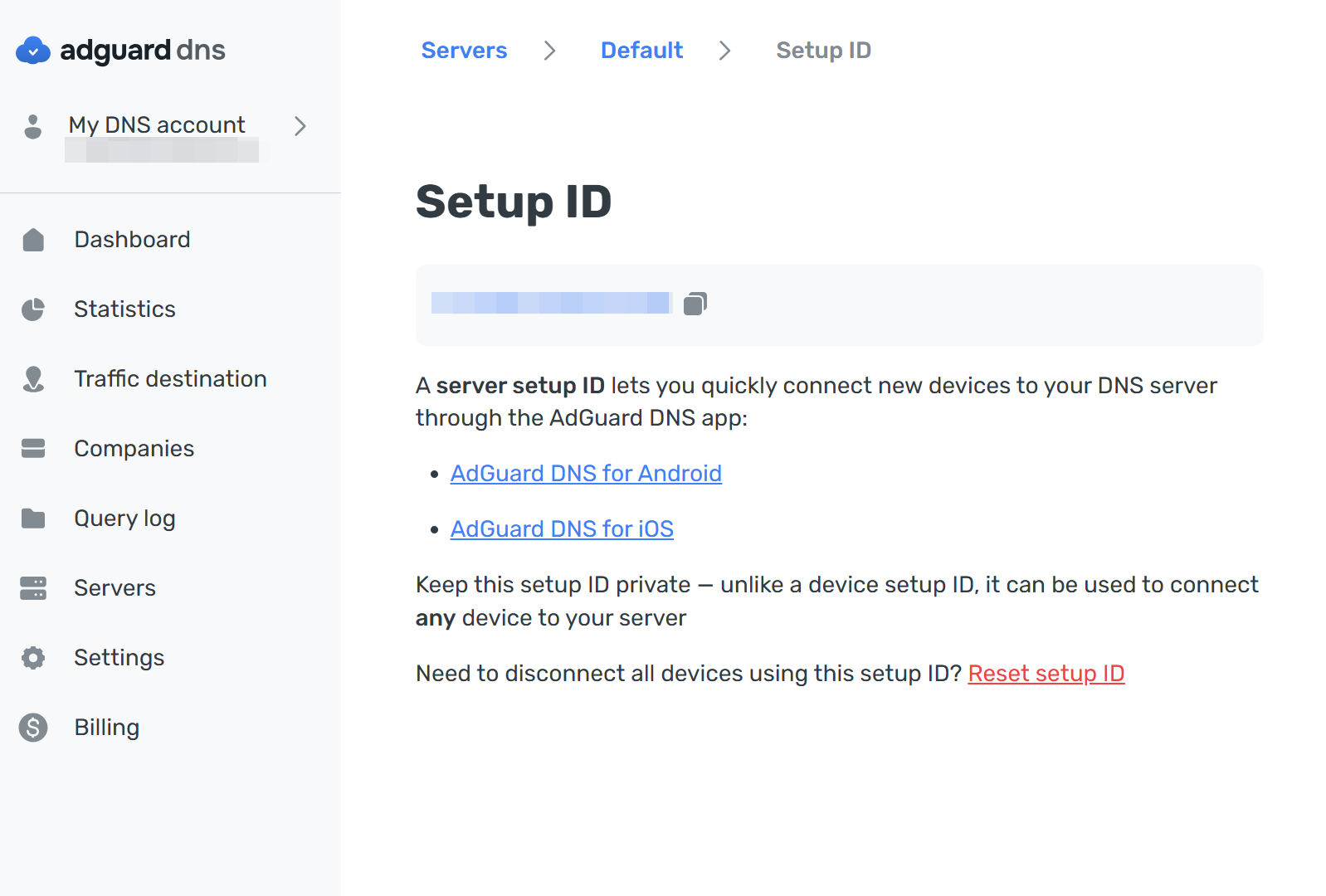
A server setup ID allows you to quickly connect devices to your DNS server through the AdGuard DNS app.
Unlike device-specific identifiers, this ID can be used to connect any device to the server, so it should be kept private. It is especially useful when onboarding multiple devices or simplifying setup for family members or teammates.
You can reset the setup ID at any time. Once reset, previously generated setup links will stop working.
Connect devices automatically
This feature allows devices to be automatically registered when they connect to your DNS server using a generated setup link.
The link contains the device name, device type, and server ID. When a device uses this link, it is automatically added to your DNS server without requiring manual configuration.
This simplifies device onboarding and is especially useful when connecting multiple devices at once.
Filtering behavior
Respond to blocked domains
This setting defines how the DNS server responds when a domain is blocked.
You can choose between several response types:
- Default: Respond with zero IP address (0.0.0.0 for A; :: for AAAA) when blocked by Adblock-style rule; respond with the IP address specified in the rule when blocked by /etc/hosts-style rule
- REFUSED: Respond with REFUSED code
- NXDOMAIN: Respond with NXDOMAIN code
- Custom IP: Respond with a manually set IP address
Different response types may be useful in different scenarios. For example, redirecting requests to a custom IP address allows you to display a local block page instead of simply blocking access.
TTL (Time to live)
TTL specifies how long a client device should cache a DNS response before re-requesting the DNS server.
Higher TTL values reduce the number of DNS requests and may improve performance, since cached responses are reused for a longer period of time. However, changes to filtering rules or DNS records may take more time to propagate.
If the TTL value is set to 0, responses are not cached, and every request is sent directly to the DNS server.
Bypass protection
Block access to iCloud Private Relay
This setting blocks devices that use iCloud Private Relay.
Private Relay may bypass configured DNS settings and send traffic through Apple’s relay infrastructure instead. As a result, DNS filtering may become ineffective.
Enable this option if you want to ensure that filtering rules are consistently applied to Apple devices.
Block Firefox canary domain
Firefox may automatically switch to its own DNS-over-HTTPS (DoH) resolver if it detects support for encrypted DNS.
This setting blocks Firefox’s canary domain, preventing the browser from enabling its own DoH resolver and bypassing your configured DNS server.
Enable this option if you want Firefox to always use AdGuard DNS filtering.
Force preflight mode for prefetching in Chrome
Chrome may preload resources using its prefetch proxy before users actually open a webpage.
In some cases, these prefetched requests may bypass DNS filtering. This setting forces Chrome to perform preflight checks, ensuring that filtering rules are applied to preloaded resources.
Enable this option if you want consistent DNS filtering behavior in Chrome, especially when prefetching is enabled.
Logging
Log IP addresses
By default, AdGuard DNS doesn’t log IP addresses of incoming DNS requests.
When enabled, IP addresses are logged and displayed in the Query log. While this can be useful for debugging or analytics, it may have privacy implications depending on your use case.