概要
AdGuard DNS を使うと、プライベートDNSサーバーを設定してDNSリクエストを解決し、広告、トラッカー、悪意のあるドメインがデバイスに到達する前にブロックすることができます。
クイックリンク: AdGuard DNSを試す
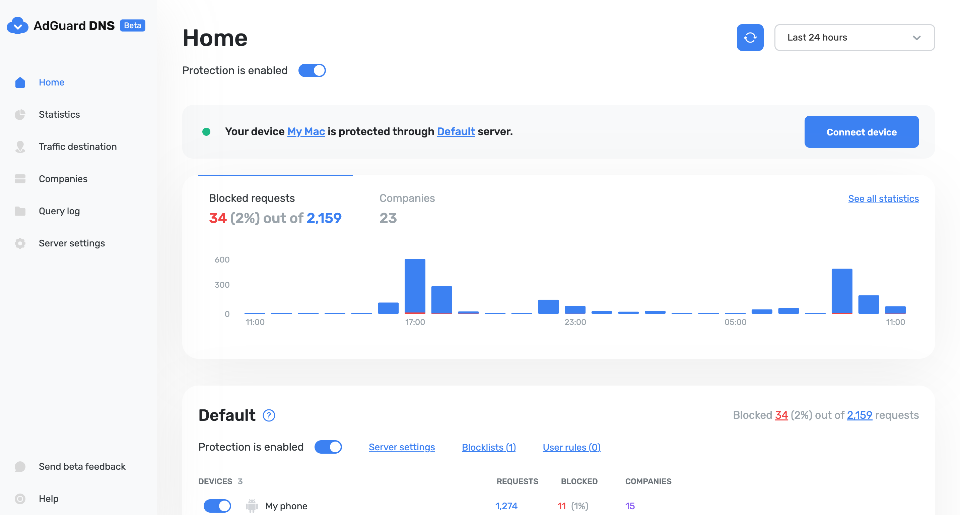
一般設定
プライベートAdGuard DNSは、トラフィックの暗号化やドメインブロックリストなど、パブリックAdGuard DNSサーバーのすべての利点に加え、柔軟なカスタマイズ、DNS統計、ペアレンタルコントロールなどの追加機能も提供しています。これらのオプションはすべて、ユーザーフレンドリーなダッシュボードから簡単にアクセス・管理できます。
プライベートAdGuard DNSが必要な理由
現在、テレビ、冷蔵庫、スマート電球、スピーカーなど、インターネットに何でも接続できる時代です。しかし、紛れもない利便性と同時に、トラッカーや広告も発生します。この場合、単純なブラウザベースの広告ブロッカーでは防御できないが、トラフィックをフィルタリングし、コンテンツやトラッカーをブロックするように設定できるAdGuard DNSは、システム全体に効果があります。
かつて、AdGuard 製品ラインアップには パブリック AdGuard DNS と AdGuard Homeのみが含まれていました。これらのソリューションは、一部のユーザーにとっては問題なく機能するが、他のユーザーにとっては、パブリックAdGuard DNSは設定の柔軟性に欠け、AdGuard Homeはシンプルさに欠けています。 That’s where private AdGuard DNS comes into play. シンプルで使いやすいダッシュボードを通じて、カスタマイズ性、コントロール性、そして情報性という、両方の長所を兼ね備えているのです。
AdGuard DNSのパブリックとプライベートの違い
ここでは、パブリックとプライベートのAdGuard DNSで利用可能な機能を簡単に比較します。
| パブリック AdGuard DNS | プライベート AdGuard DNS |
|---|---|
| DNSトラフィックの暗号化 | DNS通信の暗号化 |
| 事前に指定できるドメインブロックリスト | カスタマイズ可能なドメインブロックリスト |
| - | カスタムDNSフィルタリングルールのインポート/エクスポート機能 |
| - | DNSリクエストの統計(DNSリクエストがどこに行くかを確認できます:どの国、どの企業へなど) |
| - | 詳細なクエリログ |
| - | ペアレンタルコントロール |
Private AdGuard DNS features
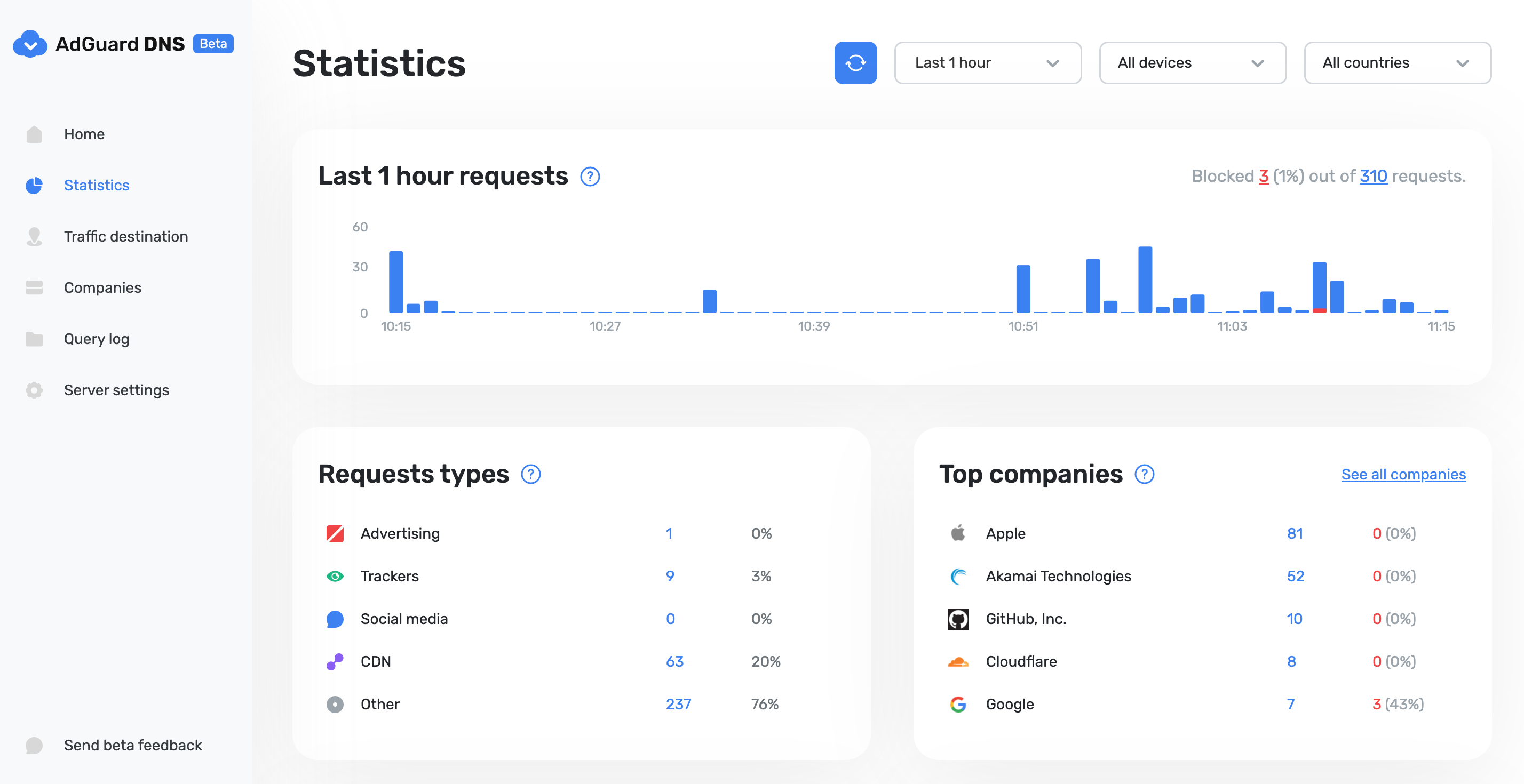
統計
In the Statistics tab you can see all the summarized statistics on DNS queries made by devices connected to your Private AdGuard DNS. It shows the total number and geography of requests, the number of blocked requests, the list of companies the requests were addressed to, requests types and top requested domains.
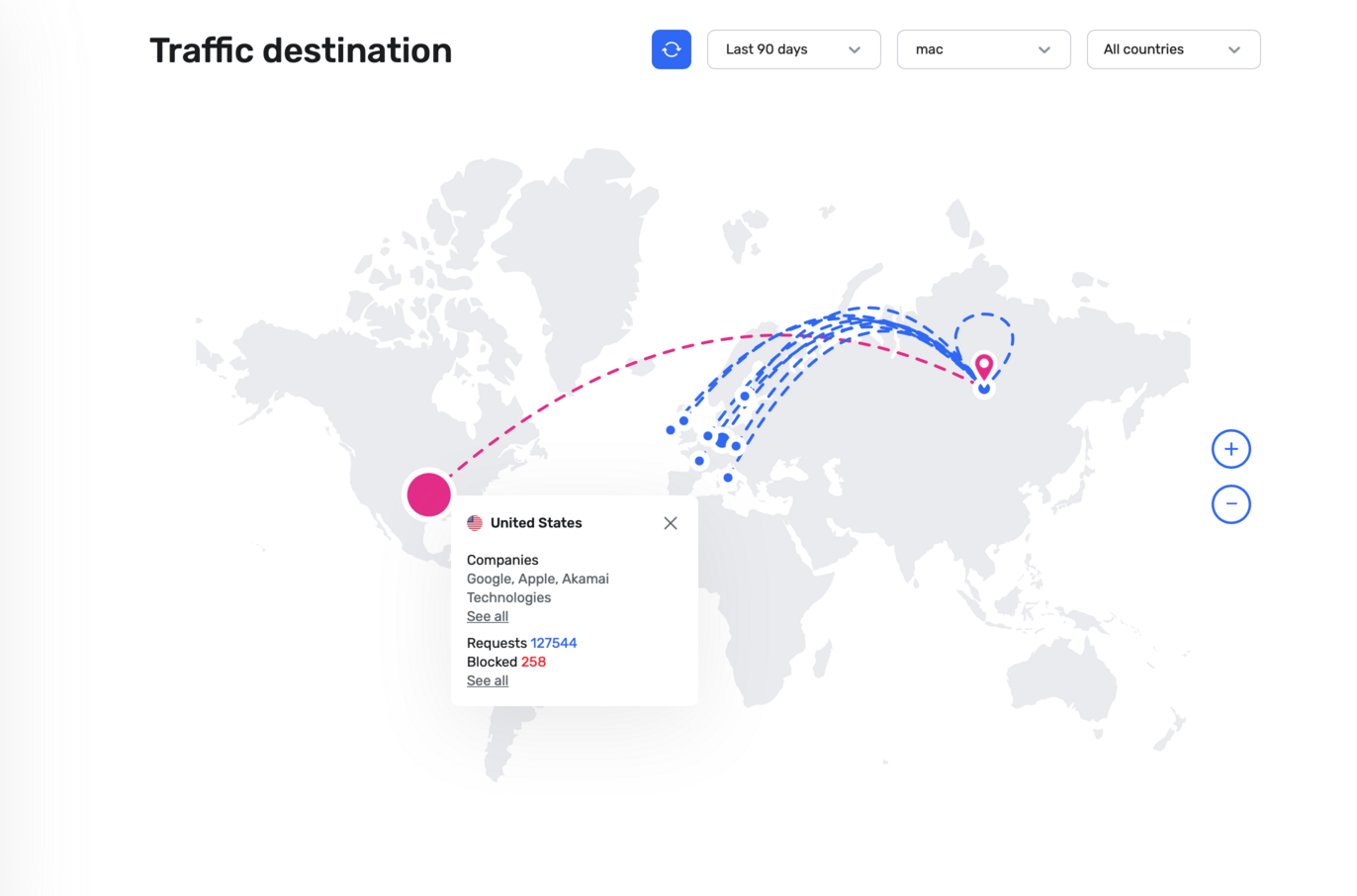
トラフィックの送信先
This feature shows you where DNS requests sent by your devices go. On top of seeing the map of request destinations, you can filter the information by date, device and country.
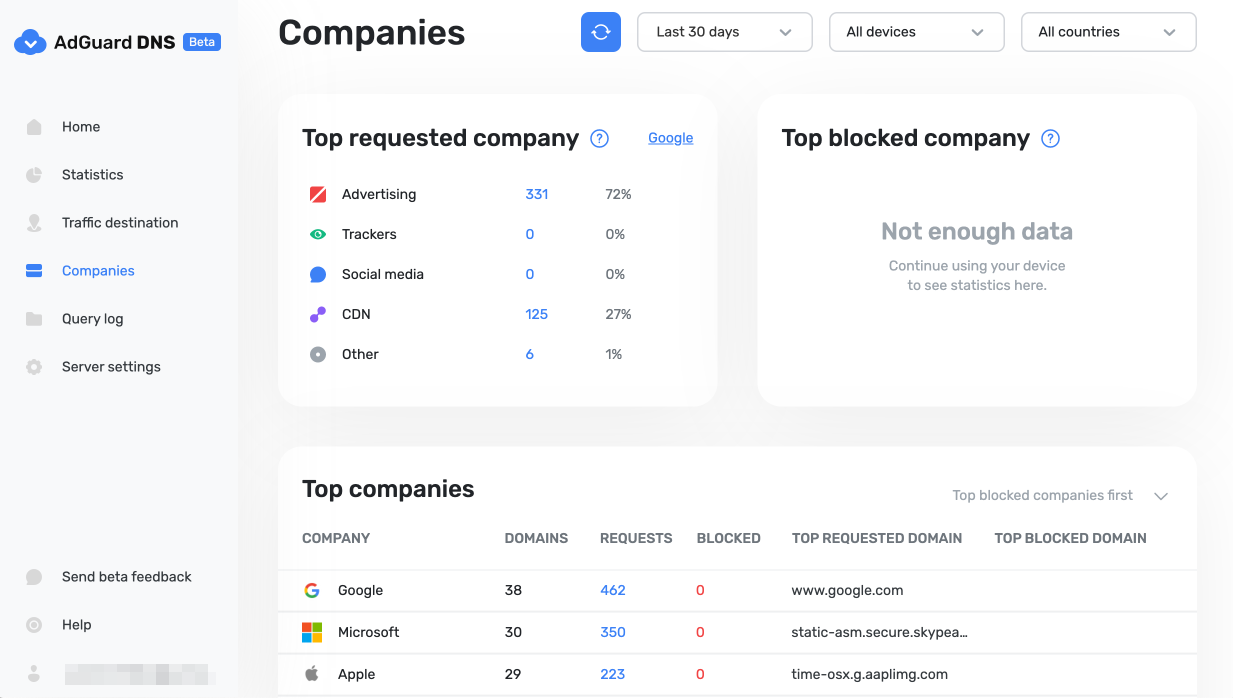
企業に関する統計
This tab allows you to quickly check which companies send the most requests, and which companies have the most blocked requests.
Query log
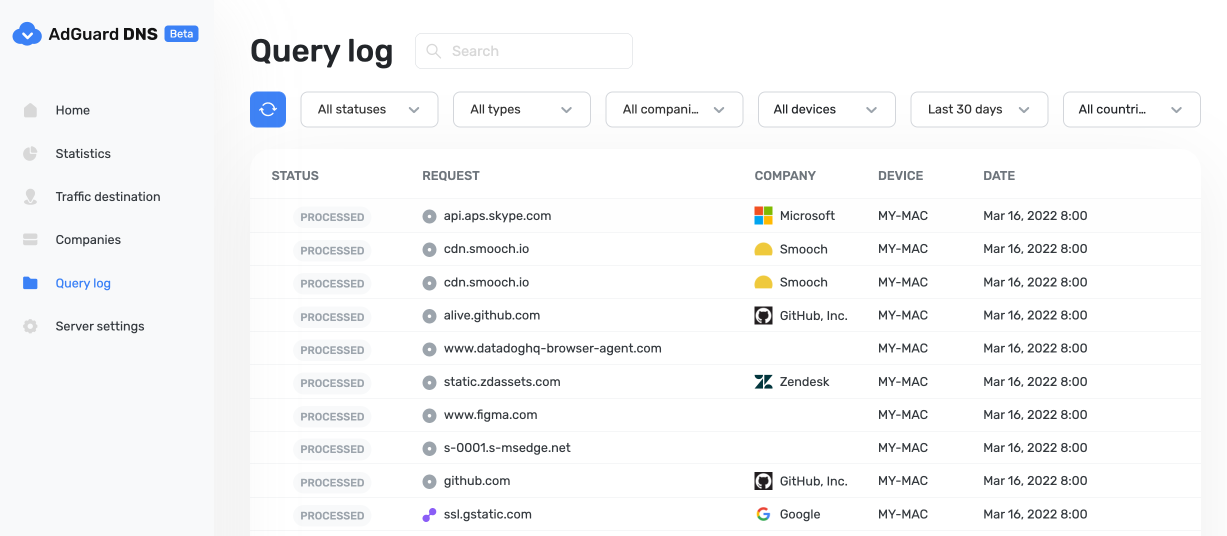
This is a detailed log where you can check out the information on every single request and also sort requests by status, type, company, device, time, country.
Server settings
This section features a range of settings allowing you to customize the operation of private AdGuard DNS, ensuring the Internet functions exactly as you desire.
Blocklists management
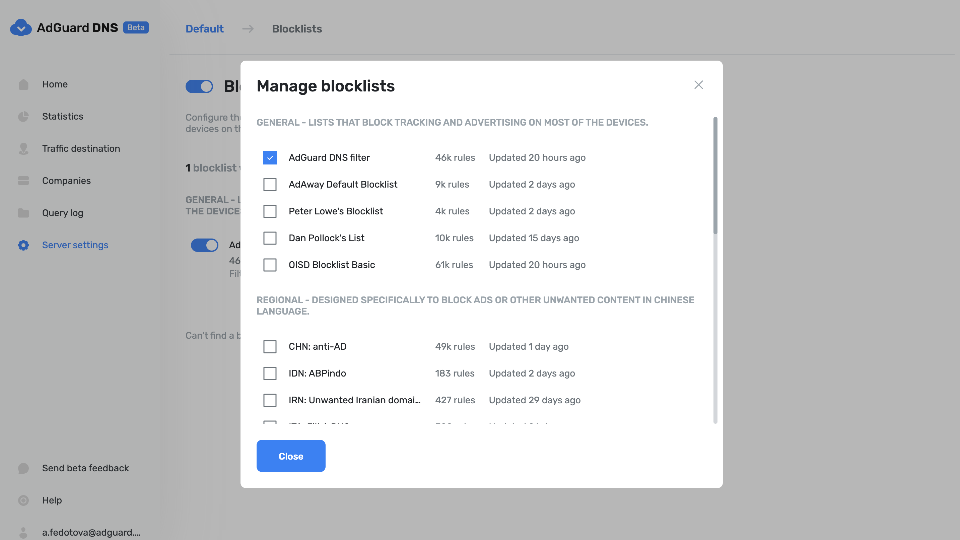
The Blocklists feature allows you to specify which domains you want to block and which you don't. Choose from a variety of blocklists for different purposes.
Security settings
Even if you're aware of all the tricks online scammers use, there's always a risk you'll accidentally click a malicious link. To protect yourself from such accidents, go to the Security settings section and check the boxes next to the options listed there.
The Block malicious, phishing, and scam domains feature will block domains found in the dedicated database. And the Block newly registered domains will block all domains registered less than 30 days ago, which are often considered risky for your online privacy.
ペアレンタルコントロール
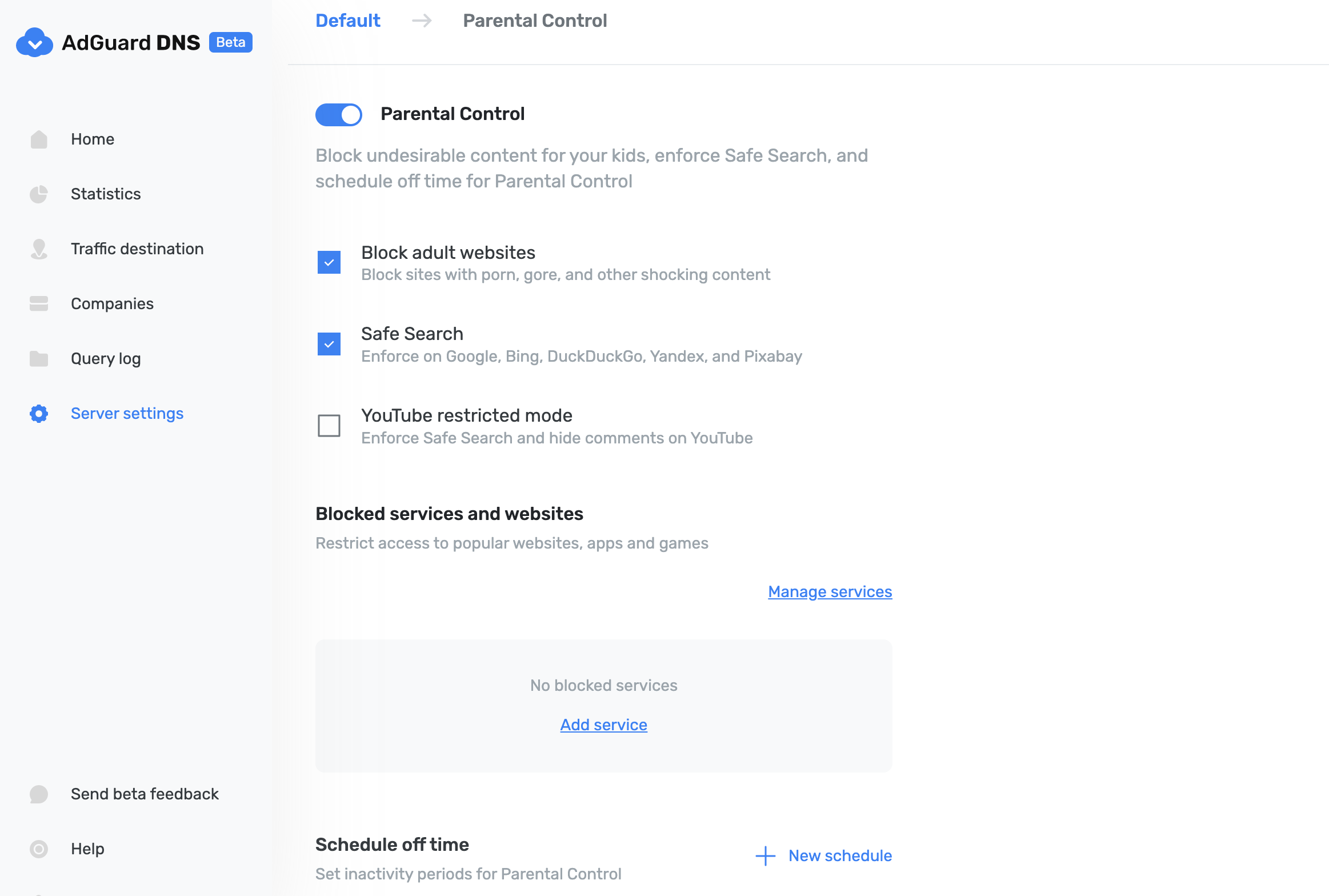
To protect your child from online content you deem inappropriate, set up and activate the Parental control option. In addition to options such as "adult content" blocking and safe search, we've added the ability to manually specify domains for blocking and set a schedule for the Parental control to work accordingly.
ユーザールール
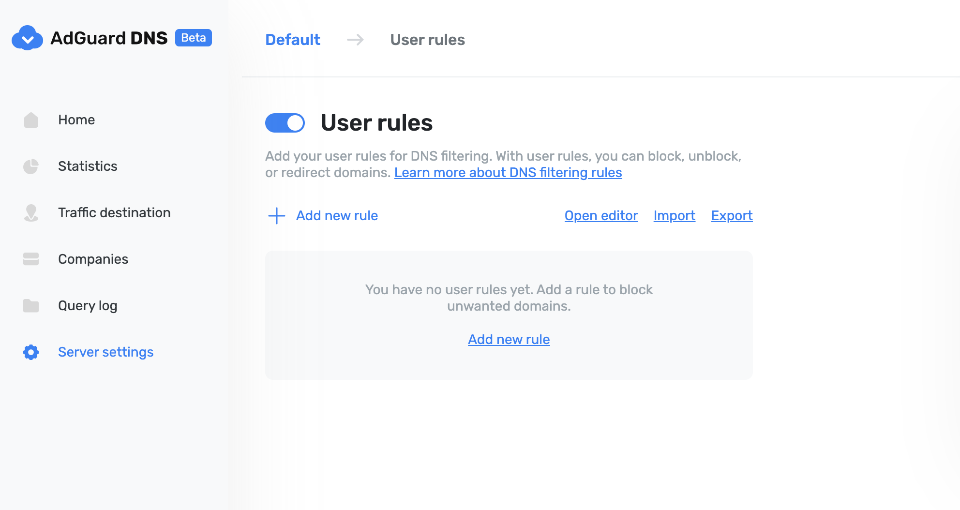
For cases where pre-installed blocklists with thousands of rules are not enough, we have a handy feature called User rules. Here you can manually add custom rules to block/unblock a specific domain or import custom rule lists (see DNS filtering rules syntax). You can export the lists.
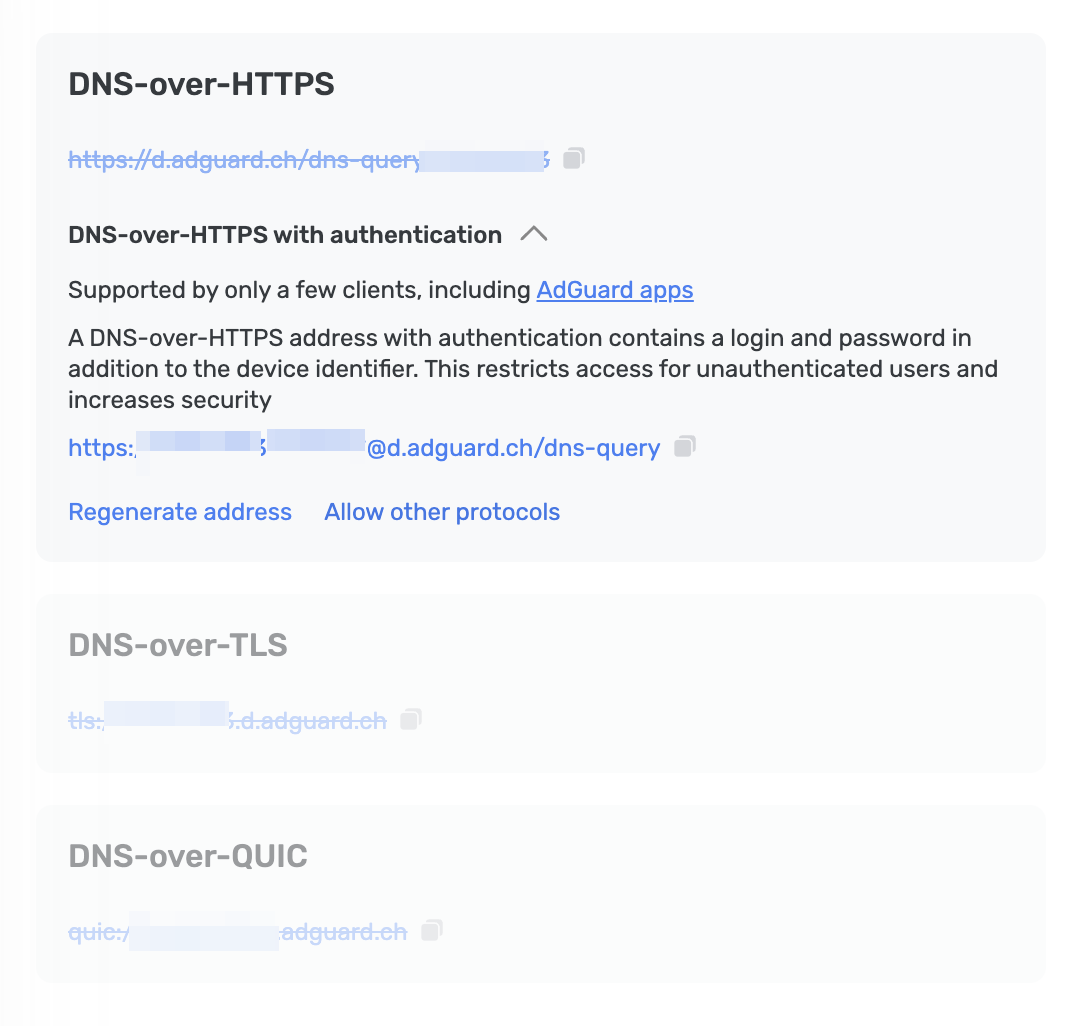
認証付き DNS-over-HTTPS(DNS-over-HTTPS with authentication)
DNS-over-HTTPS with authentication provides a login and password to connect to the server. This can limit access to unauthorized users and increase security.
To enable this feature, go to Server settings → Devices → Settings and change the DNS server to the one with authentication. Select Deny other protocols to disable alternative protocol usage, ensuring exclusive DNS-over-HTTPS authentication and blocking third-party access.
Advanced
Here you can set the way AdGuard DNS must respond to blocked domains:
- Default — zero IP address
- NXDOMAIN — the domain does not exist
- REFUSED — the server has refused to process the request
- Custom IP — you can manually specify an IP address
Additionally, you can adjust the Time to live (TTL) setting. This parameter defines the time period (in seconds) that a client device caches the response to a DNS request. A higher TTL means that even if a previously blocked domain is unblocked, it may still appear as blocked for a while. A TTL of 0 indicates that the device does not cache responses.
In the Advanced section, there are three options that can be customized:
- Block access to iCloud Private Relay. Devices that use iCloud Private Relay may ignore DNS settings. Enabling this option ensures that AdGuard DNS can effectively protect your device.
- Block Firefox canary domain. This setting prevents Firefox from automatically switching to its DoH resolver when AdGuard DNS is set as the system-wide DNS service.
- Log IP addresses. If this option is enabled, IP addresses associated with incoming DNS requests will be recorded and displayed in the Query log.
アクセス設定
Here you can manage an access to your DNS server by configuring the following settings:
- Allowed clients. Specify which clients are permitted to use your DNS server. Please note that allowed clients are not counted in added access rules, only disallowed clients and domains
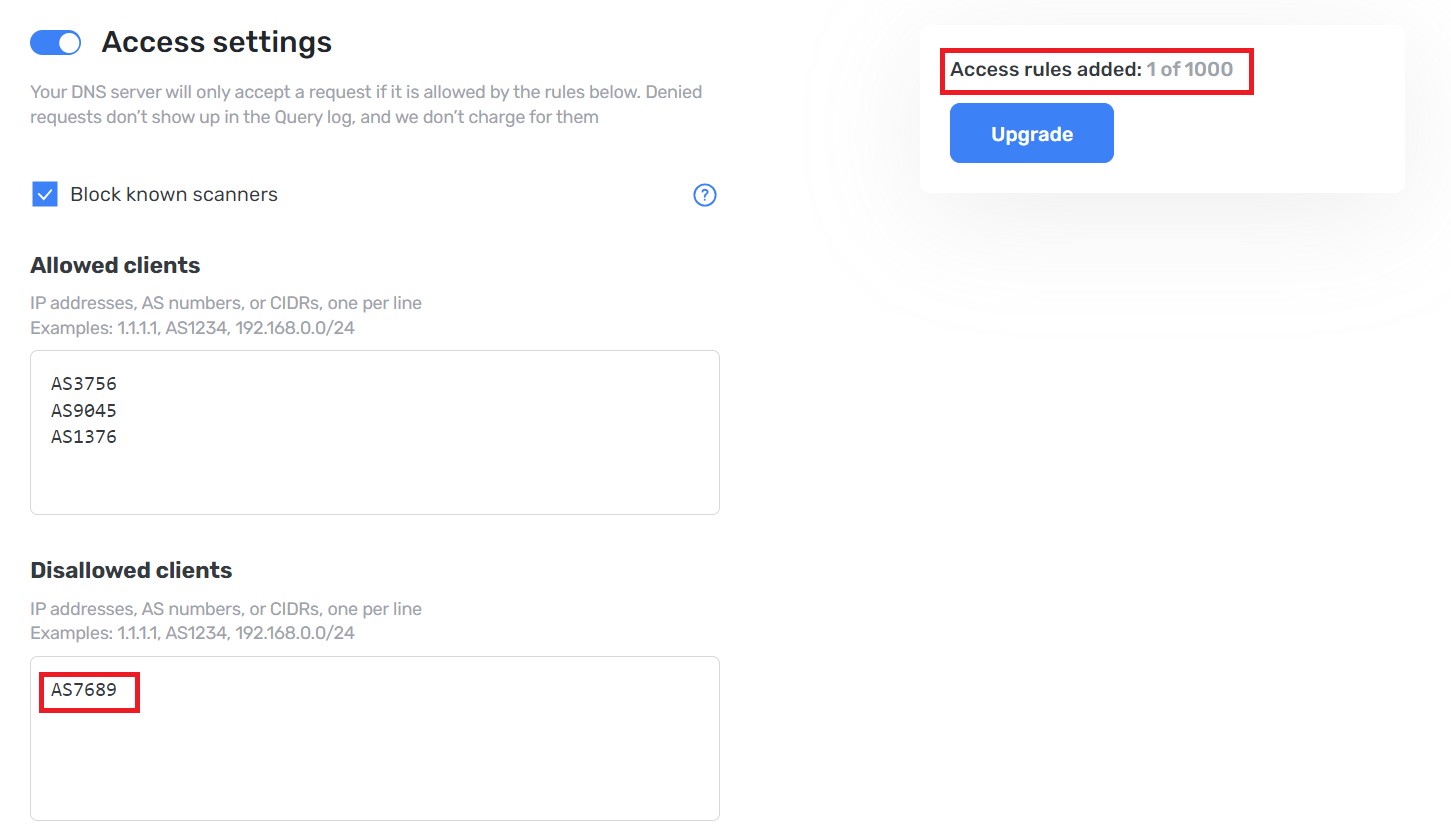
- Disallowed clients. List clients that are denied to use your DNS server
- Disallowed domains. Specify domain names that will be denied access to your DNS server. Wildcards and DNS filtering rules can also be listed here
If you only want to use DNS on certain AS numbers or IP addresses, you should block everything else in the Disallowed clients field. Simply allowing only the necessary numbers and addresses in the Allowed clients field won’t be enough.
By setting up these options, you can control who uses your DNS server and prevent potential DDoS attacks. Requests that are not allowed will not appear in your Query log, and they are free of charge.
デバイスを AdGuard DNS に接続する方法
AdGuard DNSは非常に柔軟で、タブレット、PC、ルーター、ゲーム機などのさまざまなデバイスで設定できます。このセクションでは、お使いのデバイスをAdGuard DNSに接続する方法についての詳細なガイドを提供します。
サーバーと設定
This section explains what a server is in AdGuard DNS and what settings are available. この設定により、ブロックされたドメインへの AdGuard DNS の応答をカスタマイズし、DNS サーバーへのアクセスを管理できます。
フィルタリングの設定方法
このセクションでは、AdGuard DNS の機能性を微調整するための設定をいくつか説明しております。ブロックリスト、ユーザールール、ペアレンタルコントロール、およびセキュリティフィルタリングを使用して、ニーズに合ったフィルタリングを設定できます。
「統計」と「クエリログ」
統計とクエリログにより、情報を確認してデバイスのアクティビティに関する状況や洞察を把握できます。「統計」タブには、プライベート AdGuard DNSに接続されているデバイスによって行われたDNSリクエストすべての総合統計が表示されます。「クエリログ」では、各リクエストに関する情報を表示したり、リクエストをステータス、タイプ、企業、デバイス、時間、国別に並べ替えたりすることができます。
Custom domains
AdGuard DNS Enterprise and Team subscribers can use their own domains (like dns.example.com) instead of the default d.adguard-dns.com. This setting ensures seamless integration with corporate security policies while maintaining full ad-blocking and privacy features provided by AdGuard DNS.