Visão Geral
Com o AdGuard DNS, você pode configurar seus servidores DNS privados para resolver solicitações de DNS e bloquear anúncios, rastreadores e domínios maliciosos antes que cheguem ao seu dispositivo
Link rápido: Experimente o DNS do AdGuard
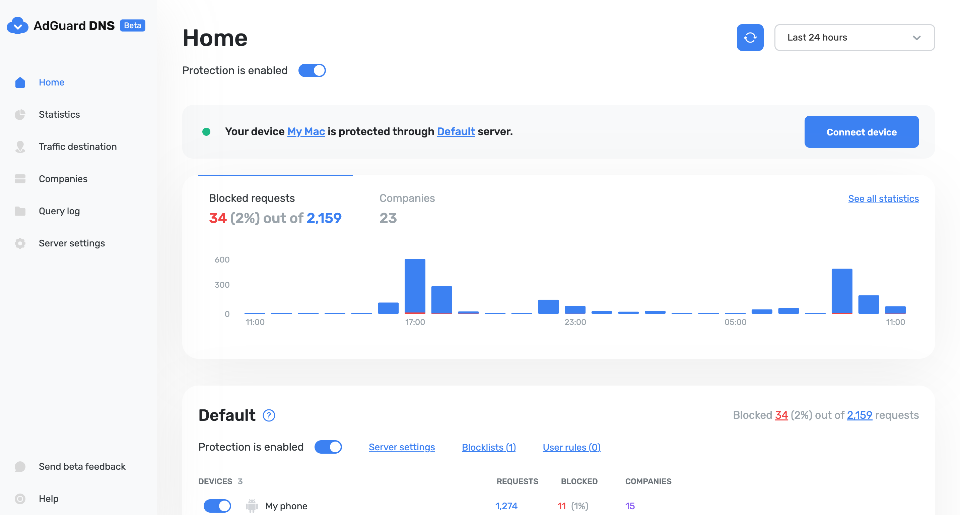
Geral
O DNS AdGuard privado oferece todas as vantagens de um servidor DNS AdGuard público, incluindo criptografia de tráfego e listas de bloqueio de domínios. Ele também oferece recursos adicionais, como personalização flexível, estatísticas de DNS e controle dos pais. Todas essas opções são facilmente acessíveis e gerenciadas por meio de um painel user-friendly.
Por que você precisa de um DNS AdGuard privado
Hoje, você pode conectar qualquer coisa à Internet: TVs, geladeiras, lâmpadas inteligentes ou alto-falantes. Mas junto com as conveniências inegáveis, você obtém rastreadores e anúncios. Um bloqueador de anúncios simples baseado em navegador não o protegerá neste caso, mas o AdGuard DNS, que você pode configurar para filtrar tráfego, bloquear conteúdo e rastreadores, tem um efeito em todo o sistema.
No passado, a linha de produtos AdGuard incluía apenas AdGuard DNS público e AdGuard Home. Essas soluções funcionam bem para alguns usuários, mas para outros, o AdGuard DNS público não tem flexibilidade de configuração, enquanto o AdGuard Home não tem simplicidade. É aí que entra o AdGuard DNS privado. Ele tem o melhor dos dois mundos: oferece personalização, controle e informações, tudo por meio de um painel simples e fácil de usar.
A diferença entre o AdGuard DNS público e o privado
Aqui está uma comparação simples entre os recursos disponíveis no AdGuard DNS público e privado.
| AdGuard DNS Público | AdGuard DNS Privado |
|---|---|
| Criptografia de tráfego DNS | Criptografia de tráfego DNS |
| Listas de bloqueio de domínio pré-determinadas | Listas de bloqueio de domínio personalizáveis |
| - | Regras de filtragem de DNS personalizadas com recurso de importação/exportação |
| - | Estatísticas de solicitações (veja para onde vão suas solicitações de DNS: quais países, quais empresas etc.) |
| - | Registro de consulta detalhado |
| - | Controle parental |
Private AdGuard DNS features
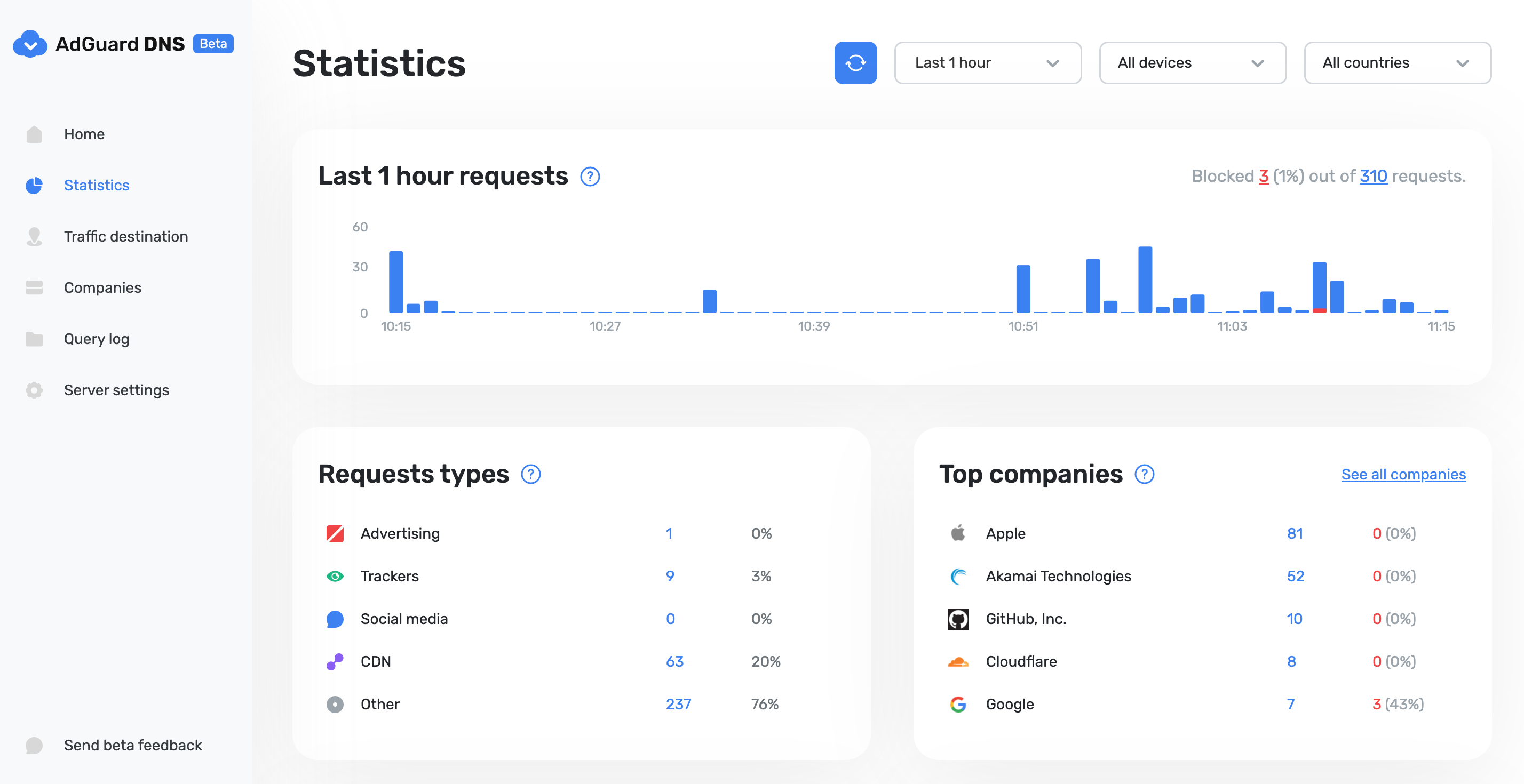
Estatísticas
In the Statistics tab you can see all the summarized statistics on DNS queries made by devices connected to your Private AdGuard DNS. It shows the total number and geography of requests, the number of blocked requests, the list of companies the requests were addressed to, requests types and top requested domains.
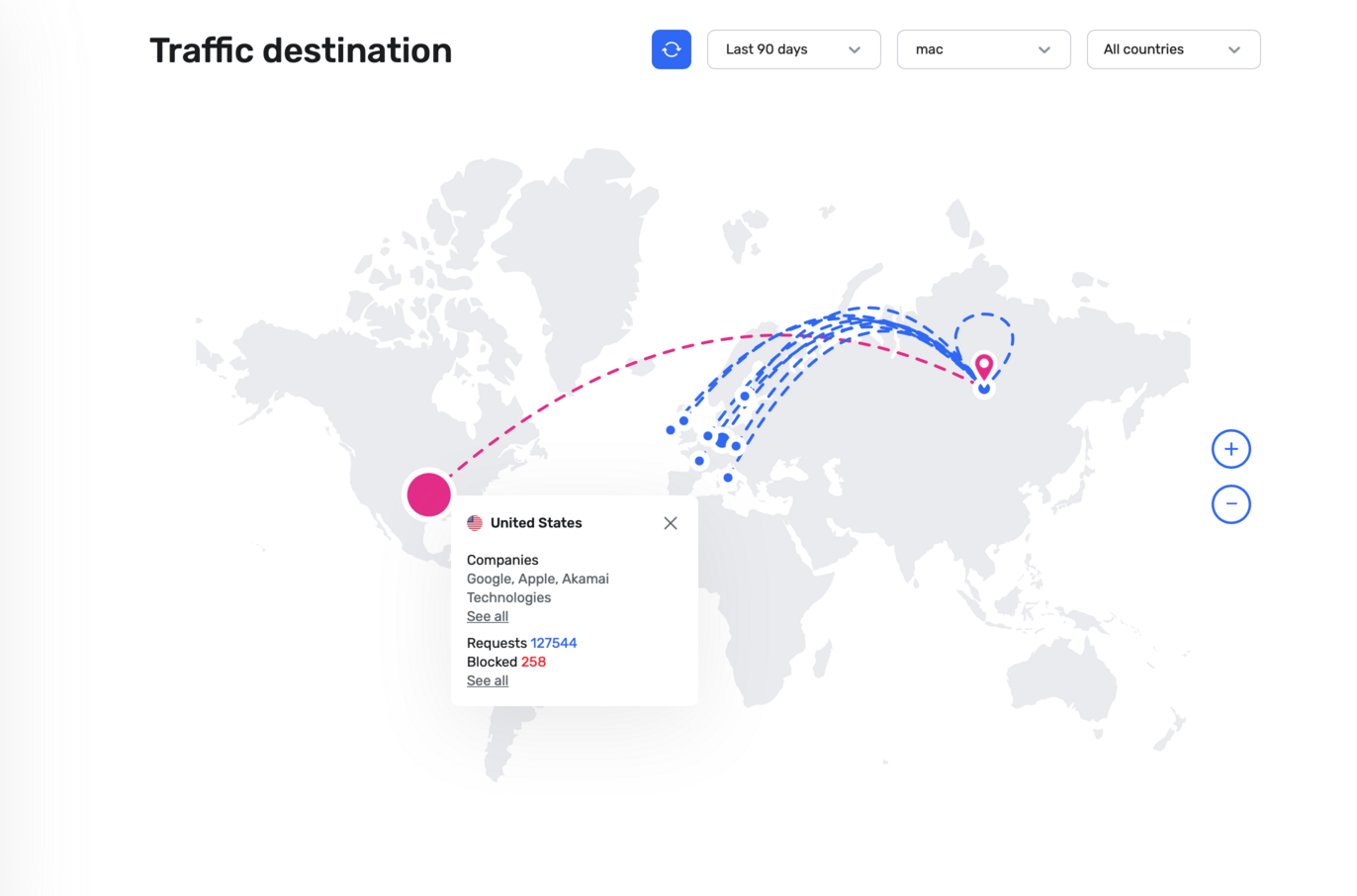
Destino do tráfego
This feature shows you where DNS requests sent by your devices go. On top of seeing the map of request destinations, you can filter the information by date, device and country.
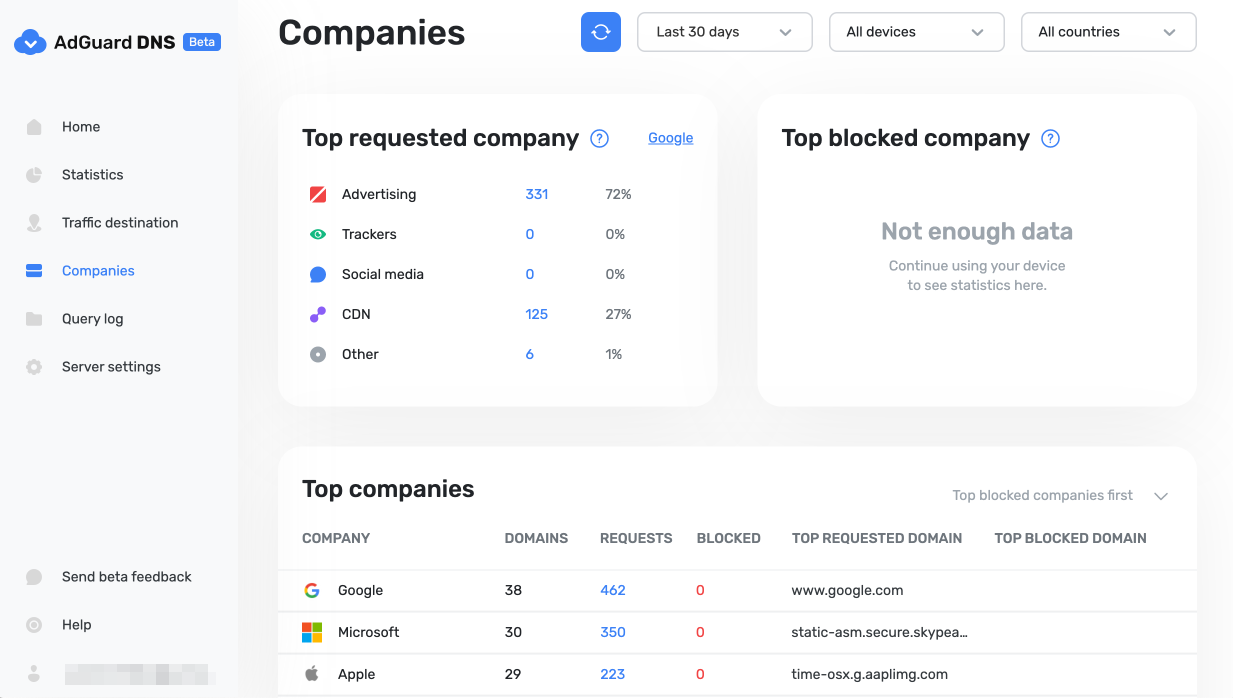
Empresas
This tab allows you to quickly check which companies send the most requests, and which companies have the most blocked requests.
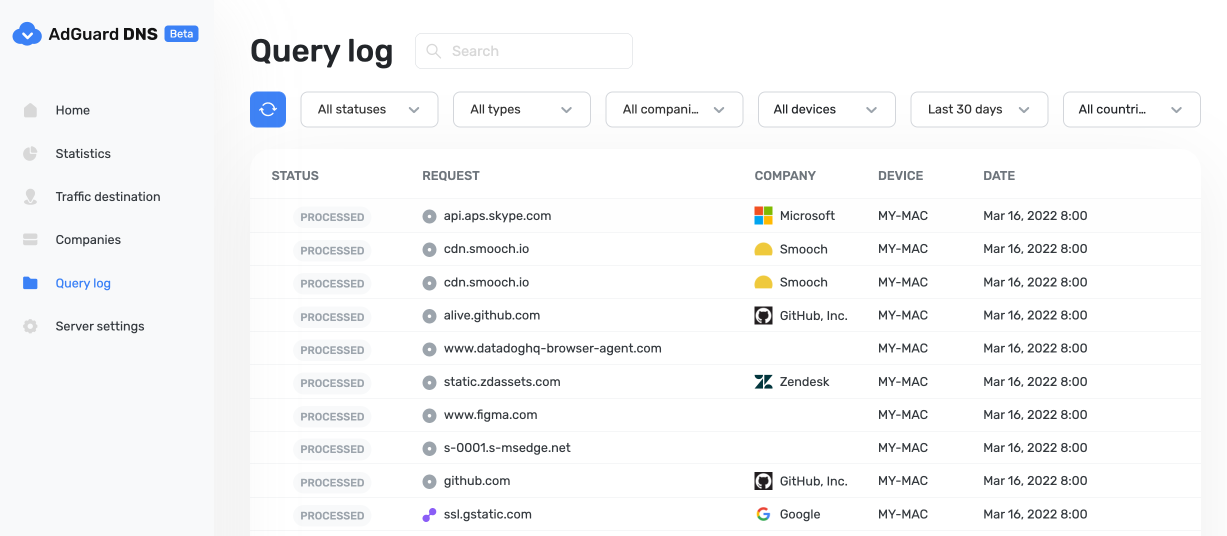
Registro de consultas
This is a detailed log where you can check out the information on every single request and also sort requests by status, type, company, device, time, country.
Server settings
This section features a range of settings allowing you to customize the operation of private AdGuard DNS, ensuring the Internet functions exactly as you desire.
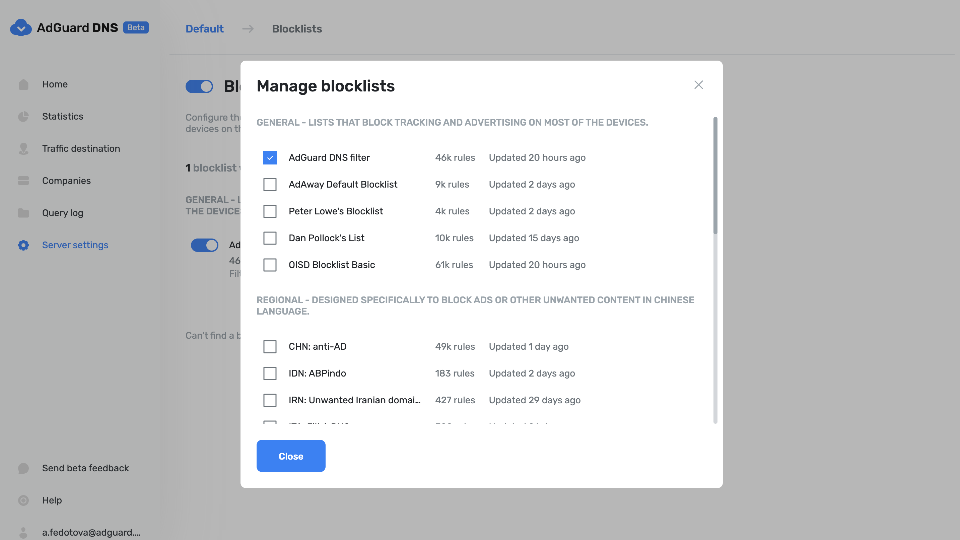
Blocklists management
The Blocklists feature allows you to specify which domains you want to block and which you don't. Choose from a variety of blocklists for different purposes.
Security settings
Even if you're aware of all the tricks online scammers use, there's always a risk you'll accidentally click a malicious link. To protect yourself from such accidents, go to the Security settings section and check the boxes next to the options listed there.
The Block malicious, phishing, and scam domains feature will block domains found in the dedicated database. And the Block newly registered domains will block all domains registered less than 30 days ago, which are often considered risky for your online privacy.
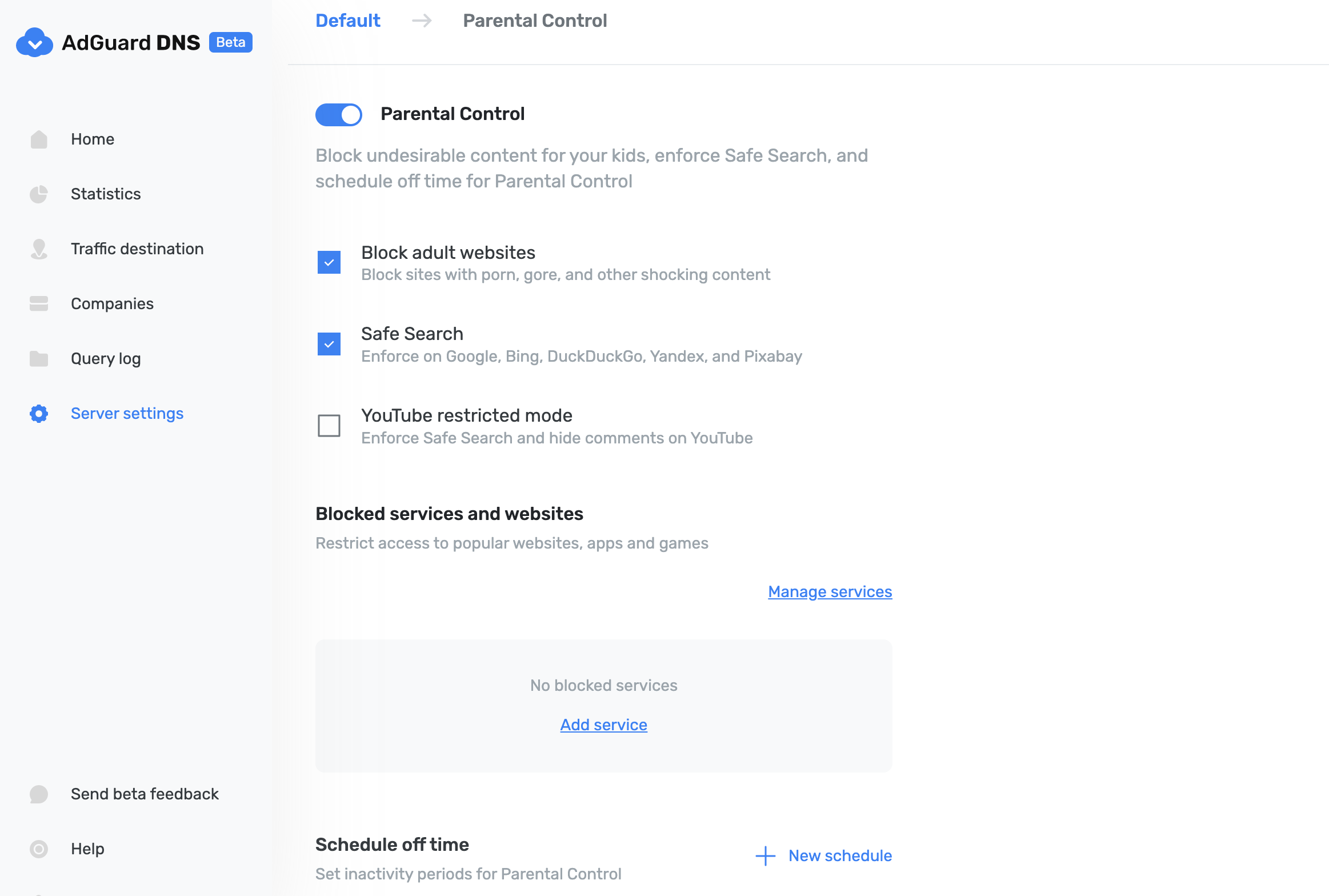
Controle parental
To protect your child from online content you deem inappropriate, set up and activate the Parental control option. In addition to options such as "adult content" blocking and safe search, we've added the ability to manually specify domains for blocking and set a schedule for the Parental control to work accordingly.
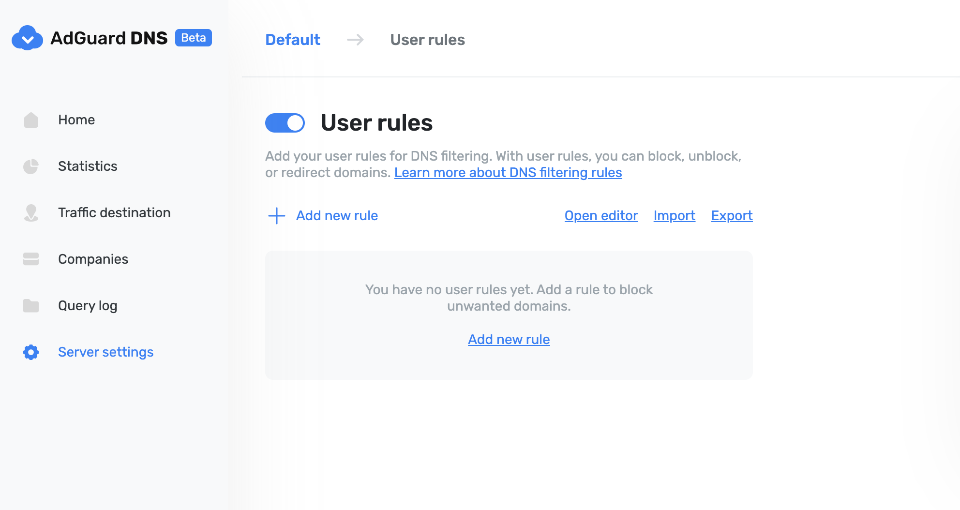
Regras de usuário
For cases where pre-installed blocklists with thousands of rules are not enough, we have a handy feature called User rules. Here you can manually add custom rules to block/unblock a specific domain or import custom rule lists (see DNS filtering rules syntax). You can export the lists.
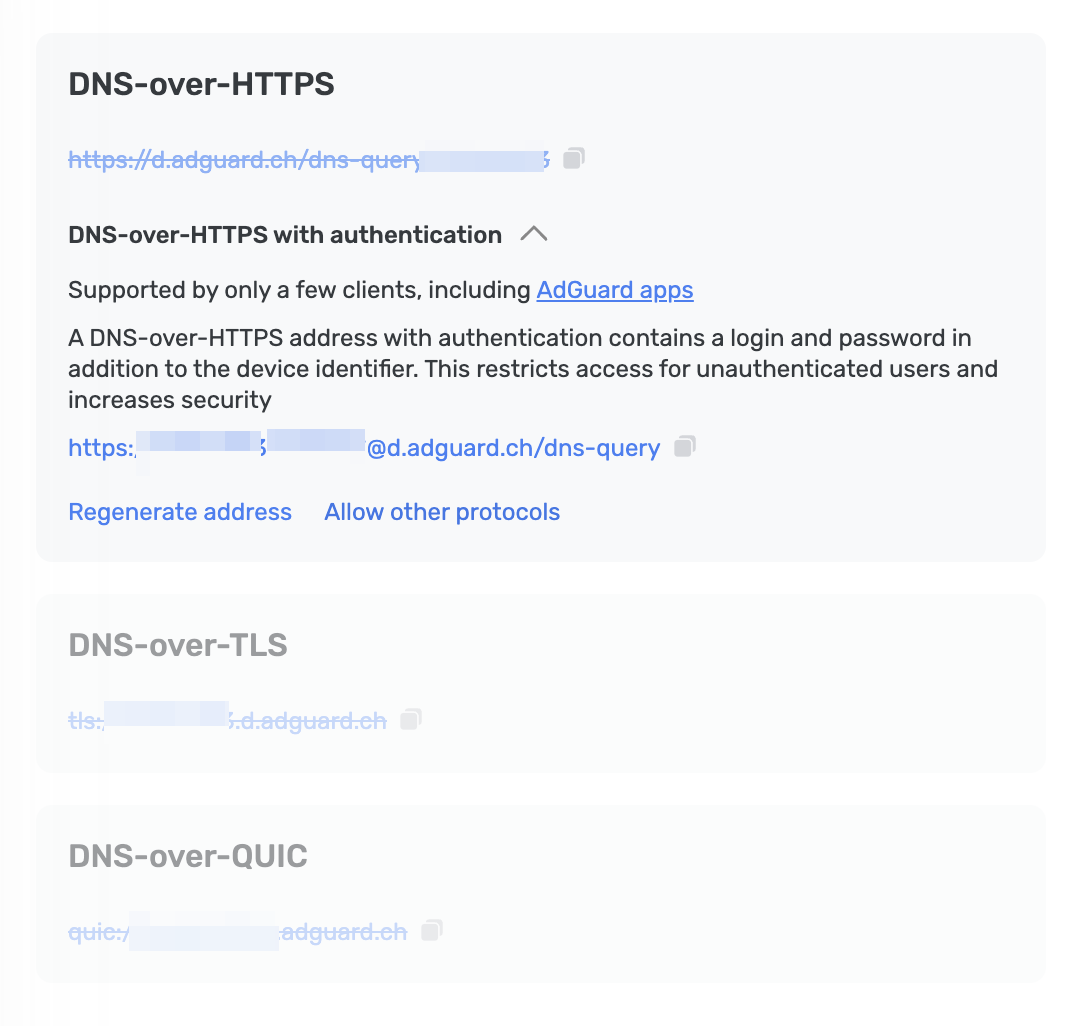
DNS-over-HTTPS com autenticação
DNS-over-HTTPS with authentication provides a login and password to connect to the server. This can limit access to unauthorized users and increase security.
To enable this feature, go to Server settings → Devices → Settings and change the DNS server to the one with authentication. Select Deny other protocols to disable alternative protocol usage, ensuring exclusive DNS-over-HTTPS authentication and blocking third-party access.
Advanced
Here you can set the way AdGuard DNS must respond to blocked domains:
- Default — zero IP address
- NXDOMAIN — the domain does not exist
- REFUSED — the server has refused to process the request
- Custom IP — you can manually specify an IP address
Additionally, you can adjust the Time to live (TTL) setting. This parameter defines the time period (in seconds) that a client device caches the response to a DNS request. A higher TTL means that even if a previously blocked domain is unblocked, it may still appear as blocked for a while. A TTL of 0 indicates that the device does not cache responses.
In the Advanced section, there are three options that can be customized:
- Block access to iCloud Private Relay. Devices that use iCloud Private Relay may ignore DNS settings. Enabling this option ensures that AdGuard DNS can effectively protect your device.
- Block Firefox canary domain. This setting prevents Firefox from automatically switching to its DoH resolver when AdGuard DNS is set as the system-wide DNS service.
- Log IP addresses. If this option is enabled, IP addresses associated with incoming DNS requests will be recorded and displayed in the Query log.
Configurações de acesso
Here you can manage an access to your DNS server by configuring the following settings:
- Allowed clients. Specify which clients are permitted to use your DNS server. Please note that allowed clients are not counted in added access rules, only disallowed clients and domains
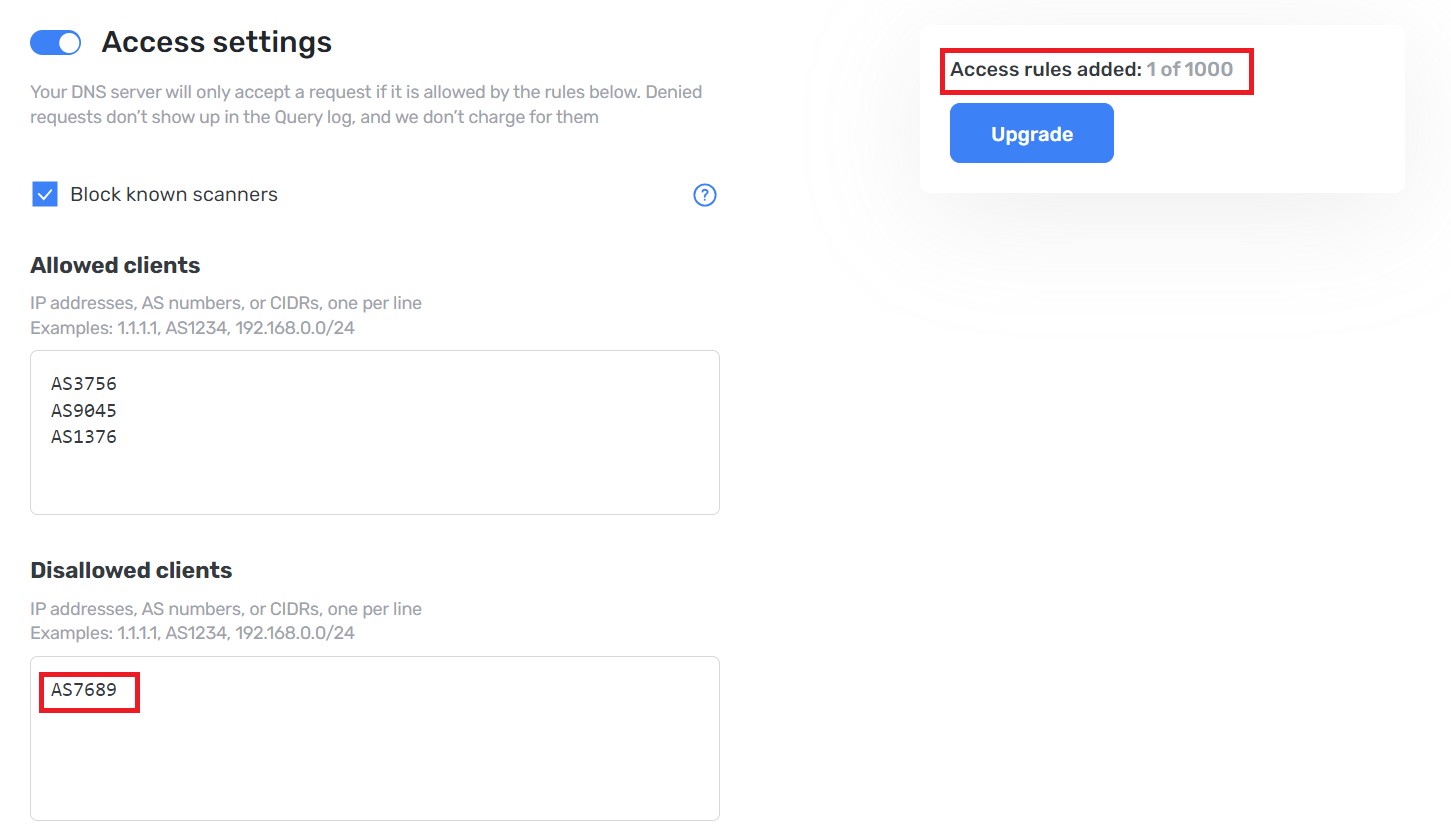
- Disallowed clients. List clients that are denied to use your DNS server
- Disallowed domains. Specify domain names that will be denied access to your DNS server. Wildcards and DNS filtering rules can also be listed here
If you only want to use DNS on certain AS numbers or IP addresses, you should block everything else in the Disallowed clients field. Simply allowing only the necessary numbers and addresses in the Allowed clients field won’t be enough.
By setting up these options, you can control who uses your DNS server and prevent potential DDoS attacks. Requests that are not allowed will not appear in your Query log, and they are free of charge.
Como conectar dispositivos ao AdGuard DNS
O AdGuard DNS é muito flexível e pode ser configurado em vários dispositivos, incluindo tablets, PCs, roteadores e consoles de jogos. Esta seção fornece instruções detalhadas sobre como conectar seu dispositivo ao AdGuard DNS.
Como conectar dispositivos ao AdGuard DNS
Servidor e configurações
Esta seção explica o que é um "servidor" no AdGuard DNS e quais configurações estão disponíveis. As configurações permitem que você personalize como o AdGuard DNS responde a domínios bloqueados e gerencie o acesso ao seu servidor DNS.
Como configurar a filtragem
Nesta seção, descrevemos várias configurações que permitem ajustar a funcionalidade do AdGuard DNS. Usando listas de bloqueio, regras de usuário, controles parentais e filtros de segurança, você pode configurar a filtragem para atender às suas necessidades.
Estatísticas e Registro de consultas
As estatísticas e o Registro de consultas fornecem insights sobre a atividade dos seus dispositivos. A aba Estatísticas permite que você visualize um resumo das solicitações de DNS feitas por dispositivos conectados ao seu AdGuard DNS Privado. No Registro de consultas, você pode visualizar informações sobre cada solicitação e também classificar as solicitações por status, tipo, empresa, dispositivo, horário e país.
Estatísticas e Registro de consultas
Domínios personalizados
Os assinantes do AdGuard DNS Enterprise e da Equipe podem usar seus próprios domínios (como dns.example.com) em vez do domínio padrão d.adguard-dns.com. Esta configuração garante uma integração transparente com as políticas de segurança corporativa, ao mesmo tempo em que mantém todos os recursos de bloqueio de anúncios e privacidade fornecidos pelo AdGuard DNS.