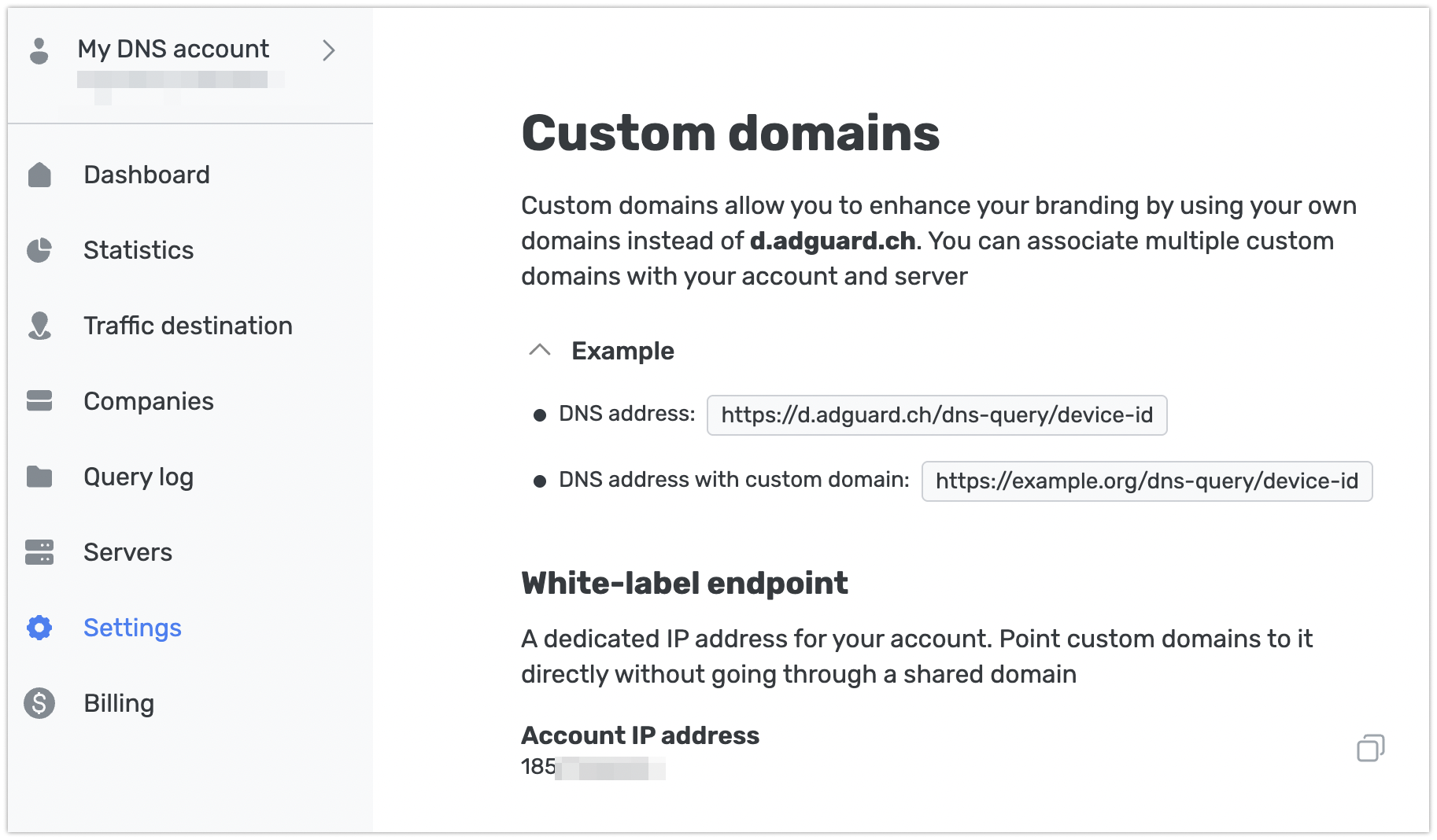
White-label endpoint (Account IP address)
Custom domains allow partners to offer AdGuard DNS under their own brand. With the Enterprise plan, this service can run on a private IP address: this feature is called Account IP. Domains point to the Account IP through an A record instead of a CNAME record, which is used for standard custom domains.
CNAME points your domain to another domain (dns.partner.com → cname.adguard-dns.com). The real IP address is resolved through that second domain, so traffic goes through the shared infrastructure it serves.
A record points your domain straight to an IP address (dns.partner.com → 203.0.113.10). There’s no domain in between: the address your domain resolves to is the one that handles the traffic.
Each account can have one Account IP, and you can point several domains to it. This isn’t the same as the dedicated IPv4 and IPv6 addresses used to identify devices: an Account IP is the address your custom domains resolve to.
How to get an Account IP
To request an Account IP, contact your account manager or support team at support@adguard-dns.io.
Once the address is assigned, the White-label endpoint block appears in Settings → Advanced settings → Custom domains, showing your Account IP address. Until then, the block isn’t shown.
If your account moves off the Enterprise plan, the address becomes inactive and domains pointing to it stop working. Custom domains stay available on the Team plan, but only through a CNAME record — to bring the paused domains back, add them again as standard custom domains.
The address itself stays reserved for your account, so if you return to the Enterprise plan, you get the same one back.
How to point a domain to your Account IP address
Setup follows the same steps as a standard custom domain, except you create an A record instead of a CNAME. Also, for DoH domains, the certificate isn’t issued automatically — you must upload your own.
-
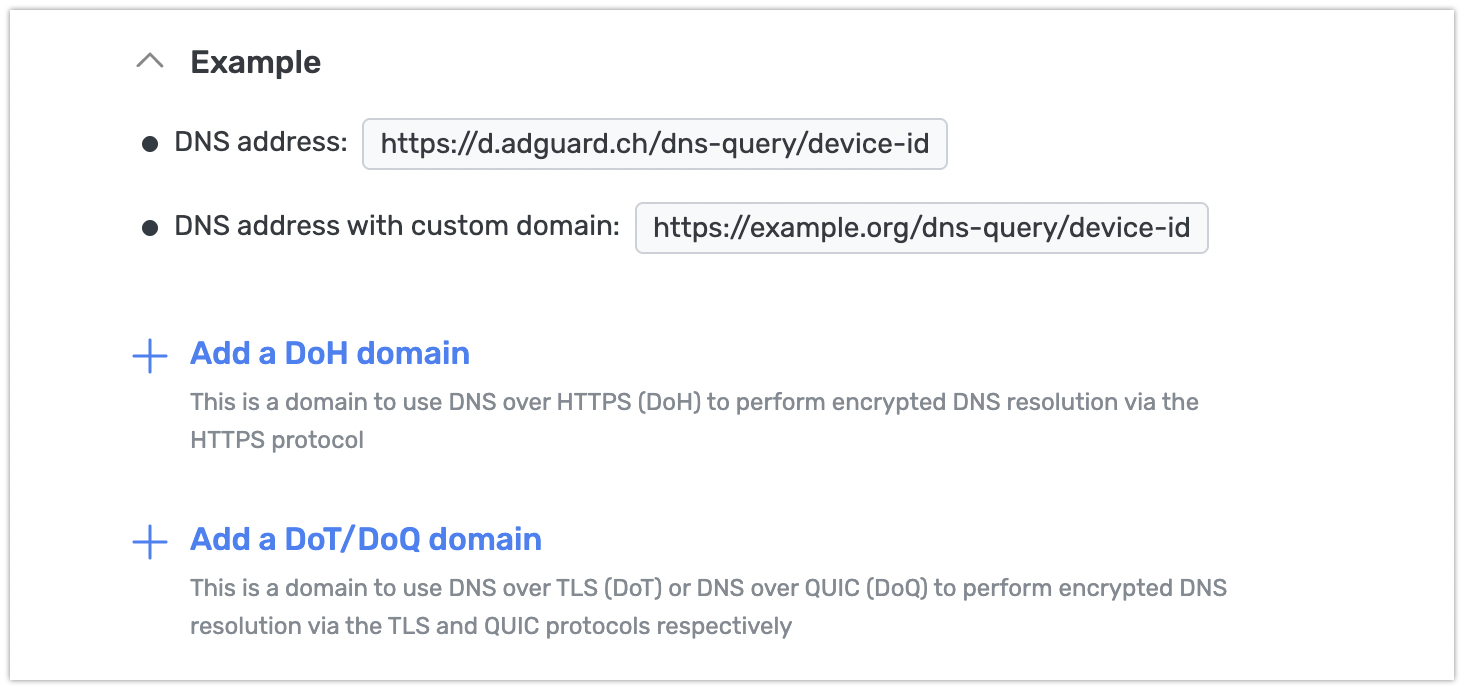
In Custom domains, choose the protocol: Add DoH domain (for DNS-over-HTTPS) or Add DoT/DoQ domain (for DNS-over-TLS or DNS-over-QUIC).
-
Enter the domain you want to use (e.g.,
dns.partner.com) and click Next. You need access to this domain’s DNS management panel.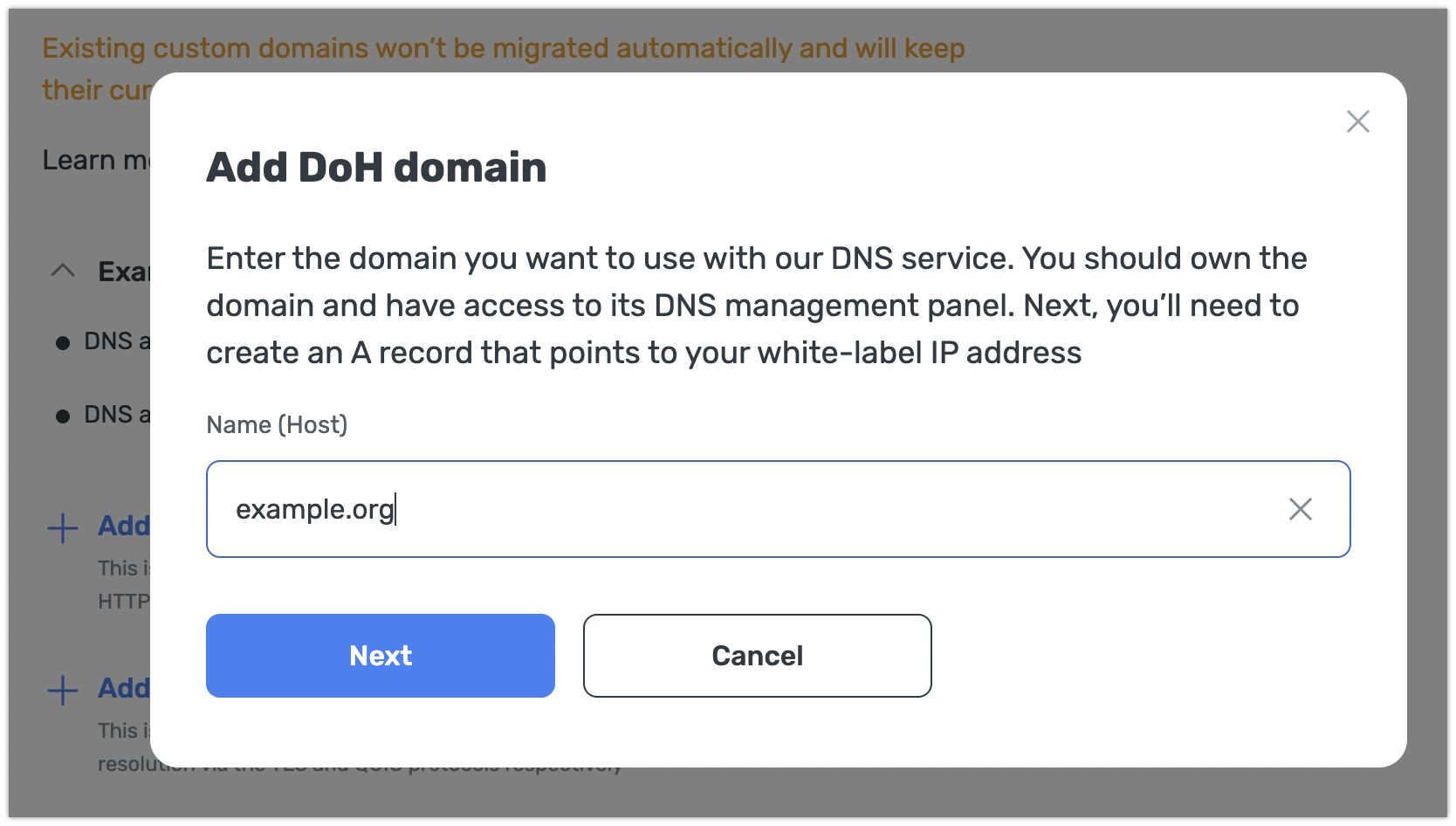
-
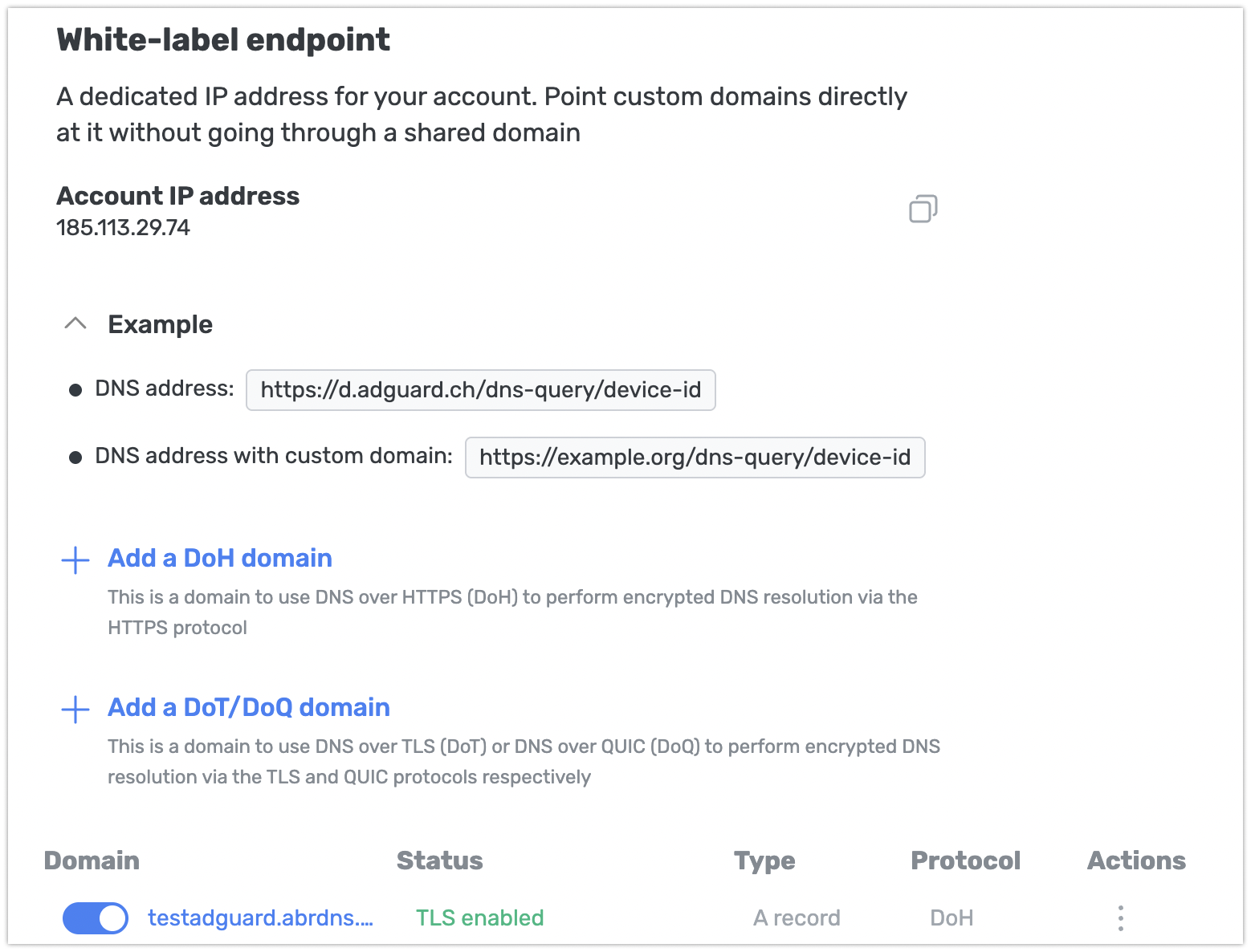
The next screen shows the values for your DNS record: your domain under Name (Host) and your Account IP under Value (Points to / IP address). Leaving this screen open, go to your DNS provider’s control panel and create an A record with those values. Don’t create a CNAME record — domains on an Account IP point to the address directly.
-
On the AdGuard DNS screen with the record values, click Verify. If the record hasn’t propagated yet or points somewhere else, verification fails. Check the record and try again in a few minutes.
-
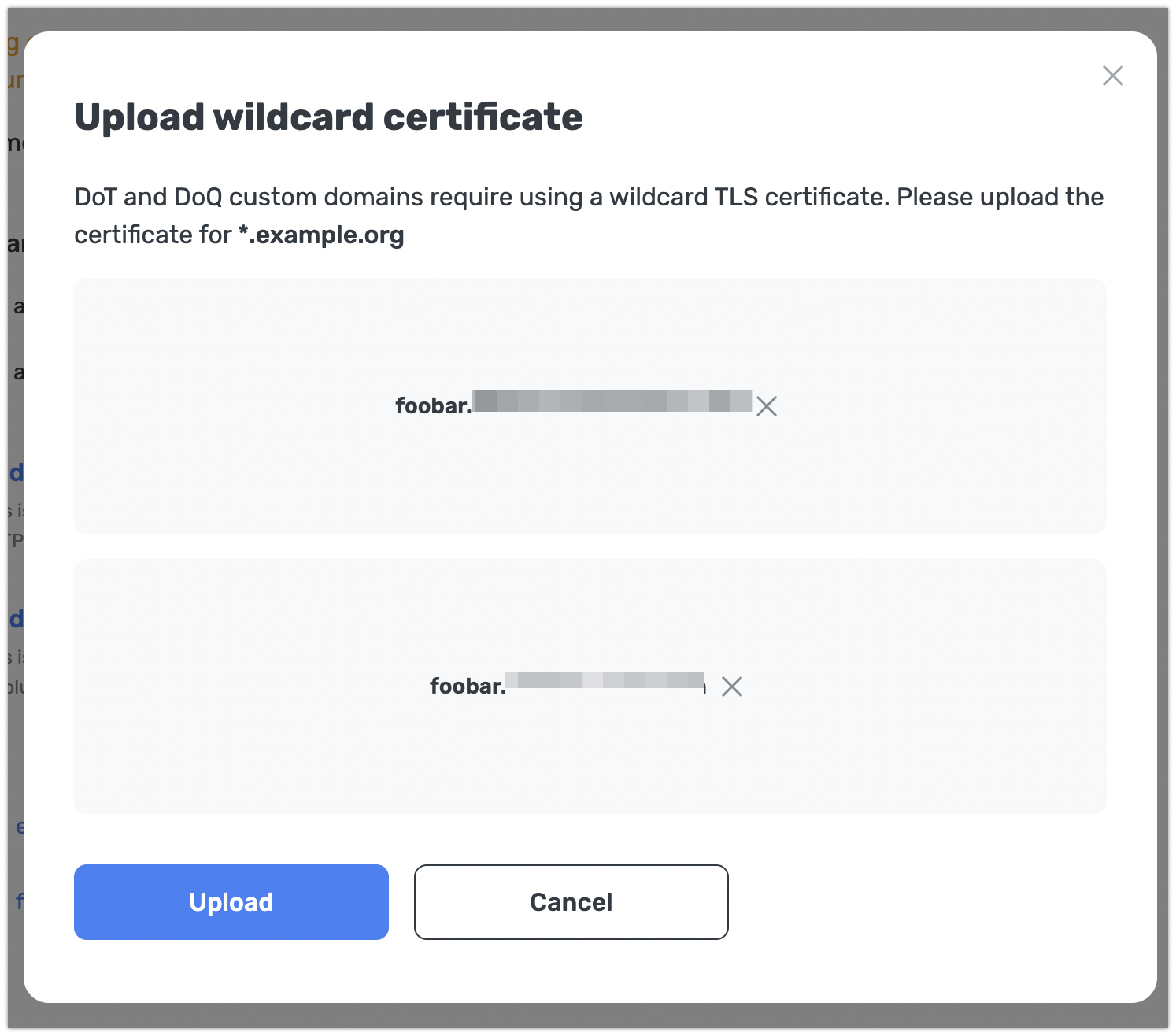
Upload a TLS certificate. Certificates aren’t issued automatically for domains on an Account IP:
- For DoT/DoQ, you upload a wildcard certificate (
*.partner.com), same as for a standard custom domain. - For DoH, you upload your own certificate too. This differs from the standard flow, where AdGuard DNS can generate one for you.
Until you add a certificate, the domain shows the No certificate status and your customers can’t connect to it.
- For DoT/DoQ, you upload a wildcard certificate (
Renewal is on your side. You’ll get an email reminder before the certificate expires. When this happens, your domain will stop working until you upload a new certificate.
Existing custom domains and Account IP address
Domains you added before getting an Account IP aren’t moved to it automatically. They keep working through their CNAME record, as before.
To move a domain over to your Account IP, start by deleting its CNAME record at your DNS provider — a domain can’t have both a CNAME and an A record at once. Then delete the domain in AdGuard DNS and add it again, following the steps above.
Your customers won’t be able to use the domain between the moment you delete it and the moment the new setup is verified.
Limitações
An Account IP changes the address your domain resolves to. A few things it doesn’t cover:
- Account IP address isn’t fully white-label at the network level. A WHOIS, RDAP, or ASN lookup of the IP address can still identify AdGuard as the provider of the underlying IP infrastructure.
- Reverse DNS can’t be customized, so a PTR lookup won’t return your domain.
- DNS server discovery (DDR) isn’t available on an Account IP.
- Certificates with the IP address in the SAN field aren’t supported, so your customers connect through the domain name rather than the address itself.
- Using your own IP range (BYOIP) isn’t supported, since the address is assigned by AdGuard.
- DNSCheck domains, used to verify a device’s DNS connection, still resolve through AdGuard’s infrastructure.