Родительский контроль
Parental control is a set of settings that gives you the flexibility to customize access to certain websites with sensitive content. You can use this feature to restrict your children’s access to adult sites, customize search queries, block the use of popular services, and more.
How to set it up
You can flexibly configure all features on your servers, including the parental control feature. In the corresponding article, you can familiarize yourself with what a server is in AdGuard DNS and learn how to create different servers with different sets of settings.
Then, go to the settings of the selected server and enable the required configurations.
Block adult websites
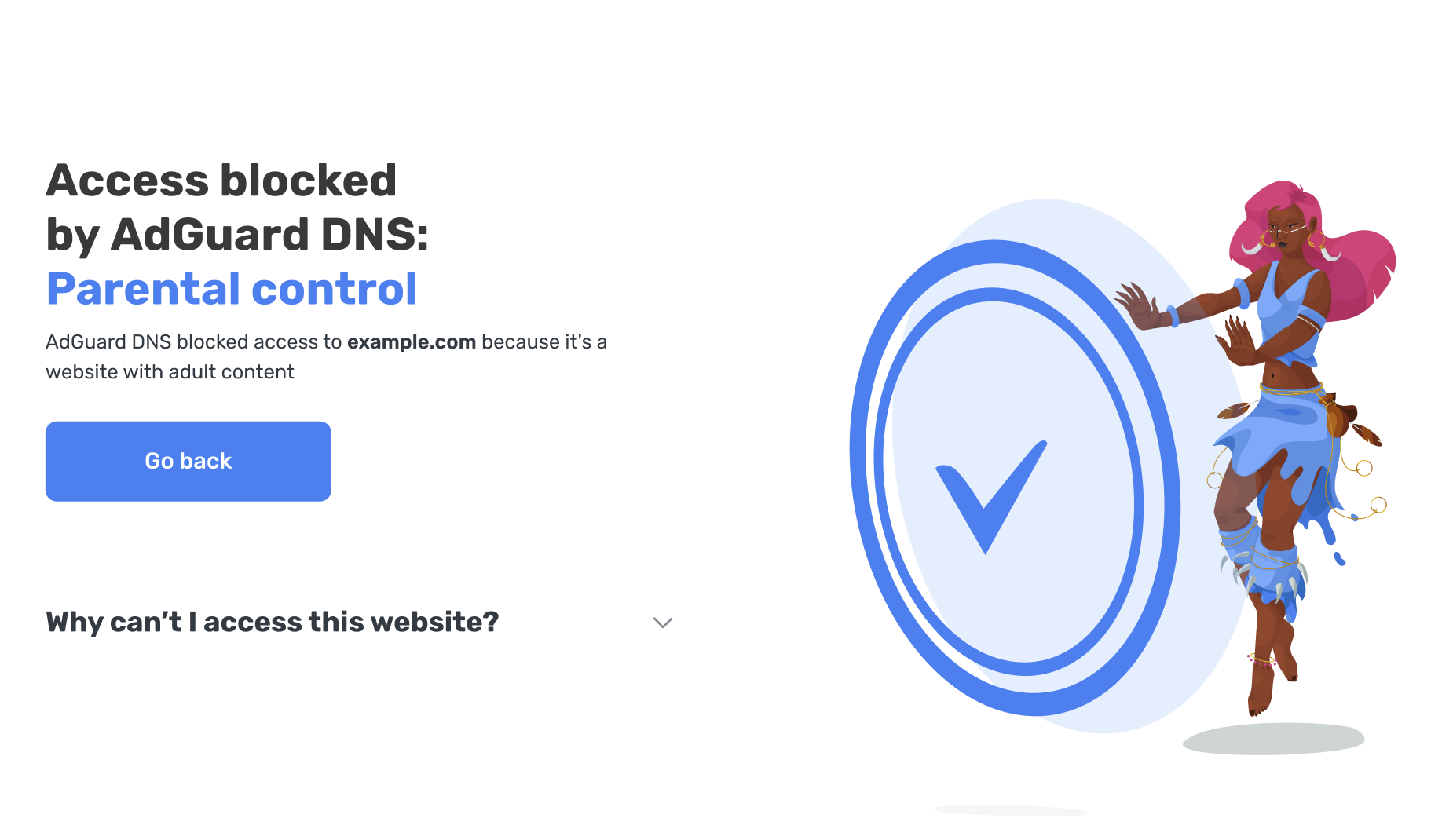
Blocks websites with inappropriate and adult content.
Safe search
Removes inappropriate results from Google, Bing, DuckDuckGo, Yandex, Pixabay, Brave, and Ecosia.
YouTube restricted mode
Removes the option to view and post comments under videos and interact with 18+ content on YouTube.
Blocked services and websites
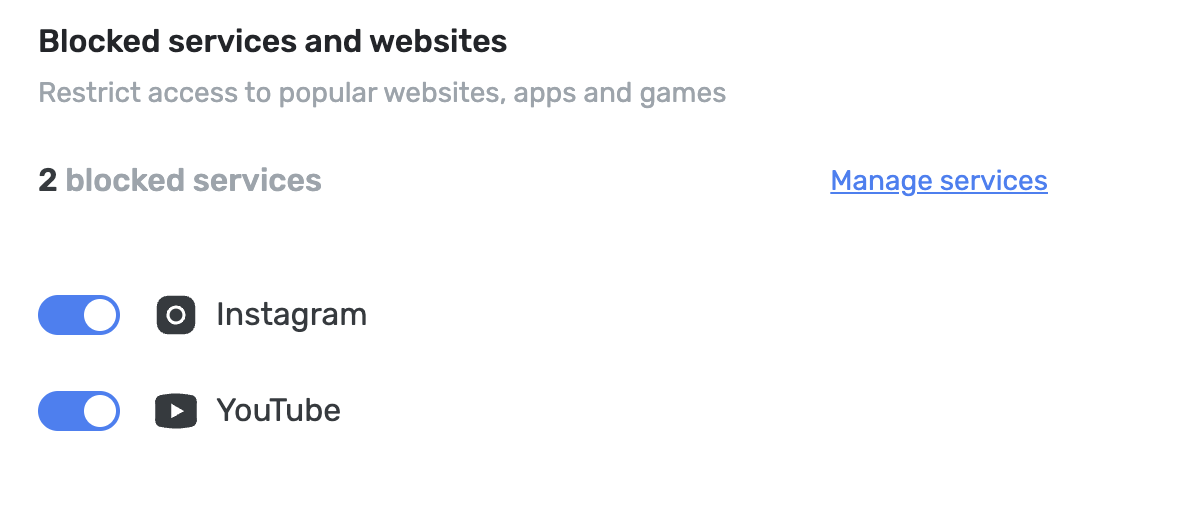
Restricts access to popular services with one click. This is useful if you don’t want connected devices to visit certain platforms, such as Instagram and YouTube.
Block websites by category
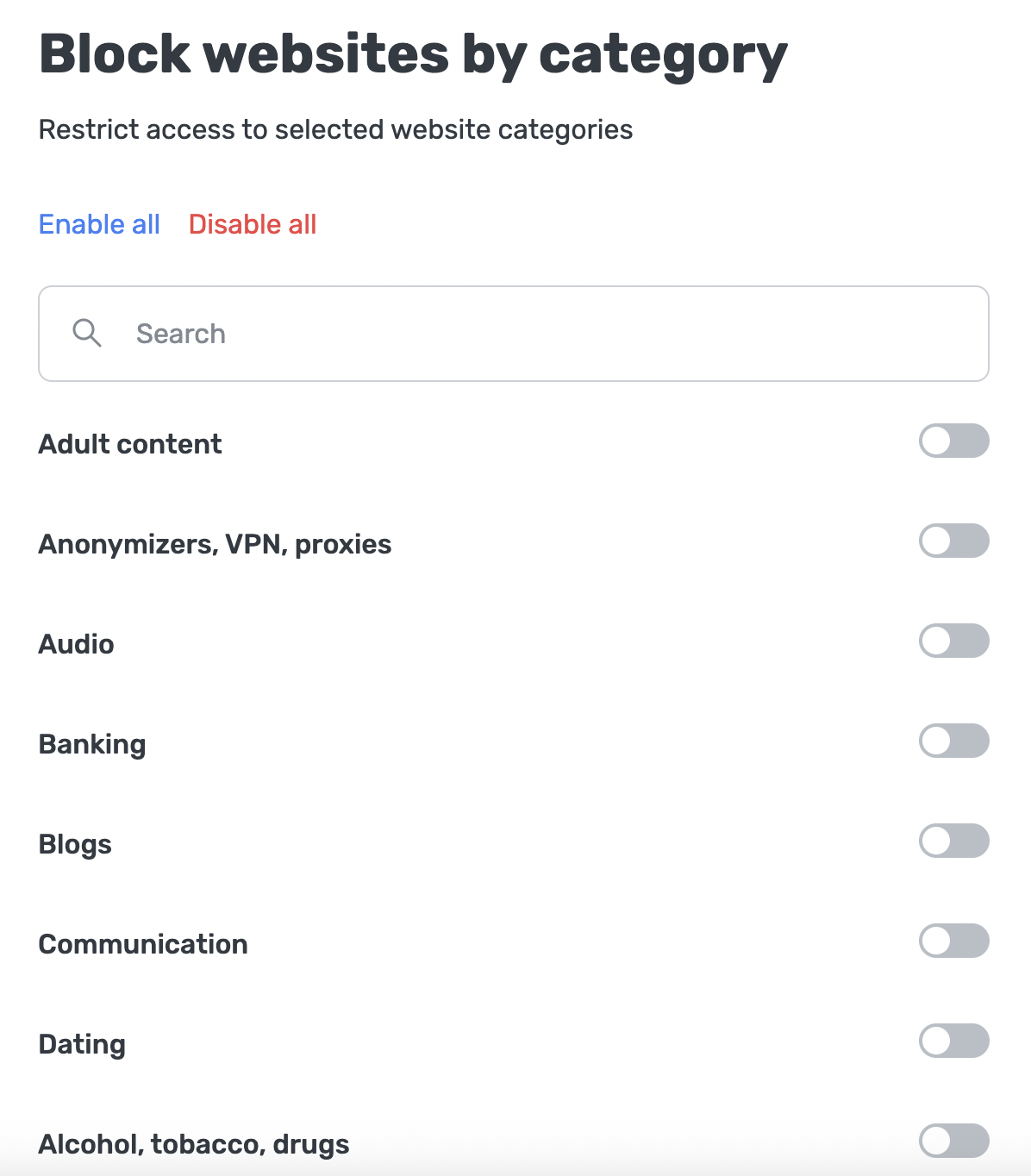
Lets you restrict access to specific categories of websites by choosing from more than 20 categories, including Adult content, Games, Banking, and Communication. For example, if you block sites that contain information about alcohol, tobacco, or drugs, the selected device will no longer be able to open pages that fall under those categories.
Pause schedule
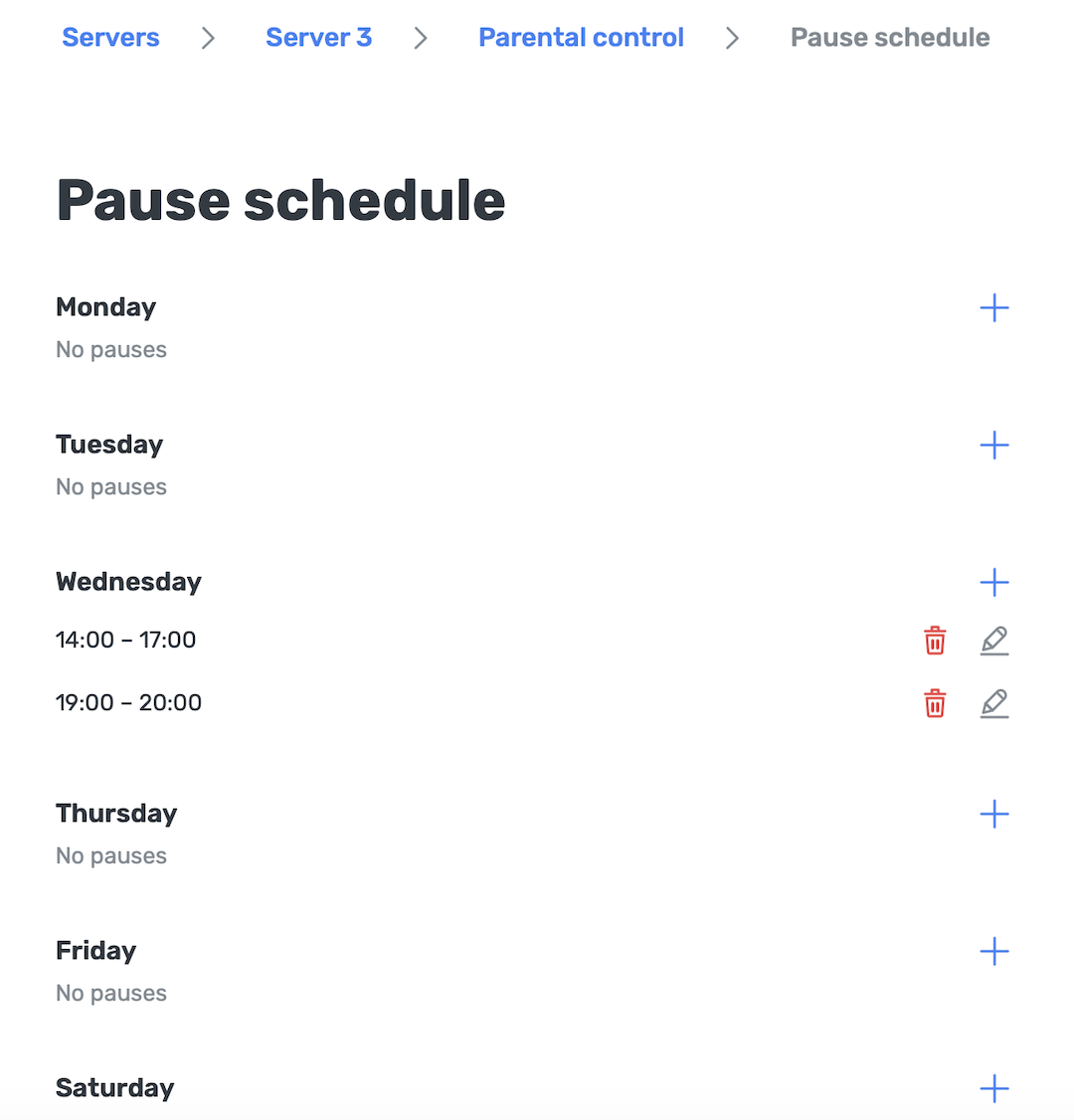
Temporarily suspends Parental control restrictions on selected days and during specified time intervals. You can add one or multiple pause intervals for each day.
For example, you can pause the restrictions on weekdays from 7:00 a.m. to 8:00 a.m. before school and from 6:00 p.m. to 8:00 p.m. in the evening. Outside of these intervals, Parental control applies as usual.
To set up a pause schedule:
- Go to Servers → select a server → Parental control → Pause schedule.
- Click the + button next to the desired day and set the interval in the Add pause dialog.
- Repeat to add more intervals to the same day.
- To change an existing interval, click Edit.
You can set multiple intervals for the same day. Intervals on the same day cannot overlap: if you try to create overlapping intervals, you will see a warning and will not be able to save the schedule.
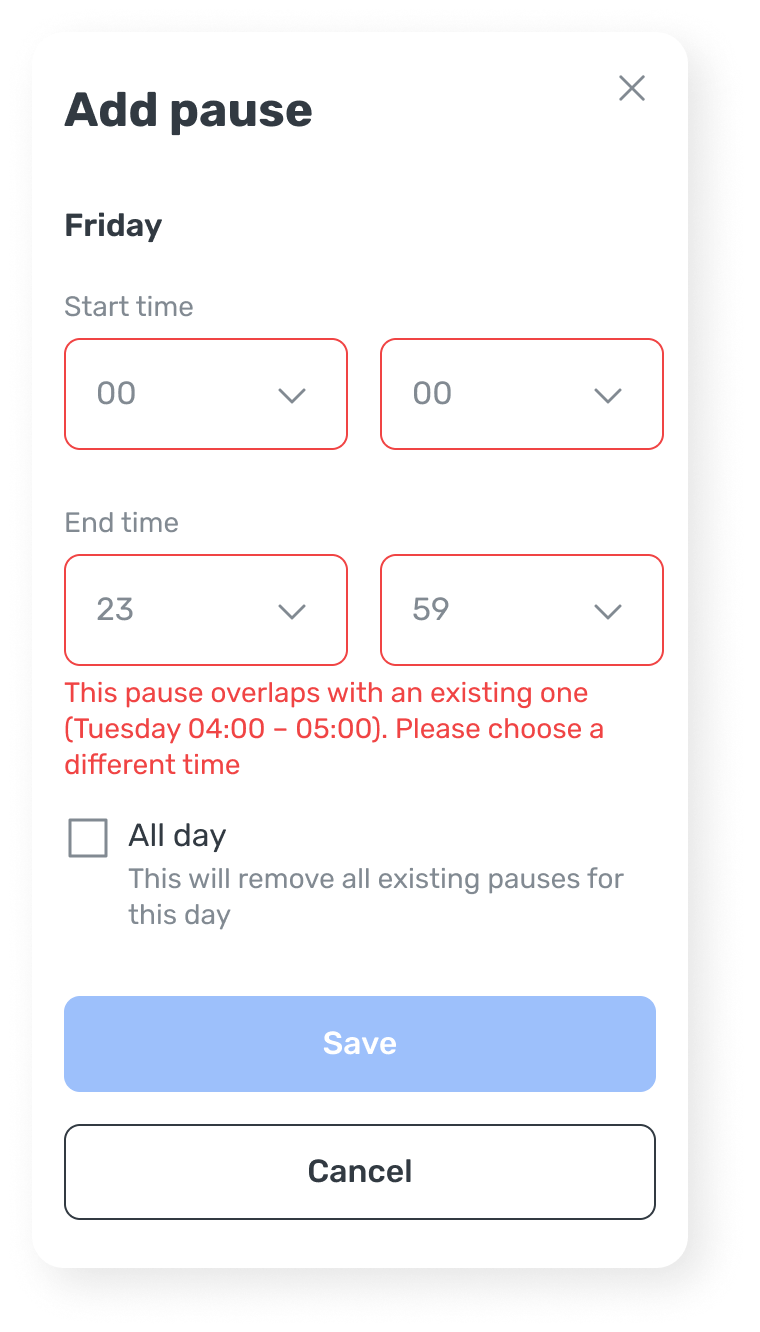
Selecting the All day checkbox pauses Parental control restrictions for the entire day, replacing any intervals you’ve set.
Pause intervals can also span midnight. For example, if you set a pause from 10 p.m. on Monday to 7 a.m. on Tuesday, the dashboard will display it as two intervals: Monday, 22:00–00:00, and Tuesday, 00:00–07:00.