AdGuard DNS v2.20: Custom blocklists and enhanced accessibility
AdGuard DNS v2.20 brings custom blocklists to give you more control over what gets filtered, while also enhancing accessibility so screen readers can navigate all settings pages correctly. Read on to see how to make the most of these updates.
Custom blocklists
Finally the most requested feature in AdGuard DNS history is here — meet custom blocklists! Previously, you could rely on built-in filter lists or create user rules. Now, you can add custom blocklists via URL and adjust filtering precisely to your preferences.
How to add a custom blocklist
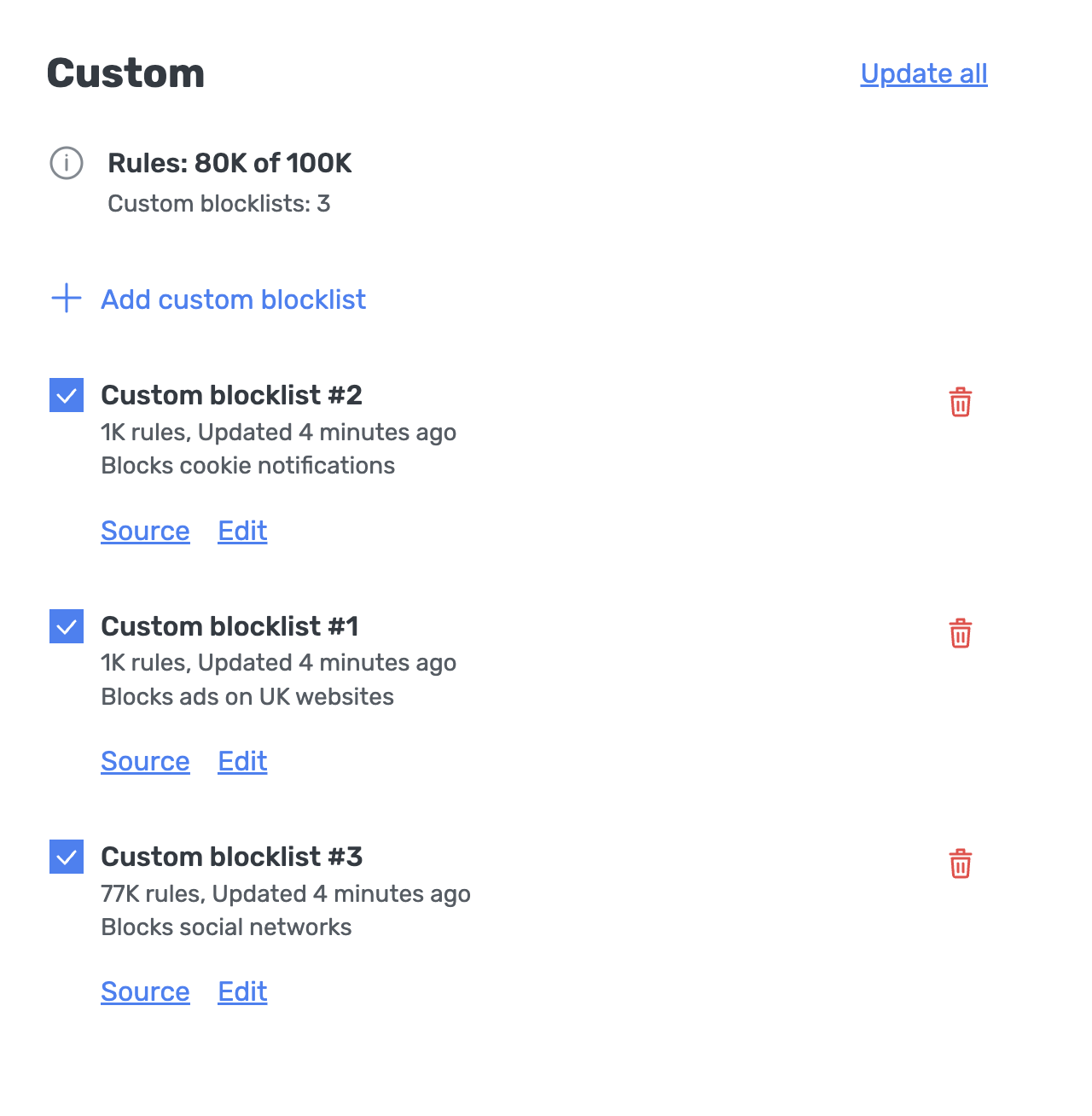
- Open your Dashboard and click Servers in the left-hand menu.
- Select My server → Blocklists.
- In the Custom section, click Add custom blocklist.
- Enter a name for the blocklist, its URL, and an optional description, then click Add.
Each subscription plan has a limit on the total number of filtering rules: Personal — 1K, Team — 5K, Enterprise — 100K. These limits are conservative for now, but we’re considering raising them.
This limitation is in place because blocklists are downloaded to DNS servers, and allowing unlimited blocklist sizes could lead to server overload, potentially causing performance issues.
Accessibility improvements
We’ve also made accessibility improvements across Private AdGuard DNS. All settings pages are now fully compatible with screen readers, making it easier for users with visual impairments to navigate and configure their DNS settings without errors.
These updates might not be flashy, but they’re important — and we want to hear what you think. Share your thoughts on GitHub or via social media.