AdGuard DNS-versioner
AdGuard DNS-app
Release
6. apr. 2026
This is a technical update aimed to increase the app stability and fix minor bugs.
13. mar. 2026
We strive to make AdGuard DNS as useful as possible for all environments, including large-scale ones like corporations and educational institutions. Version 1.3 brings a major step forward for organizations that need to mass deploy DNS protection on iOS and Android.
Single touch deployment
Deploying AdGuard DNS to devices through MDMs became much easier. The new MAC (Mobile App Configuration) parameter reduces the steps on the user’s side to a single action. After the DNS settings are delivered to the device, the user just needs to open the AdGuard DNS app once — the rest of the settings will apply automatically.
This helps system administrators minimize effort needed in mass deployment scenarios involving hundreds or even thousands of managed mobile devices, such as employee iPhones or iPads.
Flexible onboarding
Two additional MAC parameters let MDM administrators reduce onboarding steps on behalf of the user. One skips the EULA consent screen, while another controls whether crash reporting and app usage statistics are enabled. This allows for more flexibility in managing the DNS activation process on the device.
Network stability improvements
We’ve made multiple optimizations to make the AdGuard DNS app’s connection more reliable, drastically reducing the possibility of DNS interruptions. This includes the situation when the network changes from mobile to Wi-Fi and vice versa.
2. mar. 2026
This is a technical update aimed to increase the app stability and fix minor bugs.
13. feb. 2026
We keep improving AdGuard DNS to make it more powerful, secure, and convenient to use. Version 1.2 brings a major step forward for corporate users and its overall reliability on both iOS and Android.
Corporate-level protection on iOS
Starting with this version, AdGuard DNS for iOS supports DNS proxy, which enforces DNS policies on managed devices. This means that administrators can prevent users from changing DNS settings or bypassing protection — an important capability for organizations that need strict, policy-based control over Internet access.
Managed mobile devices (such as employee iPhones or iPads) can now stay fully compliant with company DNS rules, providing consistent filtering, protection against unwanted content, and improved privacy.
Launch at system startup on Android
Good news for Android users! AdGuard DNS now starts automatically when your device reboots, so protection remains active at all times — no need to open the app manually after restarting your phone. This improvement ensures smoother, more predictable performance and consistent DNS filtering.
A new look to match your style
You can now choose how the app looks and feels. App theme settings let you follow your system theme or pick between light and dark modes manually. Whether you prefer a bright interface or a darker look, you can make the app match your personal preference or environment.
Under-the-hood improvements
We’ve also made multiple stability and performance tweaks to make AdGuard DNS more reliable and responsive on both iOS and Android.
5. dec. 2025
We’ve barely launched the AdGuard DNS mobile app, and it’s already time for an update! Starting with version 1.1, the app now supports Managed App Configuration on both Android and iOS — a valuable new feature for organizations that need to manage app behavior consistently across multiple devices.
New possibilities with support for Managed App Configuration
Managed App Configuration is a solution that allows IT administrators to configure the app remotely, without requiring any manual setup from the end user. This means that companies, schools, and other organizations can deploy AdGuard DNS at scale with all settings pre-set, ensuring a consistent and secure rollout across thousands of devices at once.
More information about Managed App Configuration and instructions on how to set it up are available in our Knowledge base.
Here’s what you can do with the new feature:
Easy connection setup: Users still go through the initial connection creation step, but the Setup ID field is pre-filled and cannot be modified.
Protected settings: Once a managed configuration is applied, the DNS settings are locked to ensure consistency and security.
Flexible device naming: Administrators can assign device names ahead of time, or allow users to enter them manually.
More control for organizations
With centrally managed configuration, Team and Enterprise users can ensure that every device connected to their DNS server follows a standardized setup, reducing potential configuration mistakes and simplifying support. Policies such as controlled settings can be enforced automatically, and the app clearly indicates to users that it is managed by their organization.
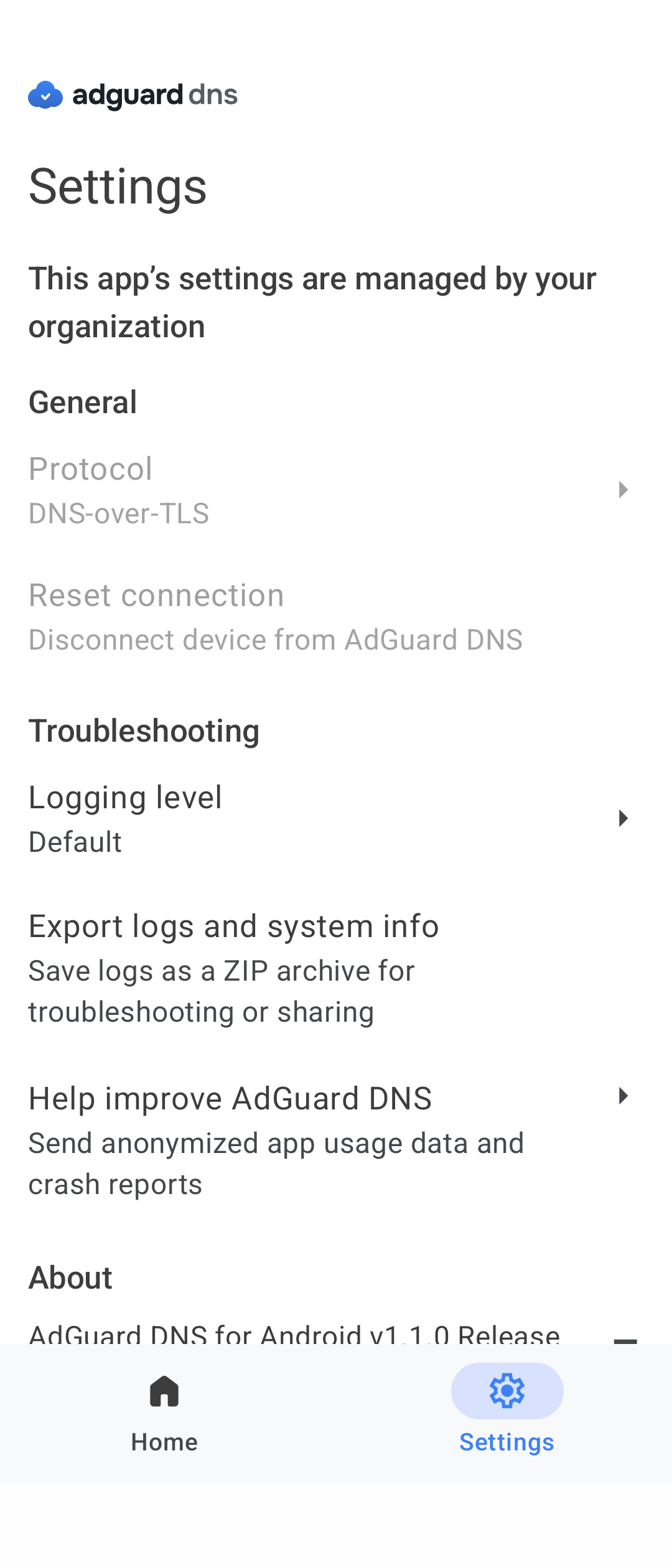
This centralized control makes deployment faster, more reliable, and more secure, giving companies peace of mind and a smoother experience for their employees.
Changelog
Fixes
IPv6 not working when DNS is connected
Keyboard not minimizing when tapping Where to find the Setup ID or QR code?
DNS not working in Native mode on iOS after restarting the connection
DNS disconnecting after closing the app on Android
18. nov. 2025
We’re excited to announce something simple, yet powerful: the AdGuard DNS mobile app is here!
Available for Android and iOS, this lightweight app makes it effortless to configure your mobile device to use AdGuard DNS servers. If you don’t need advanced AdGuard features but still want secure, privacy-friendly DNS, the AdGuard DNS mobile app is the simplest way to get it in just a few taps.
Who should try it
If you’re looking for DNS-level protection — blocking ads, trackers, and malicious websites — but don’t need the full range of features offered by AdGuard Ad Blocker or AdGuard VPN, this app is perfect for you.
If you ever want to go further, you can always explore AdGuard Ad Blocker and AdGuard VPN apps for advanced DNS protection and more configuration options.
What’s inside
Easy setup
Instead of installing extra apps or going through complicated instructions, you just enter a single setup ID, provided in the dashboard, and you’re done — the device will be tied to your account. Even non-technical users can set it up in seconds.
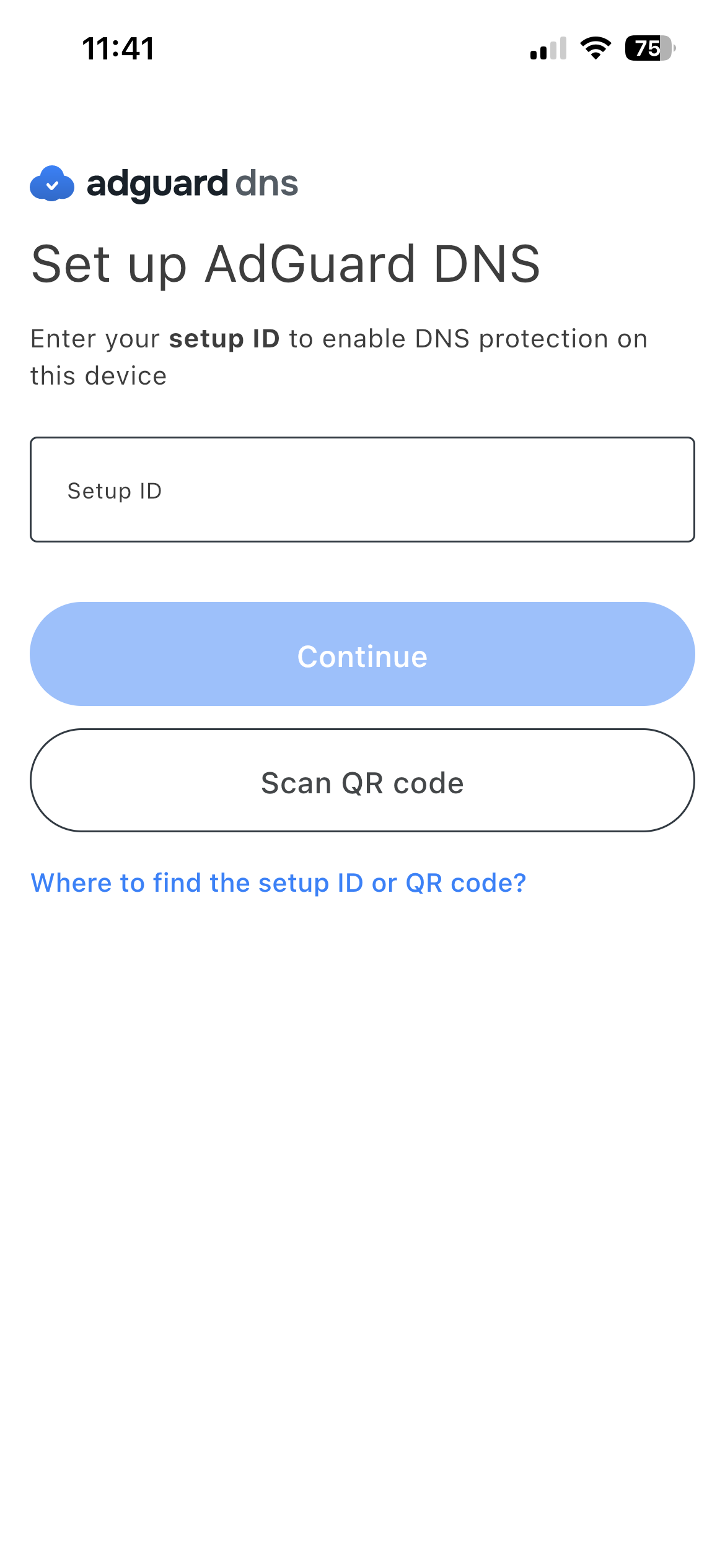
Don’t want to type anything? Just scan a QR code and the app connects the device to your account automatically. This makes it easy to set up protection on your family’s or team’s devices.
Choose your protocol
The AdGuard DNS app supports all major DNS protocols, letting you pick the best one for your device and connection type.
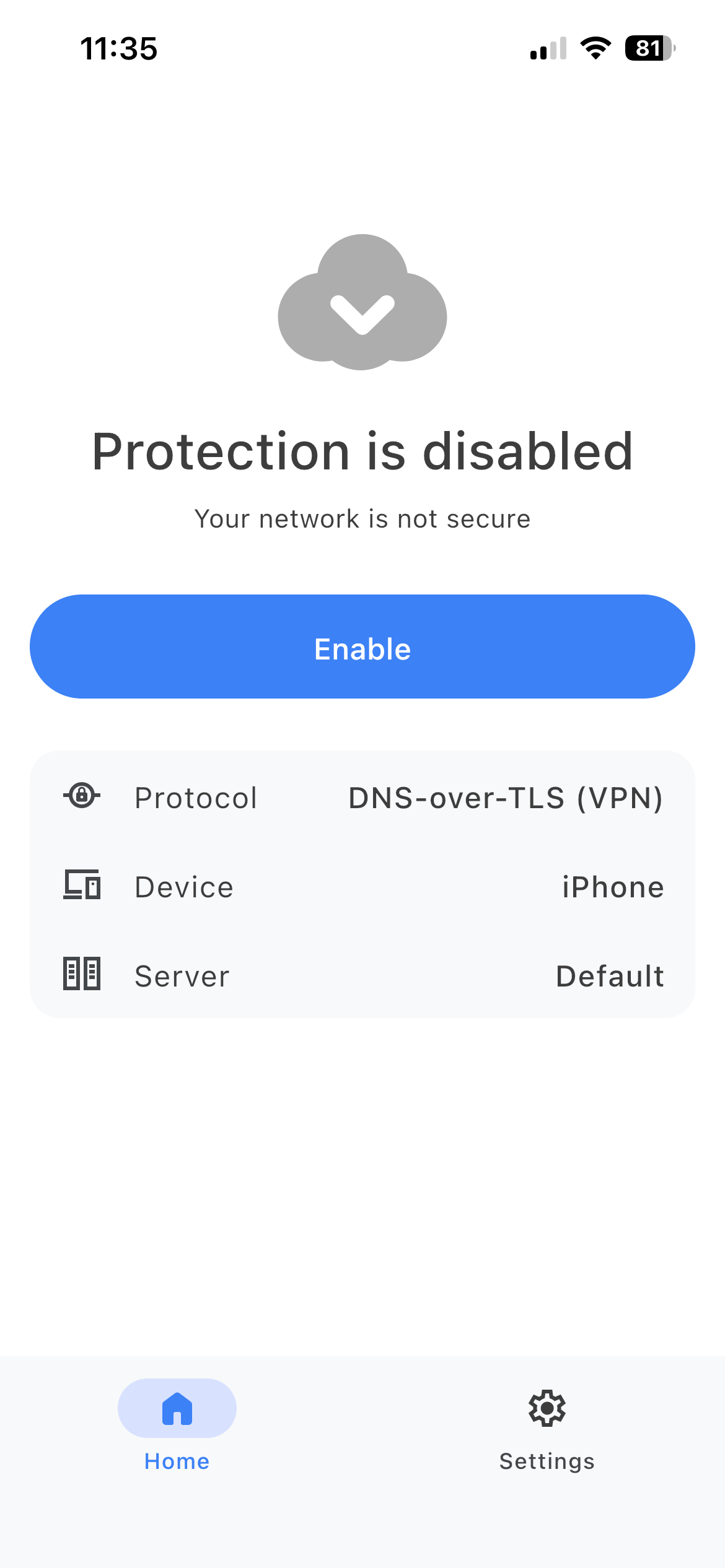
Both Android and iOS users can choose a VPN-based mode for more flexibility (DNS-over-HTTPS, DNS-over-TLS, or DNS-over-QUIC) — AdGuard DNS uses a VPN profile to route your requests to the selected DNS server. Exclusively on iOS, users have access to the native OS protocol (DNS-over-HTTPS or DNS-over-TLS).
To choose a protocol, go to Settings and tap Protocol in the General section. Select the one that suits you best.
Getting started
Ready to enable DNS protection? Here’s a guide to get you started:
Go to your AdGuard DNS dashboard at adguard-dns.io/dashboard.
Click Add new device on the Home tab.
Select your device type and give it a name, then click Next.
Expand the Use AdGuard Apps section.
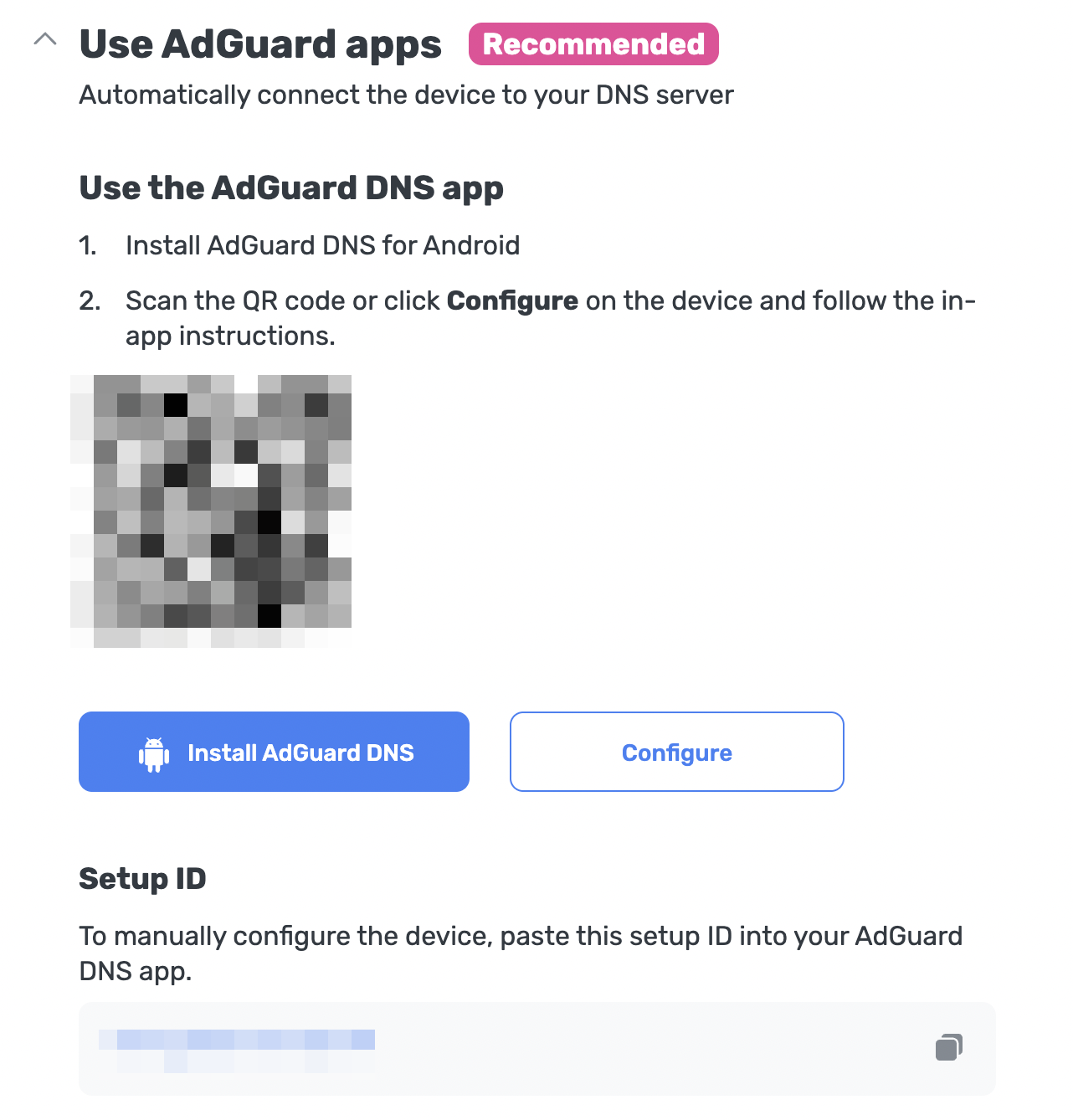
Under Use the AdGuard DNS app, choose one of these setup methods:
Click Configure if you’re on the device you want to protect.
Scan the QR code with the device you want to protect.
Copy your Setup ID and paste it directly into the app.
Follow the in-app instructions to complete the setup.
When using a VPN-based protocol, you still need to allow creating a VPN profile before being fully protected. To do this, go to the app’s home page, click Enable, and follow the in-app instructions.
iOS users who prefer native DNS still need to go to Settings → General → VPN & Device Management → DNS and enable AdGuard DNS.
What’s coming next
This is version 1.0, just the beginning. We already have a roadmap full of improvements and new features, so you can expect regular updates with enhancements. And yes, we’re also working on a desktop version!