DNS 암호화
AdGuard Home supports all modern DNS encryption protocols out-of-the-box:
AdGuard Home은 클라이언트 측과 서버 측 DNSCrypt를 모두 지원합니다. DNSCrypt 서버로 AdGuard Home을 구성하는 방법 알아보기.
이 가이드는 AdGuard Home에서 암호화된 DNS 서버를 설정하는 방법을 설명합니다.
서버 설치
DNS 트래픽을 보호하는 목적은 DNS 트래픽을 분석하거나 수정할 수 있는 제3자(예: ISP)로부터 트래픽을 보호하는 것입니다.
즉, 공용 전용 IP 주소가 있는 서버가 필요합니다. 저렴한 클라우드 서버 제공업체로는 DigitalOcean, Vultr, Linode 등이 많이 있습니다. 클라우드 서버 제공업체를 선택하고, 해당 업체에서 클라우드 서버를 생성한 다음, 서버에 AdGuard Home을 설치하기만 하면 됩니다.
도메인 이름 등록
우선, 도메인 이름이 필요합니다. 아직 등록해 본 적이 없다면, 다음은 등록에 도움이 될 간단한 안내입니다.
SSL 인증서 받기
DNS-over-HTTPS 및 DNS-over-TLS 모두 TLS 암호화를 기반으로 하므로, 이를 사용하려면 SSL 인증서가 필요합니다.
SSL 인증서는 브라우저 및 운영 체제에서 도메인용 SSL 인증서를 등록하는 데 신뢰할 수 있는 인증 기관(Certificate Authority, CA)에서 구매할 수 있습니다.
또는 인터넷 보안 연구 그룹(Internet Security Research Group, ISRG)에서 개발한 무료 인증 기관인 Let's Encrypt CA에서 무료로 인증서를 받을 수 있습니다.
이 가이드는 해당 기관으로부터 인증서를 받는 방법을 설명합니다.
CertBot 사용
Certbot은 Let's Encrypt에서 인증서를 가져오는 사용하기 쉬운 클라이언트입니다.
- certbot.eff.org으로 이동하여 위 항목 없음 소프트웨어 및 운영 체제를 선택하세요.
- 설치 설명서를 따르고 시작하기 섹션에 도달하기 전에 멈추세요.
DNS 챌린지를 사용하여 인증서 받기
도메인 이름을 보유하고 있다면, DNS 챌린지를 통해 인증서를 받아보세요.
다음 명령어를 실행하고 certbot의 설명서를 따르세요.
sudo certbot certonly --manual --preferred-challenges=dns --preferred-chain="ISRG Root X1"
결국, 두 개의 파일을 받게 됩니다.
fullchain.pem: PEM으로 인코딩된 SSL 인증서privkey.pem: PEM으로 인코딩된 개인 키
둘 다 AdGuard Home을 구성하는 데 필요합니다.
기존 인증서를 갱신할 때도 동일한 절차를 따라야 합니다.
Using Lego
There’s also a really nice and easy-to-use alternative to CertBot called LEGO.
- Install it using an appropriate method.
- Choose your DNS provider from the list and follow the instructions to obtain a certificate.
Also, here’s a simple script that you can use to automate certificates generation and renewal.
Configure AdGuard Home
Open AdGuard Home web interface and go to Settings.
Choose the Encryption section.
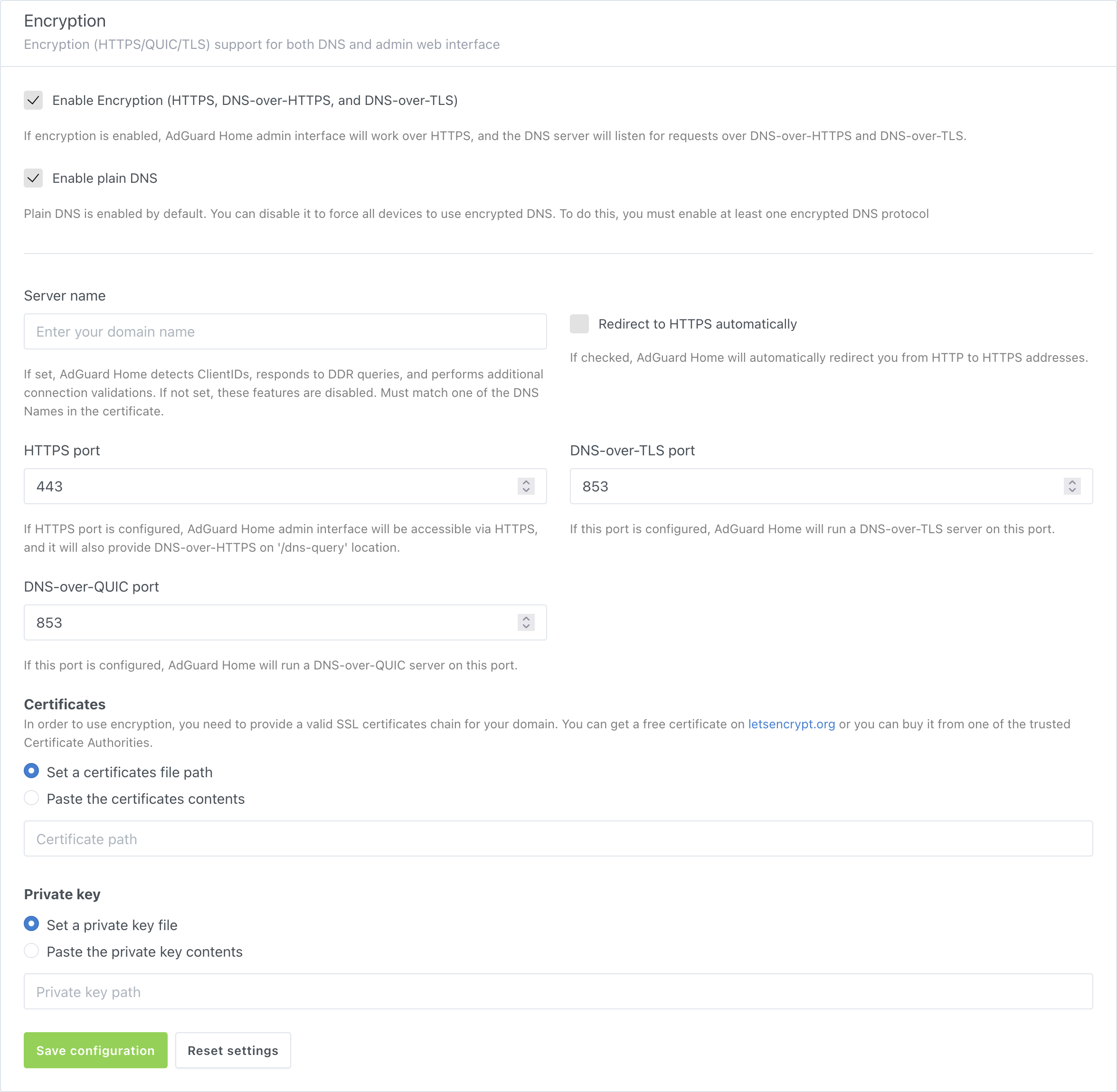
Copy/paste the contents of the
fullchain.pemfile to input the field under Certificates or specify path to the file.Copy/paste the contents of the
privkey.pemfile to input the field under Private key or specify path to the file.Enter your domain name to Server name.
Get the successful validation messages and click Save settings.
AdGuard Home will automatically reload certificates and/or private keys specified by file path when they change. A reload may also be triggered by a SIGHUP signal.
Using with reverse proxy
We already have a guide on configuring a reverse proxy server for accessing AdGuard Home web UI.
AdGuard Home is able to restrict DNS-over-HTTPS requests which came from the proxy server not included into "trusted" list. By default, it’s configured to accept requests from IPv4 and IPv6 loopback addresses.
To enable AdGuard Home to handle DNS-over-HTTPS requests from a reverse proxy server, set the trusted_proxies setting in AdGuardHome.yaml to the IP address of the proxy server. If you have several proxy servers, you can use a CIDR instead of a simple IP address.
Nginx reverse proxy
To configure AdGuard Home for accepting requests from Nginx reverse proxy server, make sure that the reverse proxy server itself is configured correctly.
The nginx.conf file should contain the appropriate directives to add the supported forwarding headers to the request which are X-Real-IP or X-Forwarded-For. This may be achieved with ngx_http_realip_module. In short, the module takes real IP address of the client and writes it to the HTTP request’s header. The AdGuard Home will receive and interpret the value of this header as real client’s address. The address of the reverse proxy server will be received too and also checked against the "trusted" proxies list.
Another header you might want to proxy is the Host header, which is required to make AdGuard Home recognize requests from clients that have a ClientID in their hostnames.
For example, if the configuration of the reverse proxy server contains the following directives:
location /dns-query {
  # …
  proxy_set_header Host $host;
  proxy_set_header X-Real-IP '1.2.3.4';
  proxy_bind 192.168.1.2;
  # …
}
AdGuard Home will get the 192.168.1.2 as the address of your proxy server and check it against the trusted_proxies. The 1.2.3.4 will be controlled by access settings in case the proxy is "trusted".
Cloudflare CDN
The Cloudflare’s content delivery network acts as the reverse proxy appending its own headers to the forwarded requests, which are CF-Connecting-IP and True-Client-IP. These are also supported by AdGuard Home so the reverse proxy servers’ addresses may be inserted into trusted_proxies list directly. See the official Cloudflare’s reference on restoring the original visitor’s IP.
Other Headers
Other HTTP headers may be supported by AdGuard Home in the future. However, any headers-related feature requests should first be tried to be resolved by configuring the reverse proxy itself.
For example, to modify the HTTP Strict Transport Security mechanism to include the experimental preload directive, something like the following piece of configuration might be used:
location /dns-query {
  # …
  add_header Strict-Transport-Security "max-age=31536000; includeSubDomains; preload" always;
  # …
}
Configuring devices
Android
- Android 9 and above supports
DNS-over-TLSnatively. To configure it, go to Settings → Network & internet → Advanced → Private DNS and enter your domain name there. - AdGuard for Android supports
DNS-over-HTTPS,DNS-over-TLS,DNSCryptandDNS-over-QUIC. - Intra adds
DNS-over-HTTPSsupport to Android.
iOS
- iOS 14 and above support
DNS-over-TLSandDNS-over-HTTPSnatively via configuration profiles. In order to make things easier, AdGuard Home can generate these configuration profiles for you. Just head to Setup Guide → DNS Privacy and scroll to iOS. - AdGuard for iOS supports
DNS-over-HTTPS,DNS-over-TLS,DNSCryptandDNS-over-QUIC. - DNSCloak supports
DNS-over-HTTPSbut in order to configure it to use your own server, you’ll need to generate a DNS Stamp for it.
Windows
- Windows 10 Build 19628 and higher support
DNS-over-HTTPSnatively. - AdGuard for Windows supports
DNS-over-HTTPS,DNS-over-TLS,DNSCryptandDNS-over-QUIC.
macOS
- macOS Big Sur and higher support
DNS-over-TLSandDNS-over-HTTPSnatively via configuration profiles. In order to make things easier, AdGuard Home can generate these configuration profiles for you. Just head to Setup Guide → DNS Privacy and scroll to iOS.
Other implementations
- AdGuard Home itself can be a secure DNS client on any platform.
- dnsproxy supports all known secure DNS protocols.
- dnscrypt-proxy supports
DNS-over-HTTPS. - Mozilla Firefox supports
DNS-over-HTTPS.
Configuring DNSCrypt
AdGuard Home is able to work as a DNSCrypt server. However, this feature is only available via configuration file, and can’t be set up using the Web UI. This guide explains how to do this.
Generating a configuration file
Here is how to generate a DNSCrypt configuration file and point AdGuard Home to it:
Make sure that your TLS settings are valid and encryption is enabled.
Get the latest version of the
dnscryptutility for your system. Extract the archive and navigate to the resulting directory.On Unix, using a POSIX-compatible shell:
(Here and below,
linux-amd64is used as an example. Make sure to download and use the one for your platform.)Extract the files:
tar -f ./dnscrypt-linux-amd64-v2.2.3.tar.gz -v -x -zOutput example:
linux-amd64/
linux-amd64/README.md
linux-amd64/LICENSE
linux-amd64/dnscrypt
Navigate to the extracted directory:
cd ./linux-amd64/Generate the configuration file:
./dnscrypt generate --provider-name '2.dnscrypt-cert.example.org' --out ./dnscrypt.yamlOutput example:
```none
2022/01/02 12:34:56 [info] Generating configuration for 2.dnscrypt-cert.example.org
2022/02/02 12:34:56 [info] Configuration has been written to ./dnscrypt.yaml
2022/02/02 12:34:56 [info] Go to https://dnscrypt.info/stamps to generate an SDNS stamp
2022/02/02 12:34:56 [info] You can run a DNSCrypt server using the following command:
2022/02/02 12:34:56 [info] dnscrypt server -c ./dnscrypt.yaml -f 8.8.8.8
```
On Windows, using PowerShell:
(Here and below,
windows-amd64is used as an example. Make sure to download and use the one for your CPU architecture.)Extract the files:
Expand-Archive -Path .\dnscrypt-windows-amd64-v2.2.3.zipNavigate to the extracted directory:
Set-Location -Path .\dnscrypt-windows-amd64-v2.2.3\windows-amd64\Generate the configuration file:
.\dnscrypt.exe generate --provider-name '2.dnscrypt-cert.example.org' --out .\dnscrypt.yamlOutput example:
2022/01/02 12:34:56 [info] Generating configuration for 2.dnscrypt-cert.example.org
2022/02/02 12:34:56 [info] Configuration has been written to .\dnscrypt.yaml
2022/02/02 12:34:56 [info] Go to https://dnscrypt.info/stamps to generate an SDNS stamp
2022/02/02 12:34:56 [info] You can run a DNSCrypt server using the following command:
2022/02/02 12:34:56 [info] dnscrypt server -c .\dnscrypt.yaml -f 8.8.8.8
Where
example.orgis the name of your host and./dnscrypt.yamlis the name of the configuration output file.You may add the path to the binary into your
PATH/$env:PATH.In the configuration file (typically
AdGuardHome.yaml), add the following lines:'tls':
# N.B. The encryption must be enabled.
'enabled': true
# …
'port_dnscrypt': 5443
'dnscrypt_config_file': './dnscrypt.yaml'Where
5443is the port for your DNSCrypt server and./dnscrypt.yamlis the name of the configuration file generated in step 2.ImportantStop AdGuard Home before changing the configuration file.
tipOn Windows, it is recommended to use the full path to the configuration file. For example,
C:\Users\Me\Files\dnscrypt.yaml.
Generating a DNSCrypt stamp
Here is how to generate a DNSCrypt stamp and check your installation:
Enter the data from your DNSCrypt configuration file. The Provider public key is the value of the
public_keyfield in your DNSCrypt configuration file.noteEnter the host with your custom port.
Now you have a stamp that looks something like this:
sdns://AQcAAAAAAAAADTEyNy4wLjAuMTo0NDMg8R3bzEgX5UOEX93Uy4gYSbZCJvPeOXYlZp2HuRm8T7AbMi5kbnNjcnlwdC1jZXJ0LmV4YW1wbGUub3JnCheck your installation by running:
./dnscrypt lookup-stamp \
    --domain 'example.com' \
    --stamp 'sdns://AQcAAAAAAAAADTEyNy4wLjAuMTo0NDMg8R3bzEgX5UOEX93Uy4gYSbZCJvPeOXYlZp2HuRm8T7AbMi5kbnNjcnlwdC1jZXJ0LmV4YW1wbGUub3Jn' \
    --type 'a'
Or, on Windows:
.\dnscrypt.exe lookup-stamp `
    --domain 'example.com' `
    --stamp 'sdns://AQcAAAAAAAAADTEyNy4wLjAuMTo0NDMg8R3bzEgX5UOEX93Uy4gYSbZCJvPeOXYlZp2HuRm8T7AbMi5kbnNjcnlwdC1jZXJ0LmV4YW1wbGUub3Jn' `
    --type 'a'
Where
example.comis the domain name to lookup.
Configuring devices to use DNSCrypt
All platforms
dnscrypt-proxy(reference implementation). DNSCrypt-Proxy is a command-line proxy for Linux, BSD, Windows, macOS, Android, and more.
Android
- AdGuard for Android supports DNSCrypt.
iOS
- AdGuard for iOS supports DNSCrypt.
- DNSCloak uses
dnscrypt-proxyinternally and supports DNSCrypt.
Windows
- AdGuard for Windows supports DNSCrypt.
- Simple DNSCrypt is a simple management tool to configure and run
dnscrypt-proxyon Windows.
See the DNSCrypt website and DNS privacy project’s list for more.