Server setup ID
What is a server setup ID?
If you want to connect a device to a specific server and don’t want to manually create each device in the Dashboard on the website, you can use the server setup ID. Simply take the ID and use it to connect via the AdGuard DNS app. This way, the “device” will be automatically created upon connection.
How to connect using server setup ID
If you’re configuring AdGuard on multiple managed devices, consider using managed app configuration to automatically provide the server setup ID to each app. Learn more.
- Go to Dashboard → Servers.
- Select the desired server.
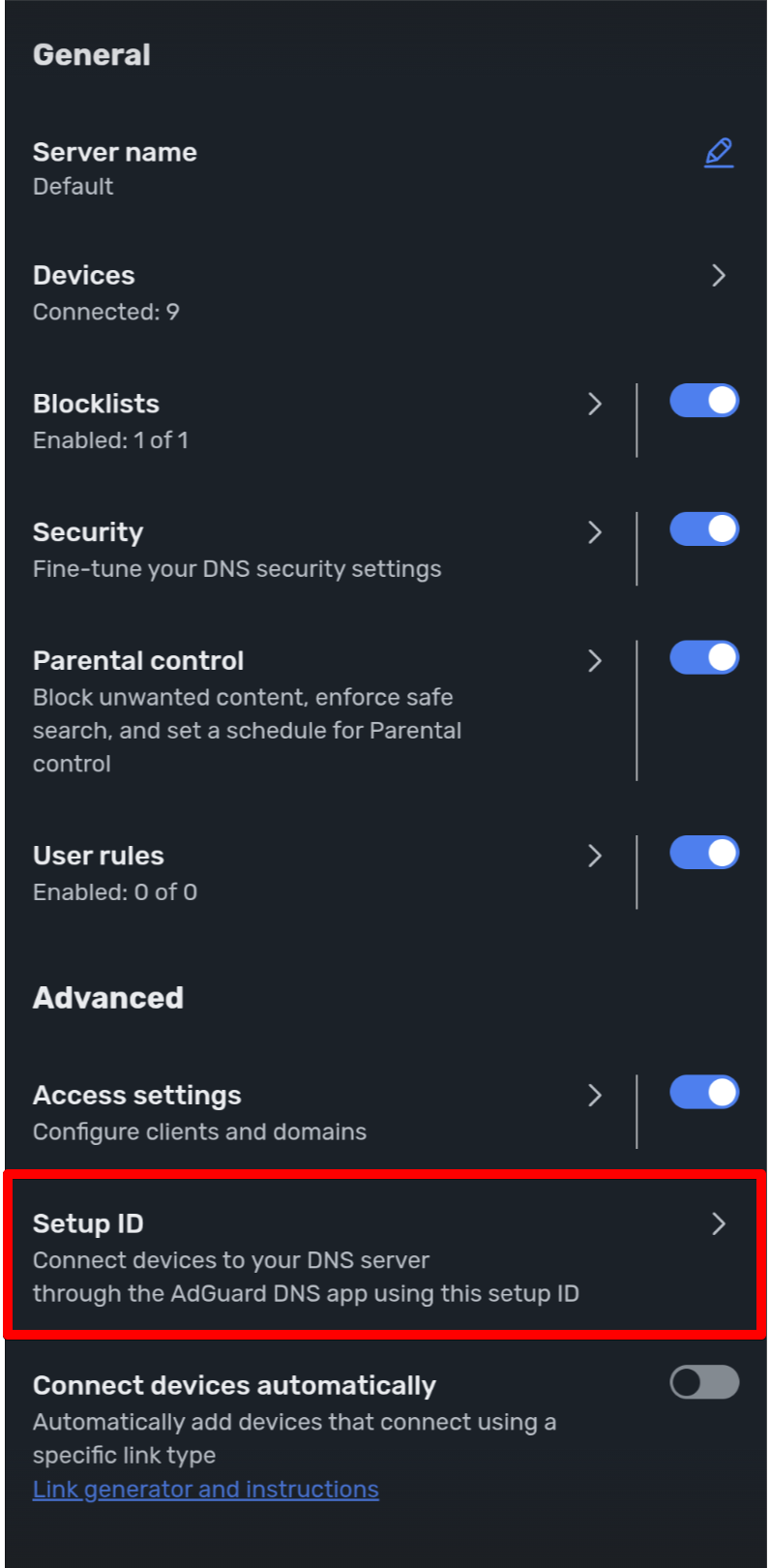
- Scroll down and click Setup ID.
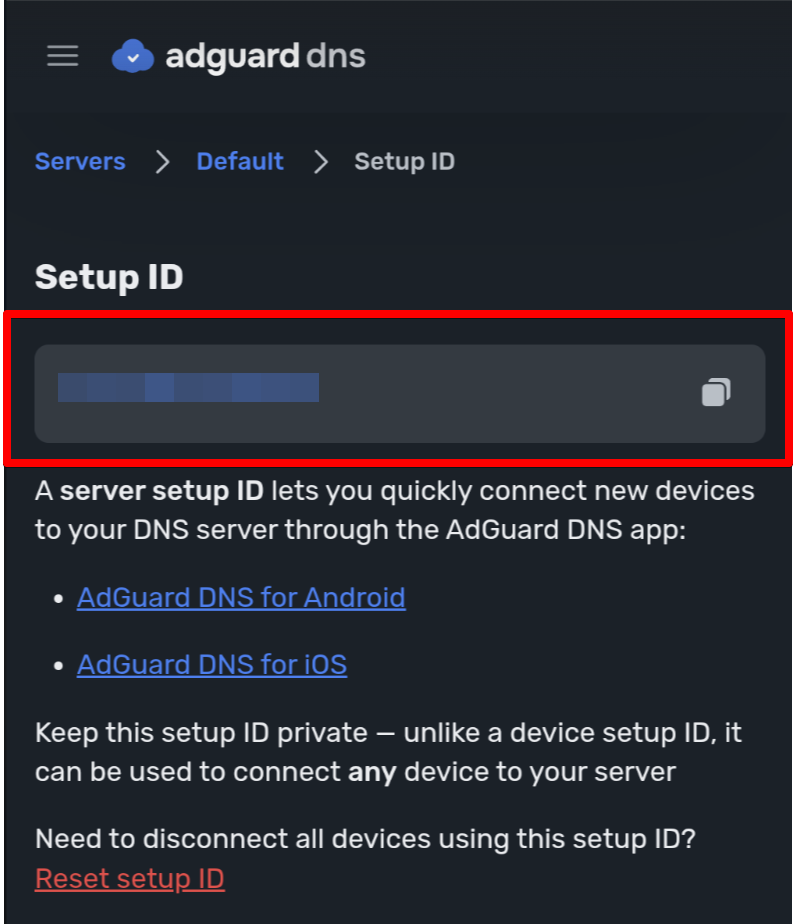
- Copy the setup ID.
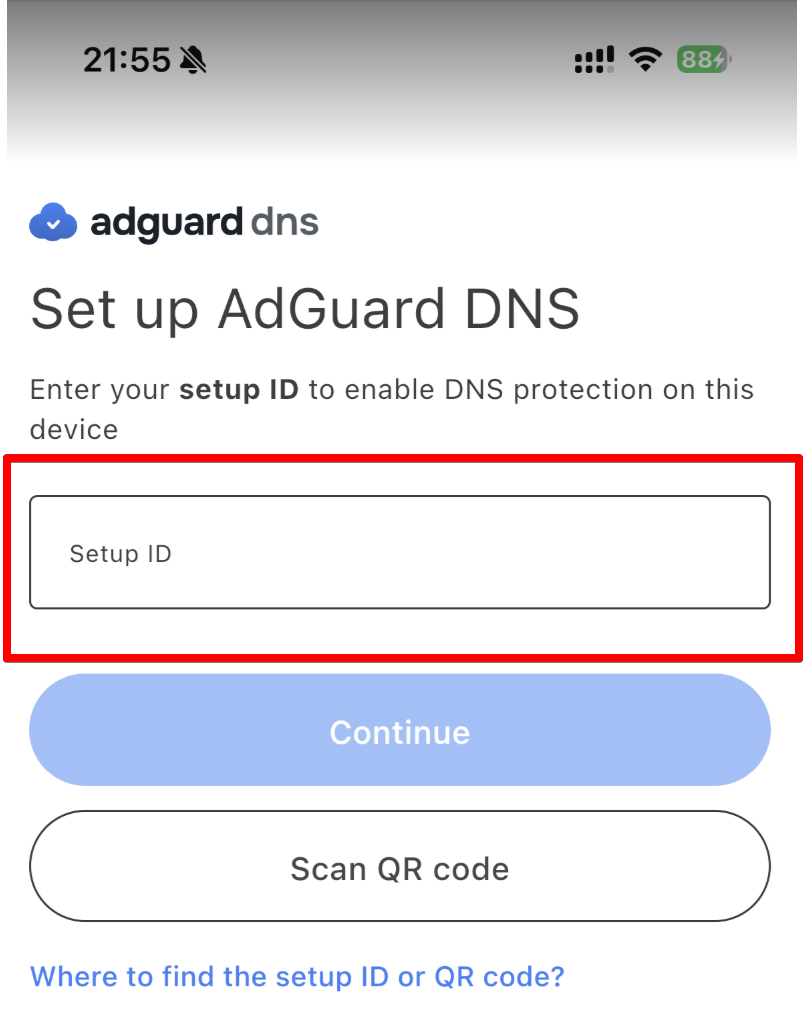
- Open the app and paste the setup ID.
- Choose a device name.
- Click Connect.
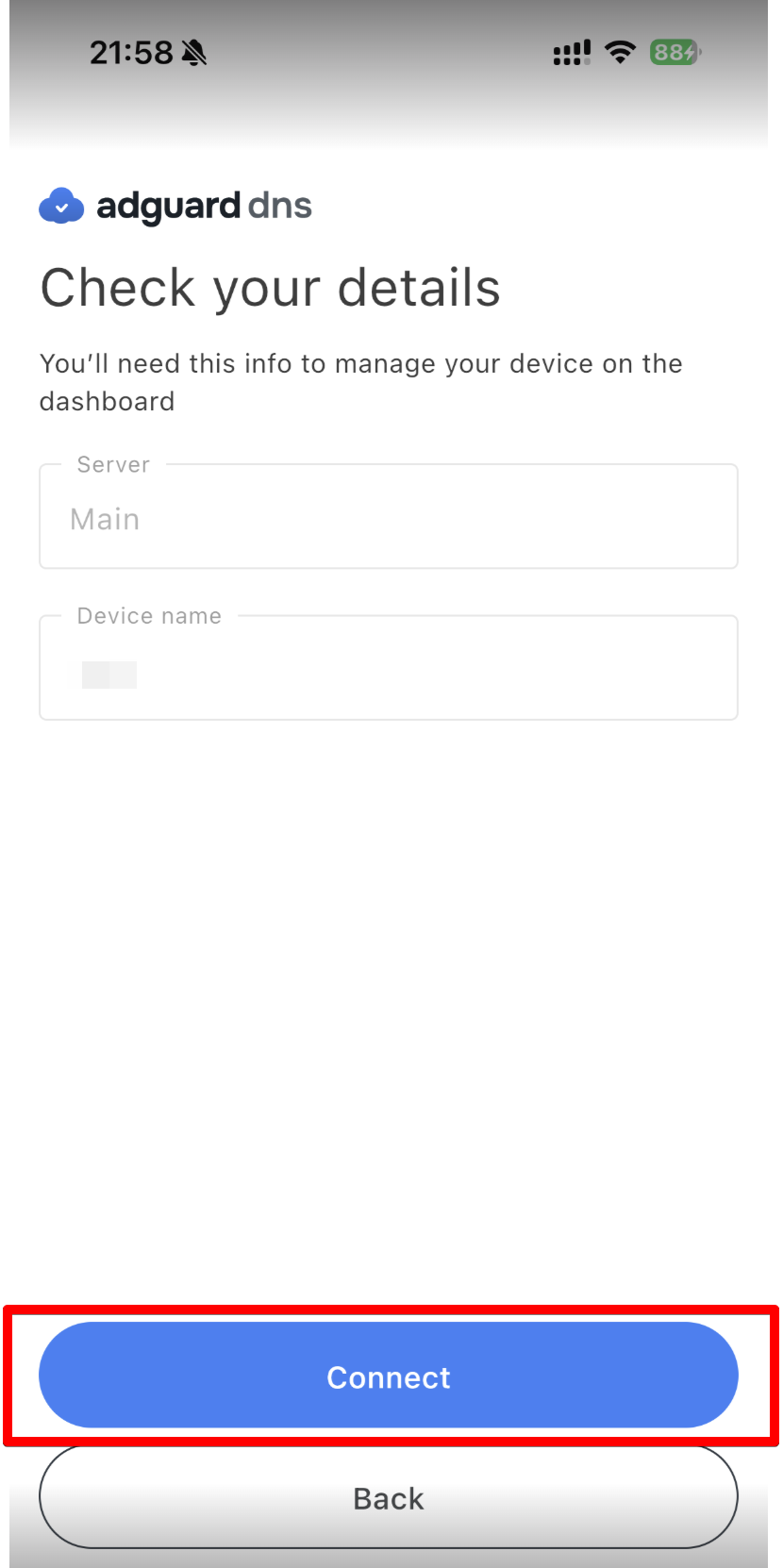
Done! You are now connected, and the device will be automatically created in the Dashboard.
Resetting the server setup ID
If you want to disconnect all devices using a specific setup ID, you can reset it. To do so, follow these steps:
- Go to Dashboard → Servers and select the desired server.
- Scroll down and click Setup ID.
- Click Reset setup ID.
After resetting, the Setup ID will change, and all devices that were using the old ID will be disconnected from the server.