Automatic connection
Why it is useful
Not everyone feels at ease adding devices through the Dashboard. For instance, if you’re a system administrator setting up multiple corporate devices simultaneously, you’ll want to minimize manual tasks as much as possible.
You can create a connection link and use it in the device settings. Your device will be detected and automatically connected to the server.
How to configure automatic connection
- Open the Dashboard and select the required server.
- Go to Advanced.
- Enable the option to connect devices automatically.
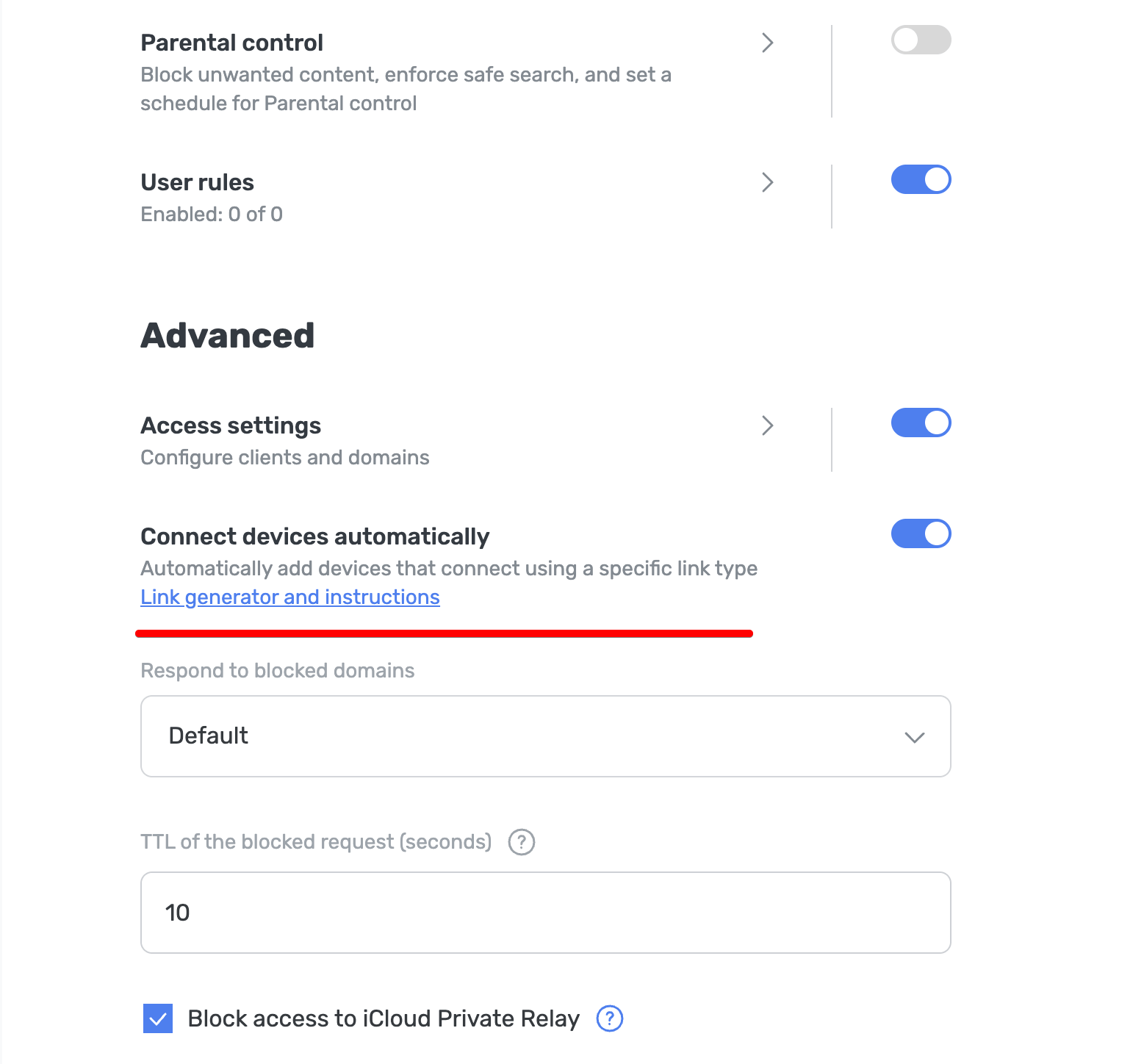
Now you can automatically connect your device to the server by creating a special address that includes the device name, device type, and current server ID. Let’s explore what these addresses look like and the rules for creating them.
Examples of automatic connection addresses
tls://adr-{Your_Server_ID}-AdGuard-Test-Device.d.adguard-dns.com— this will automatically create anAndroiddevice with theDNS-over-TLSprotocol namedAdGuard Test Devicehttps://d.adguard-dns.com/dns-query/win-{Your_Server_ID}-John-Doe— this will automatically create aWindowsdevice with theDNS-over-HTTPSprotocol namedJohn Doequic://ios-73f78a1d-Mary-Sue.d.adguard-dns.com— this will automatically create aiOSdevice with theDNS-over-QUICprotocol namedMary Sue
Naming conventions
When creating devices manually, please note that there are restrictions related to name length, characters, spaces, and hyphens.
Name length: 50 characters maximum. Characters beyond this limit are ignored.
Permitted characters: English letters, numbers, and hyphens -. Other characters are ignored.
Spaces and hyphens: Use a hyphen for a space and a double hyphen ( --) for a hyphen.
Device type: Use the following abbreviations:
- Windows —
win - macOS —
mac - Android —
adr - iOS —
ios - Linux —
lnx - Router —
rtr - Smart TV —
stv - Game console —
gam - Other —
otr
Link generator
We’ve added a template that generates a link for the specific device type and protocol.
- Go to Servers → Server settings → Devices → Connect devices automatically and click Link generator and instructions.
- Select the protocol you want to use as well as the device name and the device type.
- Click Generate link.
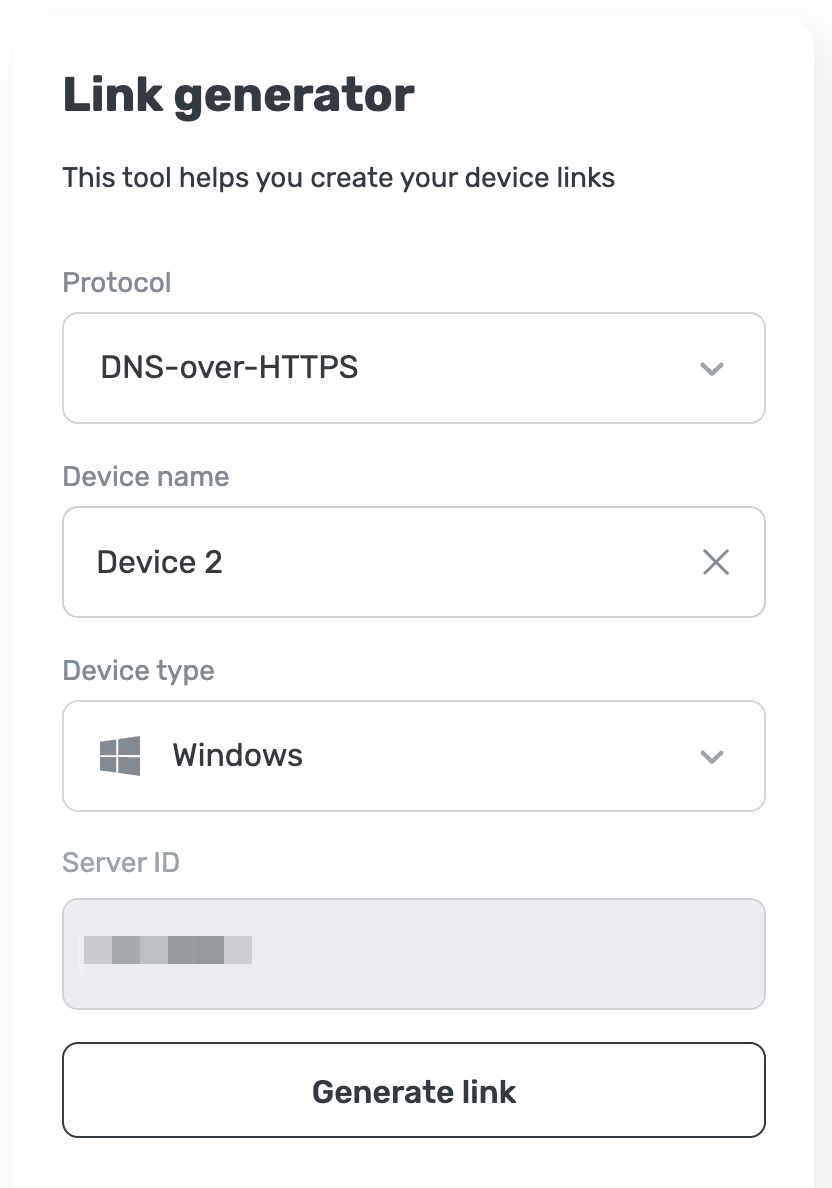
- You have successfully generated the link, now copy the server address and use it in one of the AdGuard apps